---
title: "Adding a New Document"
slug: "adding-a-new-document"
description: "Add new documents to Xyicon modules like Portfolios, Spaces, Catalogs, Xyicons, and Boundaries. Learn how to attach documents to objects, supporting various file types."
updated: 2025-03-20T20:08:11Z
published: 2025-03-20T20:08:11Z
canonical: "support.xyicon.com/adding-a-new-document"
---
> ## Documentation Index
> Fetch the complete documentation index at: https://support.xyicon.com/llms.txt
> Use this file to discover all available pages before exploring further.
# Adding a New Document
Xyicon Users
Use this article to learn how to add new documents to **Portfolios, Spaces, Catalogs, Xyicons,** and **Boundaries**.
Xyicon enables users to attach documents to any object created within a module. The attached documents are displayed as thumbnails or application icons within the **Documents** section on the **Details** **( )** tab of the selected object. The **Documents** section appears under the **Details** **( )** tab in the side panel for every module except the **Reports** module.
## Before you begin
- Ensure you have created at least one object within the **Portfolio, Space, Catalog, Xyicon,** or **Boundary** modules to add a document.
---
## Adding Documents Using Webcam
1. Go to the desired module from the module menu and click on an object from the list. This can be a portfolio, space, catalog, xyicon, or boundary object.
2. Scroll down to find the **Documents** section from the side panel **Details****( )** tab.
3. Click the camera icon to take a picture using your webcam or any connected camera and add it as a document.
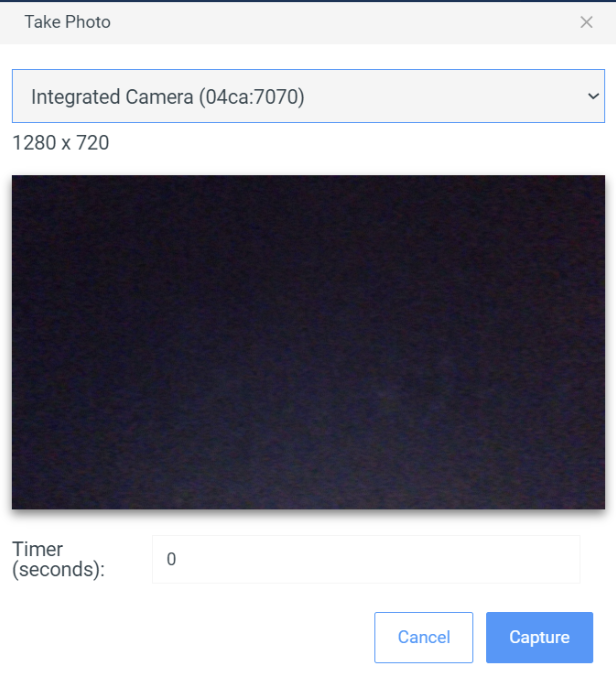
4. In the **Take Photo** window select the desired camera from the dropdown menu.
5. Click **Capture** to take the picture or set a timer by entering the desired time (in seconds) in the **Timer** field to capture the photo automatically.
6. Click **Upload** to upload the photo.
7. Click **Cancel** to discard the current picture. Repeat the steps above to retake and upload a new picture.
## Adding Documents from your Device
1. Go to the desired module from the module menu and click on an object from the list. This can be a portfolio, space, catalog, xyicon, or boundary object.
2. Scroll down to find the **Documents** section from the side panel **Details****( )** tab.
3. Click the **( )** icon to add a new document. Select the documents from your device to add them.
The supported file types are listed below.
| PNG |
| --- |
| JPEG |
| TIFF |
| GIF |
| BMP |
| SVG |
| PDF |
| HTML |
| XLSX |
| XLS |
| CSV |
| DOC |
| DOCX |
| TXT |
| PPT |
| PPTX |
| TAR |
| SH |
| MOV |
4. The video below shows how to upload a document to an object in the **Catalog** model.[Video](https://cdn.document360.io/d689d9b5-af1b-4ba8-a27d-d8cad72c9618/Images/Documentation/Uploading%20Document.mkv)