---
title: "Captions Panel"
slug: "captions-panel"
description: "Manage and customize captions in Xyicon's Space Editor. Enable, format, and style captions for xyicons and boundaries, adjusting field-level settings with ease!"
updated: 2025-04-21T06:36:52Z
published: 2025-04-21T06:36:52Z
canonical: "support.xyicon.com/captions-panel"
---
> ## Documentation Index
> Fetch the complete documentation index at: https://support.xyicon.com/llms.txt
> Use this file to discover all available pages before exploring further.
# Captions Panel
Xyicon Users
**Captions** are the labels that appear next to each object in your **Space Editor**. **Captions** are only applicable for xyicons and boundaries. The caption values are provided by the object fields of xyicons or boundaries.
## Before you begin
Make sure your **Xyicon User** has the necessary permissions to access the **Space Editor**. User Permissions are managed by your organization's **Xyicon Administrator**.
---
## Enable Captions in your Space Editor
Click the **Captions** button **( )** on the **View Bar** of the Space Editor to access the **Captions Panel**.

The **C****aptions Panel** shows all fields accessible for the xyicon and boundary objects along with the **Caption Settings**. By selecting the checkboxes next to the fields in the panel, you can choose which fields should be displayed as captions. You can change the caption's default formatting by modifying the *font color*, *font background color,* *font size, font style, and font family*.
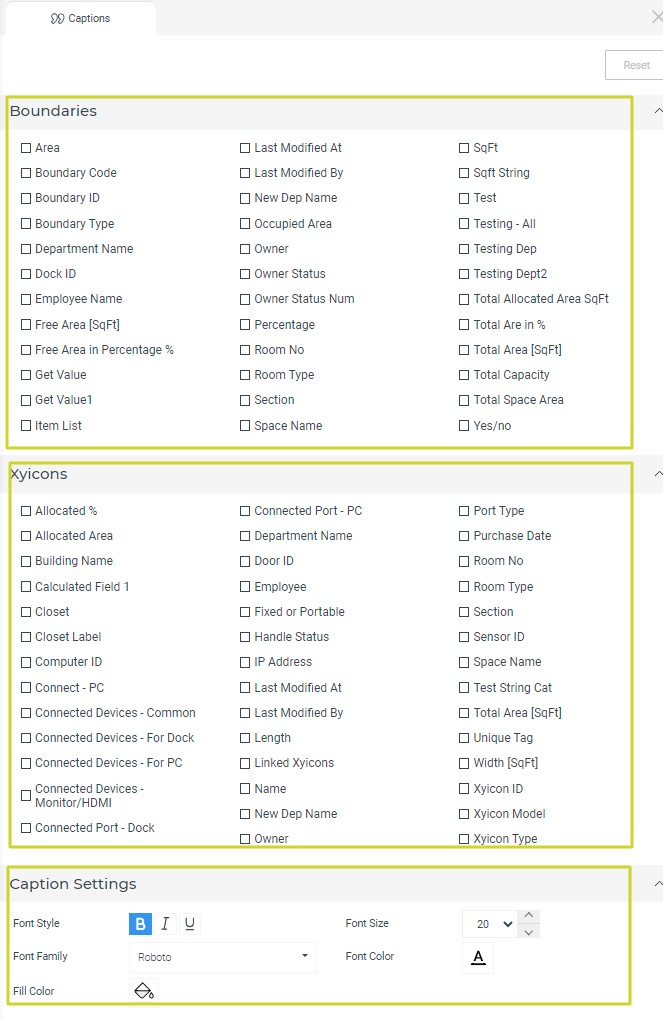
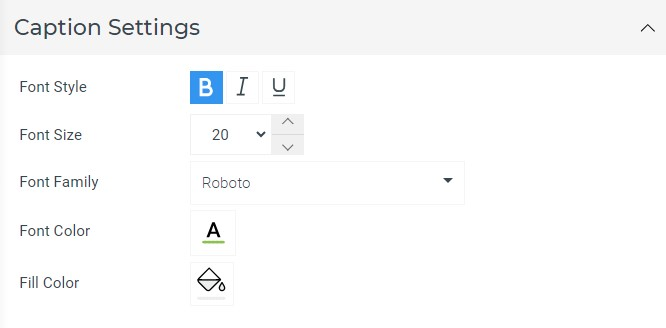
There are properties that can be set under the **Caption Settings** section as depicted below.
---
## Caption property details
**Font Style**
A user is able to apply the following font styles:
- Bold
- Italic
- Underline
When a particular font style is selected it will be in selected mode where the color changes to primary blue.

---
**Font size**
Font size value can be incremented or decremented using the up and down arrow icons on the right corner of the font size selector.
Font size value can be set using the drop-down menu which contains values from 8 to 400.
Font size value can be entered manually by clicking on the font size value text area.
---
**Font family**
Below font families will be displayed in a drop-down menu.
- Arial
- Georgia
- Open Sans
- Roboto
- Lobster
- Caveat
- Source Code Pro
---
**Font color**
When the font color icon is clicked the system color palette will open and be displayed to the user.
The color palette will remain open until the user clicks away from the color palette. The user should be able to continuously change the font color and see the change reflected on the **space editor** captions.
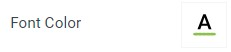
**TIP:** The user-selected color will be reflected on the font color selector icon. For example, if the user selects the color green, it will be displayed as below.
---
**Fill color**
Fill color is used to color the background of the font. The paint bucket icon will reflect the user selected color.

---
## Enable Caption Settings for an Individual Xyicon/Boundary Field
**Captions** can be set up on an individual field level for Xyicon and Boundary fields using the **C****aptions Panel.**
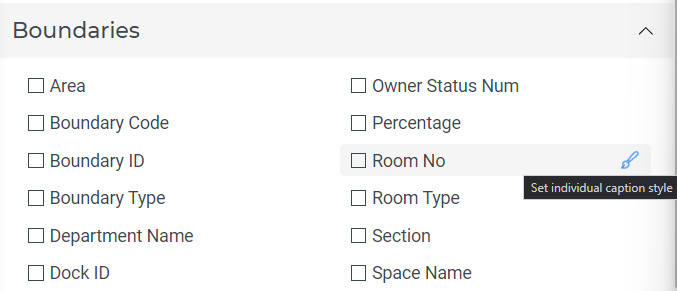
When a user hovers over a xyicon or a boundary field, the user will be able to see a Caption Styling () icon.
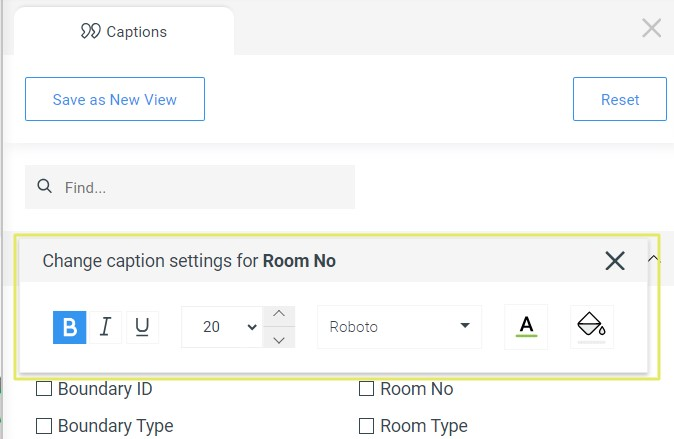
Once you click on the () icon, the caption styling property dialog box will be displayed to the user and you can
- The header text of the caption styling dialog box will be "*Change caption settings for {**FIELD NAME**}*".
- The user can close the caption styling dialog box by clicking on the "**X**" or by clicking away from the dialog box.
- When a user has set caption styling on an individual field level, the user will be displayed a brush icon highlighted in blue next to the field in a constant state.
**INFO:** Suppose the user modifies the default caption settings for the view after setting up the individual field caption styles. In that case, the individually set caption settings will not be overridden because the individually set caption settings always take priority.
---
## Display Captions in your Space Editor
**Xyicons**
Let's enable captions for **Asset Tag** and the **Xyicon ID** fields for xyicons in the **Space Editor**. The captions are displayed as follows.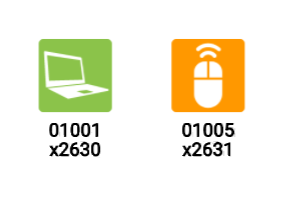
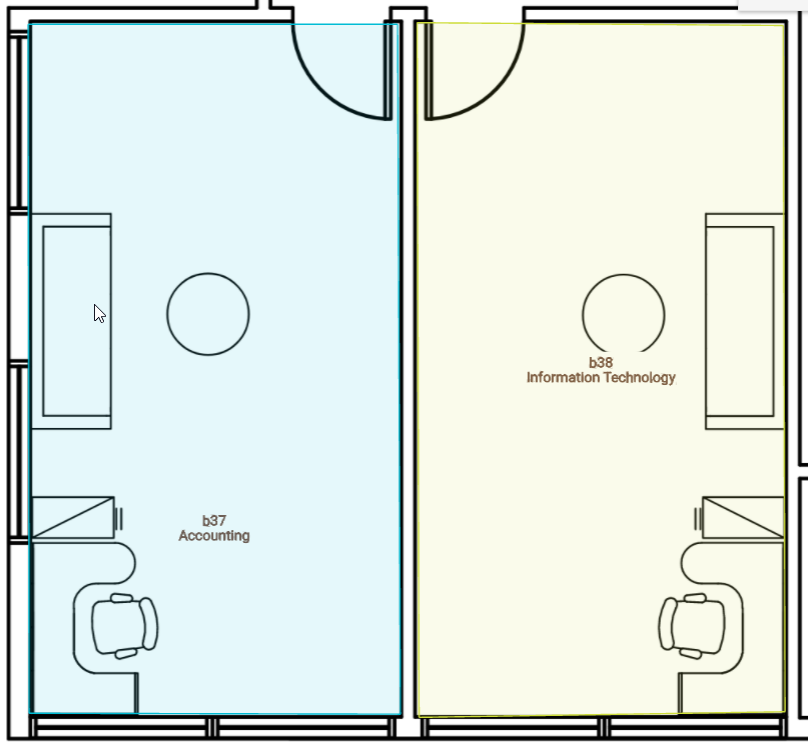
**Boundaries**
Let's enable captions for **Department Name** and the **Boundary ID** fields for xyicons in the **Space Editor**. The captions are displayed as follows.
---
## Hide Captions on the fly
Users can temporarily hide the captions by *pressing and holding the '**C**' key*. Once the key is released, the captions will reappear as they were before.
[Video](https://cdn.document360.io/d689d9b5-af1b-4ba8-a27d-d8cad72c9618/Images/Documentation/Caps.mp4)
**TIP:** When both boundaries and xyicons captions are turned on in the **Space Editor**, the text in the background might get covered by the **Captions**. This can make it difficult to read the text. You can temporarily hide the captions by pressing and holding the '**C**' key.