---
title: "Catalog Panel"
slug: "catalog-panel"
description: "Use the Catalog Panel in the Space Editor Toolbar to search, create, edit, duplicate, and manage catalog items. Easily pull Xyicons into your space and streamline your workflow!"
updated: 2024-12-30T09:47:32Z
published: 2024-12-30T09:47:32Z
canonical: "support.xyicon.com/catalog-panel"
---
> ## Documentation Index
> Fetch the complete documentation index at: https://support.xyicon.com/llms.txt
> Use this file to discover all available pages before exploring further.
# Catalog Panel
Xyicon Users
**Catalog Panel** can be found in the **Space Editor Toolbar** located in the left corner of the [**Space Editor**](/v1/docs/introduction-to-space-editor). In the **Catalog Panel**, you can view the list of catalog items available in the selected view.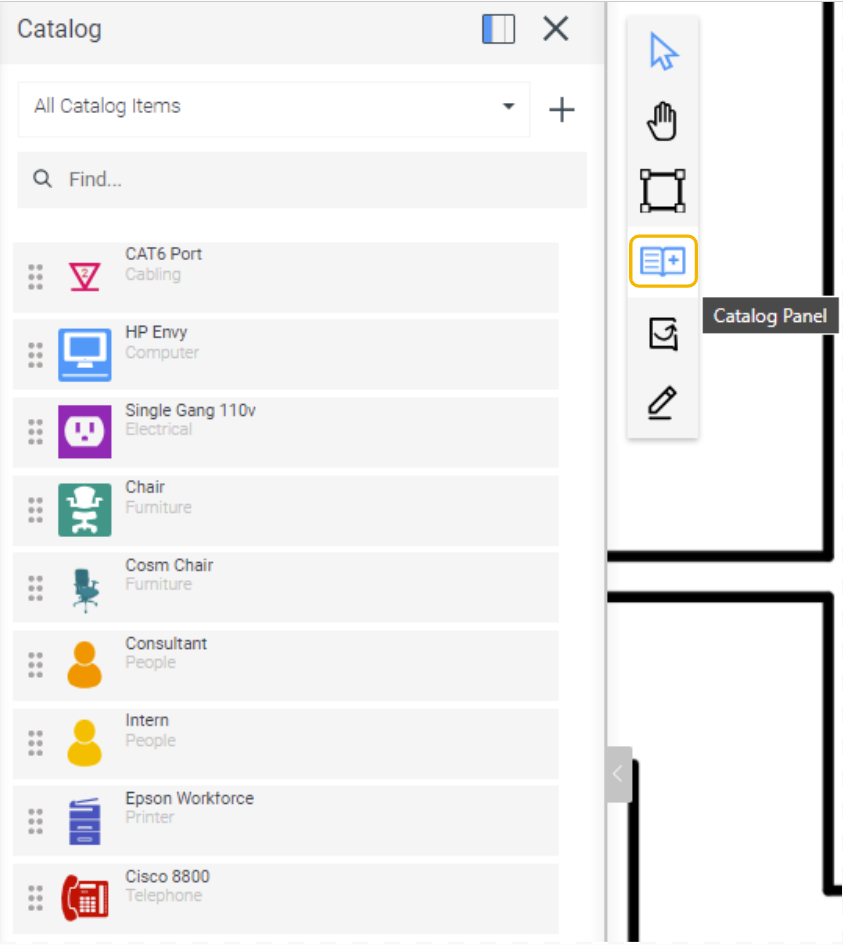
The **Catalog Panel** in the **Space Editor Toolbar** offers a range of functionalities including;
- [](/v1/docs/catalog-panel#adding-xyicon-instances-to-the-space)[Docking and undocking the **Catalog Panel**](/v1/docs/catalog-panel#dock-and-undock-catalog-panel)
- [Adding and removing catalog items from favorites](/v1/docs/catalog-panel#manage-favorites)
- [Switching views](/v1/docs/catalog-panel#switch-views)
- [Searching catalog items](/v1/docs/catalog-panel#search-catalog-items)
- [Adding xyicon instances to the space](/v1/docs/catalog-panel#add-xyicon-instances)[](/v1/docs/catalog-panel#add-xyicon-instances)
- [Creating new catalog items from the **Catalog Panel**](/v1/docs/catalog-panel#create-new-catalog-items)
- [Duplicating, editing, or deleting catalog items](/v1/docs/catalog-panel#duplicate-edit-and-delete-catalog-items)
Use this guide to learn how the **Catalog Panel** in **Space Editor Toolbar** works.
## Dock and Undock Catalog Panel
You can dock or undock the **Catalog Panel** from the **Space Editor Toolbar**, providing flexibility in viewing and managing catalog items.
By default, the **Catalog Panel** is docked to the **Space Editor Toolbar**. You can undock the **Catalog Panel** by simply clicking the **Undock ( )** button.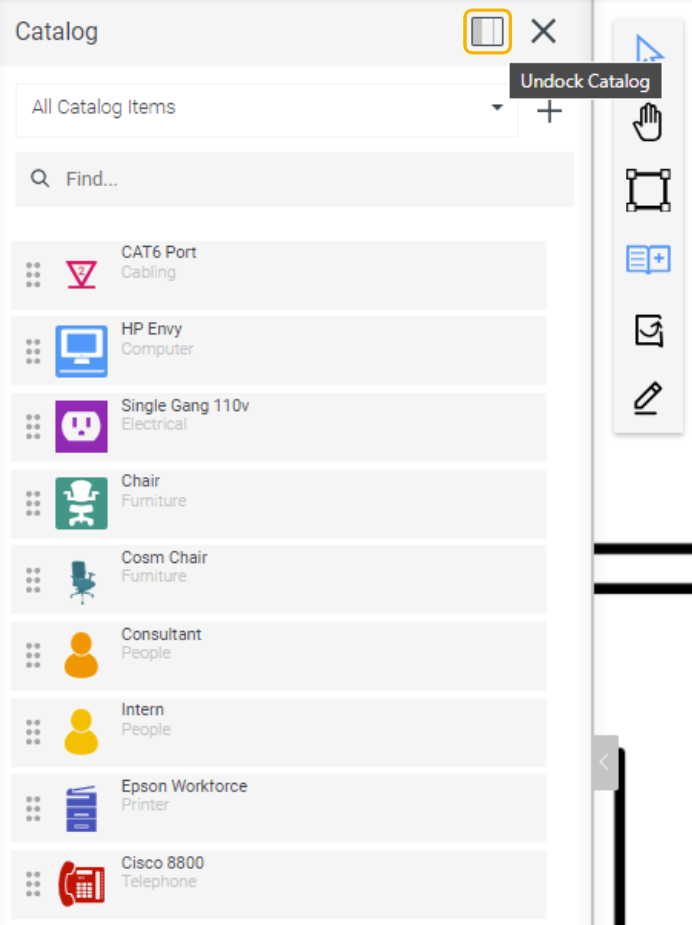
## Manage Favorites
You can mark catalog items as favorites for easy access.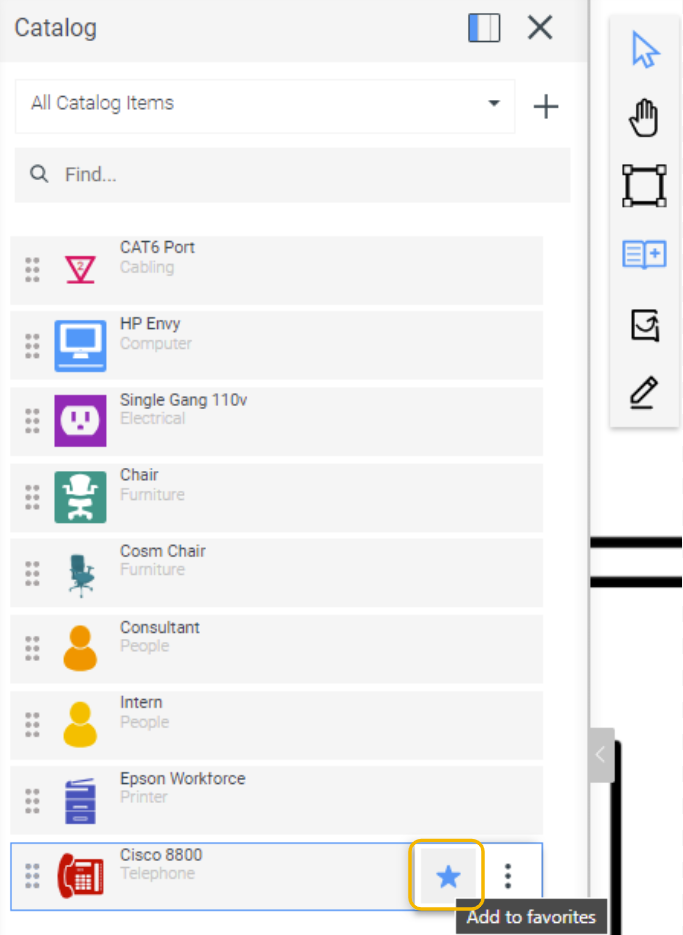
Also, using the **Only Favourites** toggle, you can view the catalog items you marked as favorites.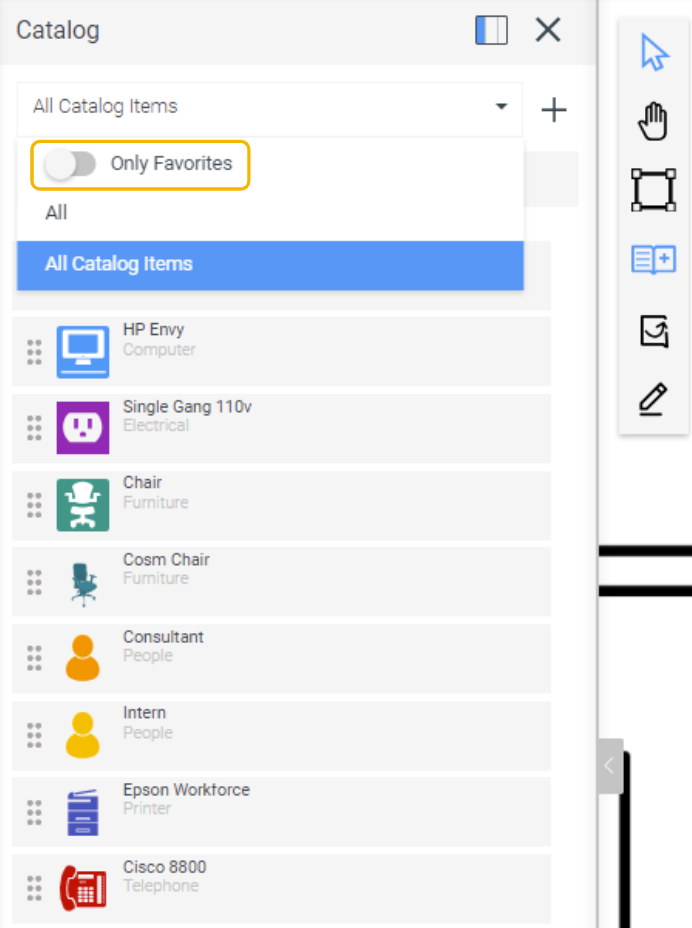
## Switch Views
**Catalog Panel** allows you to switch views to obtain a customized list of catalog items.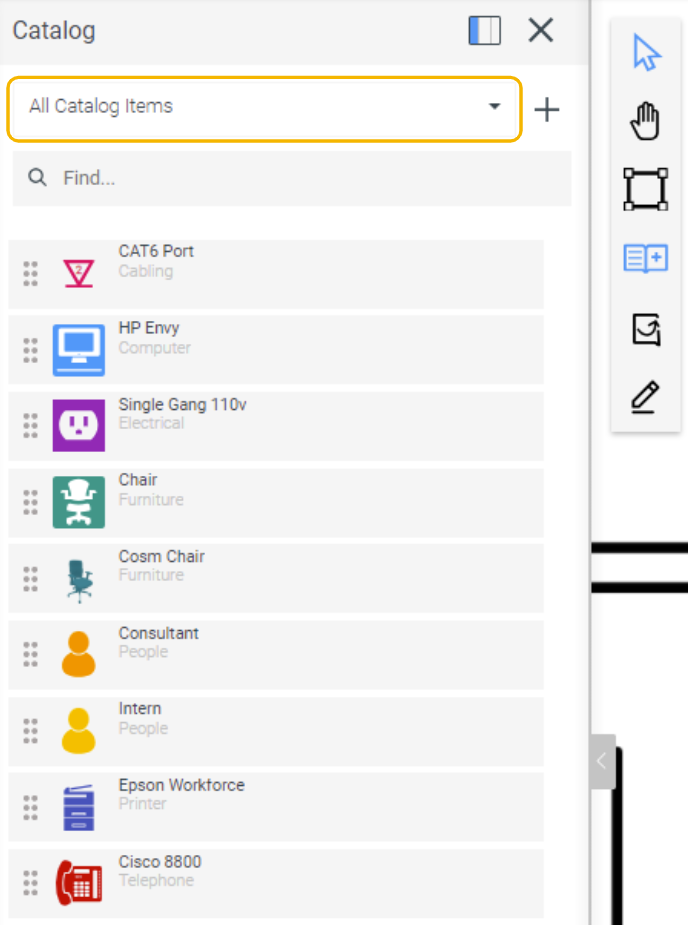
## Search Catalog Items
The **Find** option in the **Catalog Panel** allows you to search for a catalog item within the current view.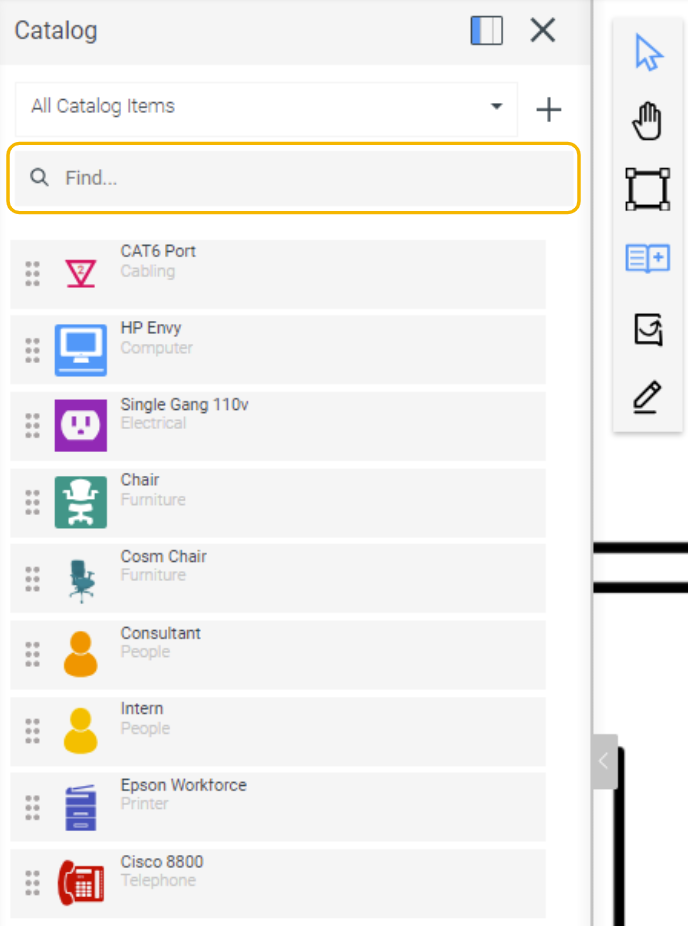
## Create New Catalog Items
The **Catalog Panel** includes a **Create ( )** icon that opens the [**Create Catalog Item**](/v1/docs/creating-a-catalog-item) wizard.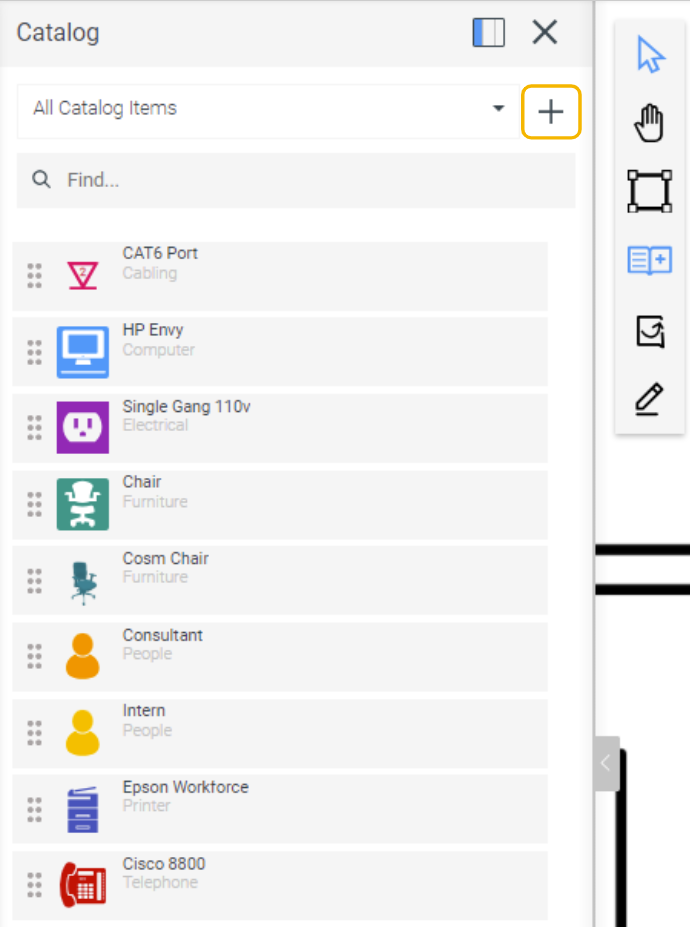
## Add Xyicon Instances
You can add xyicon instances to the space by selecting and dragging catalog items from the **Catalog Panel** into the desired location within the space.[Video](https://cdn.document360.io/d689d9b5-af1b-4ba8-a27d-d8cad72c9618/Images/Documentation/adding%20xyicon%20instances%20from%20catalog%20panel%20(online-video-cutter.com).mp4)
## Duplicate, Edit, and Delete Catalog Items
You can duplicate, edit, or delete catalog items directly from the **Catalog Panel** by selecting the appropriate action from the **More** icon.
For detailed instructions on these actions, refer to the related articles below. [Duplicating a Catalog Item](/v1/docs/duplicating-a-catalog-item-1) [Editing a Catalog Item](/v1/docs/viewing-and-updating-catalog-items) [Deleting a Catalog Item](/v1/docs/deleting-a-catalog-item)