---
title: "Changing a Markup's Appearance"
slug: "changing-a-markups-appearance"
description: "Change the appearance of markups in Xyicon, including modifying styles, line width, arrowhead size, color, and background transparency."
updated: 2025-04-21T07:24:34Z
published: 2025-04-21T07:24:34Z
canonical: "support.xyicon.com/changing-a-markups-appearance"
---
> ## Documentation Index
> Fetch the complete documentation index at: https://support.xyicon.com/llms.txt
> Use this file to discover all available pages before exploring further.
# Changing a Markup's Appearance
Xyicon Users
Use this article to learn how to change a markup's appearance, such as style, background (fill) color, and background transparency. If you are looking to change the appearance of a markup's text, head over to [this section](/v1/docs/adding-text-to-a-markup#change-text-formatting).
To learn more about the different types of markups and annotations available in Xyicon**,** read our [Markup Tool](https://spacerunner.document360.io/v1/docs/markup-tool) help article.
## Before you begin
Make sure that your **Xyicon User** has the necessary permissions to view and update spaces. User Permissions are managed by your organization's **Xyicon Administrator**.
## Change Markup Style
You can change the style of the **Arrow**, **Line**, and **Callout** markups by modifying the line width and arrow size.
### Change Arrow or Line Type
1. [Open your space on the **Space Editor**](/v1/docs/opening-your-space-in-the-space-editor) and select one or more **arrow** or **line** markups.
2. On the **Action Bar** of the markup, click the **Change Line Style** button and click the desired type.
.png)
### Change Line Width
1. [Open your space on the **Space Editor**](/v1/docs/opening-your-space-in-the-space-editor) and select one or more **arrow**, **line**, or **callout** markups.
2. On the **Action Bar,** change the line width ( ) using one of the options below.
- Choose a predefined line width from the dropdown.
- Enter a value (up to 50) in the field.
- Use the **Increase** and **Decrease** buttons.
3. Click anywhere on the space to save.
[Video](https://cdn.document360.io/d689d9b5-af1b-4ba8-a27d-d8cad72c9618/Images/Documentation/Changing%20Markup%20Line%20Width.mkv)
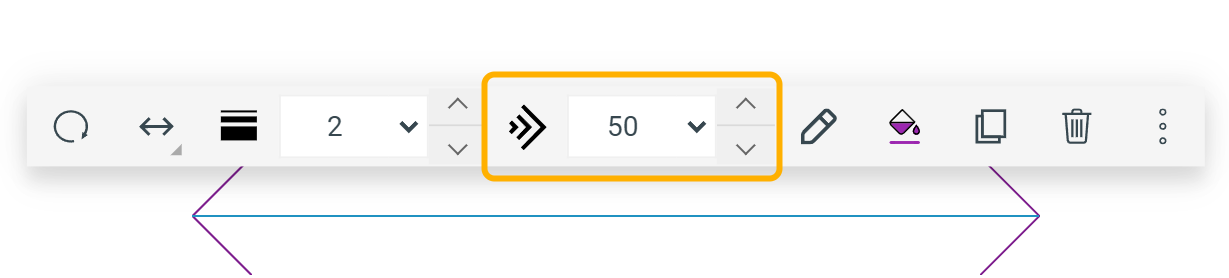
### Change Arrowhead Size
1. Select the **arrow** or **callout** markup.
2. On the **Action Bar,** change the arrowhead size ( ) using one of the options below.
- Choose a predefined arrowhead size from the dropdown.
- Enter a value (up to 500) in the field.
- Use the **Increase** and **Decrease** buttons.
3. Click anywhere on the space to save.
## Change Markup Color
You can change the markup's original background color for the **Cloud**, **Callout**, **Arrow**, **Line**, **Shape**, **Measuring Tool** markups.
1. [Open your space on the **Space Editor**](/v1/docs/opening-your-space-in-the-space-editor) and select one or more markups.
2. Click the **Markup Color Palette** **()** button on the **Action Bar** and choose the desired color.
## Change Background Transparency
You can control the markup's fill (background color) transparency for the **Cloud**, **Callout**, **Shape**, **Rectangle Area**, and **Irregular Area** markups.
1. Select one or more markups on your space.
2. On the **Action Bar**, click the **Fill Transparency** ( ) button, and select one of the following options to change the markup's transparency level.
- **Solid** ( )
- **Semi-transparent** ( )
- **Outline** ( )
[Video](https://cdn.document360.io/d689d9b5-af1b-4ba8-a27d-d8cad72c9618/Images/Documentation/Changing%20Markup%20Transparency.mkv)