---
title: "Changing a View's Owner"
slug: "changing-a-views-owner"
description: "The ownership of a view can be transferred to another user by adjusting the permission level in Xyicon, ensuring smooth collaboration and access management."
updated: 2023-08-23T06:51:56Z
published: 2023-08-23T06:51:56Z
canonical: "support.xyicon.com/changing-a-views-owner"
---
> ## Documentation Index
> Fetch the complete documentation index at: https://support.xyicon.com/llms.txt
> Use this file to discover all available pages before exploring further.
# Changing a View's Owner
Xyicon Users
Use this article to learn how to change your view's ownership to another user.
## Before you begin
Make sure your **Xyicon User** is the owner of the view. Only view owners can change ownership.
---
## Steps
| 1. [Navigate to the **Space Editor**](/v1/docs/opening-your-space-in-the-space-editor) or open the desired module from the **Main Menu** ( ). 2. Click the **View Selector** field on the **Views Bar** of the [**Space Editor**](/v1/docs/about-the-space-editor) or module window. A dropdown will appear with a list of existing views (if any). 3. Hover over the view for which you want to change the owner, click the **More O****ptions** button ( ) and click **Change Owner**. The **Share View** panel will open. If the view has already been shared with the required user/ user group skip to Step 6. 4. Click the search box and start typing the new owner's name. 5. Next, hover over the user in the dropdown list and click **Share** or click anywhere on the highlighted user/ user group. 6. Finally, click the **Permission Level** icon next to the user and click **Owner** ( )**.** Once the confirmation prompt appears click on the 'Change Owner' button. 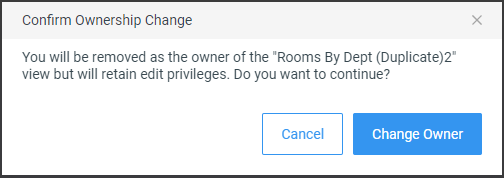Since you are no longer the owner of the view, Xyicon will move your user from the **Share View** panel's **Owner** section to the **Users** section and assign the **Can Edit** ( ) permission. 7. To exit the **Share View** panel click **Close** ( ). |
| --- |