---
title: "Cloning an Existing View"
slug: "cloning-an-existing-view"
description: "Duplicate an existing view in Xyicon using the duplicate menu option and save it as a new view in your view's list."
updated: 2024-11-21T10:58:03Z
published: 2024-11-21T10:58:03Z
canonical: "support.xyicon.com/cloning-an-existing-view"
---
> ## Documentation Index
> Fetch the complete documentation index at: https://support.xyicon.com/llms.txt
> Use this file to discover all available pages before exploring further.
# Duplicating an Existing View
## Duplicate Existing View
Duplicating a view copies all of the original view's settings, including filters, layouts, layers, captions, and formats. You can duplicate a view using two methods.
### Method 1 - Using the Duplicate menu option on the View Selector
1. Navigate to your view and click the **View Selector**.
2. On the dropdown, hover over the view you want to duplicate.
3. Next, click the **More** **Options** button ( ) and click **Duplicate**.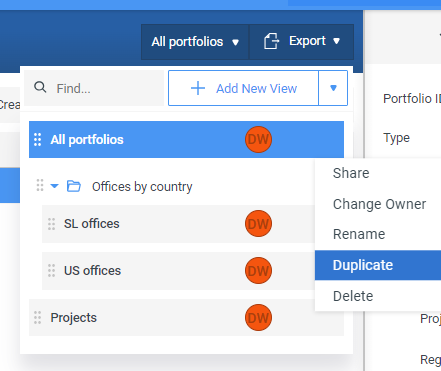
4. Rename the view and press **ENTER** on your keyboard or click outside the field to save the new view created.
5. Proceed to make any changes to the duplicated view if required.
### Method 2 - Save as New View
1. Navigate to your view.
2. [Change the layout](https://support.xyicon.com/docs/manage-columns-view), [apply custom filters](https://support.xyicon.com/docs/applying-filters-to-a-view), or change the layers, captions, or formats of the view.
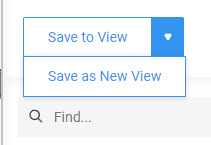
3. Click the dropdown arrow ( ) next to the **Save to View** button and click **Save as New View**.