---
title: "Creating a New Space"
slug: "creating-a-new-space"
description: "Learn how to create a Space in Xyicon by uploading background files, setting scales, and customizing details for a seamless setup."
tags: ["Add space", "upload space"]
updated: 2025-05-02T05:16:49Z
published: 2025-05-02T05:16:49Z
canonical: "support.xyicon.com/creating-a-new-space"
---
> ## Documentation Index
> Fetch the complete documentation index at: https://support.xyicon.com/llms.txt
> Use this file to discover all available pages before exploring further.
# Creating a New Space
Xyicon Users
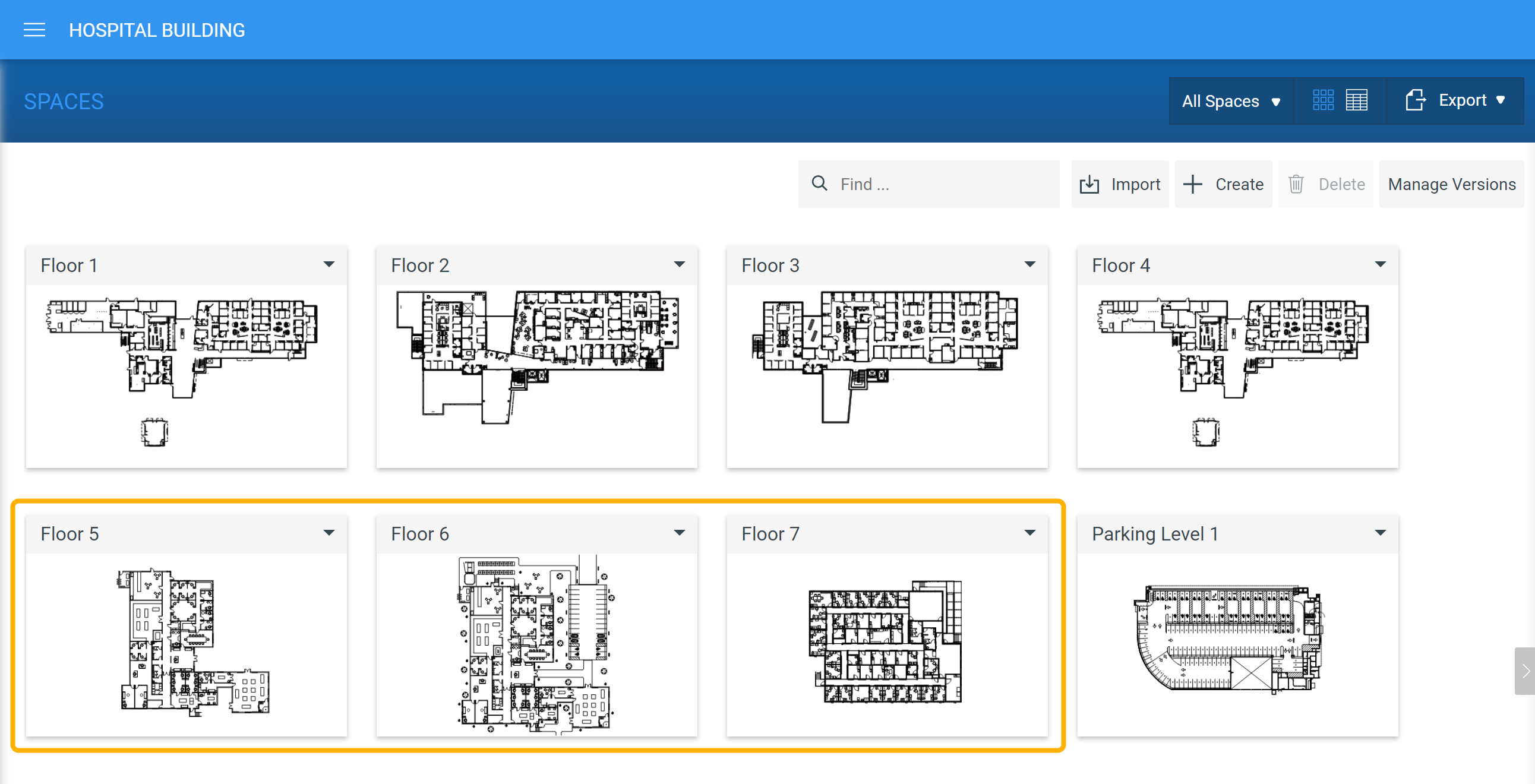
Use this article to learn how to create a space in the [**SPACES** module](https://support.xyicon.com/preview/v1/en/c1646a7b-e56d-41f0-bb36-0fd801542bb7/17#space-module) by uploading a **new background file**. To replace the background file of your existing space with a new file version, head over to the [Replacing a Space](https://spacerunner.document360.io/v1/docs/replacing-a-space) article.
## Before you begin
- Make sure you have set up the following module settings for the **Space** module under Xyicon **Settings** ( ): Space Types, Space Fields, and SpaceLayouts.
- Have your background file ready in `*.pdf` format.
- Verify your **Xyicon User** has the necessary permissions to create a space.
Module Settings and User Permissions are managed by your organization's **Xyicon Administrator**.
---
## Step 1 - Select a Version Set
All spaces require a version set. Depending on your requirement you can [create a new version set](/v1/docs/creating-a-new-space#method-1-create-a-new-version-set) or [use an existing one](/v1/docs/creating-a-new-space#method-2-select-from-an-existing-version-set).
### Method 1 - Create a New Version Set
1. Go to **Main Menu** ( **** ) **> SPACES** for your chosen portfolio.
2. Click the **Create** button ( ) on the **Action Bar**.
3. On the **Create New Space** panel that is displayed to the right, enter a unique name in the **New Version Name** field.
4. Next, set the **Issuance Date**. The issuance date is usually the date the version of your background file was issued or released.
5. Click **Next** to upload a background file.
### Method 2 - Select from an Existing Version Set
1. Go to **Main Menu** ( **** ) **> SPACES** for your chosen portfolio.
2. Click the **Create Space** button ( ).
3. On the **Create New Space** panel that is displayed to the right, select a version from the existing list.
4. Click **Next** to upload a background file.
---
## Step 2 - Upload PDF (Upload Background File)
A background file is a two-dimensional graphical representation of a space such as a floor plan, site map, image, drawing, illustration, or sketch. The background file serves as the backdrop on which you build your space (including object placement such as boundaries and xyicons). The file must be in `*.pdf` format.
1. On the **Create New Space > Upload PDF** step, select the type of space you are uploading in the **Space Type** field.
2. Click on the **Upload File** box ( ) and add the `*.pdf` file you want. Alternatively, you can drag and drop your `*.pdf `file into the **Upload File** box as well**.**
3. To create multiple spaces at once, use one of the following methods when adding files to the **Upload File** box ( )
- Select a multi-page PDF file; Xyicon will separate them into individual background files.
- Select multiple PDF files
4. Click **Next** to review your space names.
---
## Step 3 - Review Space Names
1. On the **Create New Space > Review Space Names** step, enter a unique name in the **Space Name** field for each of the listed background files.
2. Make sure the correct version name is displayed in the **Version History** field.
3. To rotate your background, click on the **Options** button ( ), and click **Rotate 90° CW** (clockwise) or **Rotate 90° CCW** (counter-clockwise).
4. To delete a background file, click on the **Options** button ( ) and click **Delete**.
5. Click **Next** to set up space scales.
---
## Step 4 - Set Space Scales
The scale of your space plays a critical role in how xyicons and boundaries are displayed, their proportions relative to the space, how they will plot, and how your space model will look in the [**Space Editor**](/v1/docs/about-the-space-editor).
1. On the **Create New Space > Set Space Scales** step, zoom in to your background file using the scroll wheel of your mouse (scroll up to zoom in and down to zoom out).
2. Using the **Pan Tool** ( ) on the **Alignment** **Toolbar**, locate an area in your background file that you can use as a guide or reference point to set the scale. **TIP:** An example of a good reference point is a doorway, which generally has a standard measurement.
1. Once you have a reference point, click the **Set Scale** button ( ) on the **Alignment** **T****oolbar**. You will enter the drawing mode.**TIP:** Your cursor will change to a [crosshair](https://docs.microsoft.com/en-us/windows/win32/uxguide/inter-mouse#pointer-shapes) ( ) when you enter drawing mode.
2. Align the cursor on one end of the reference point (point A), click and drag to draw a line to the other end of the reference point (point B), and release the mouse button to complete the action.
1. Enter the distance between points **A** and **B** and select the correct measurement unit (e.g., Inches). Switch on the **Apply this scale to all pages** toggle button if the same scale can be applied to the rest of the background files.
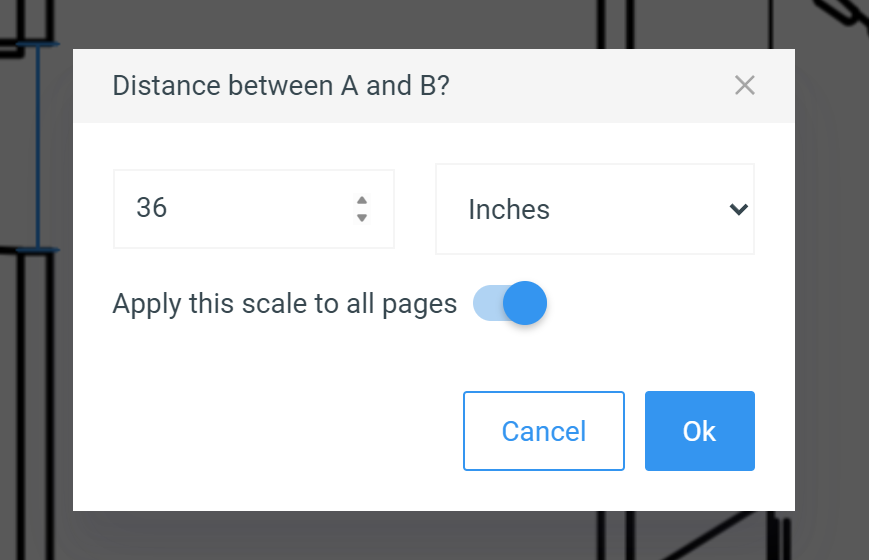
2. The space scales are set.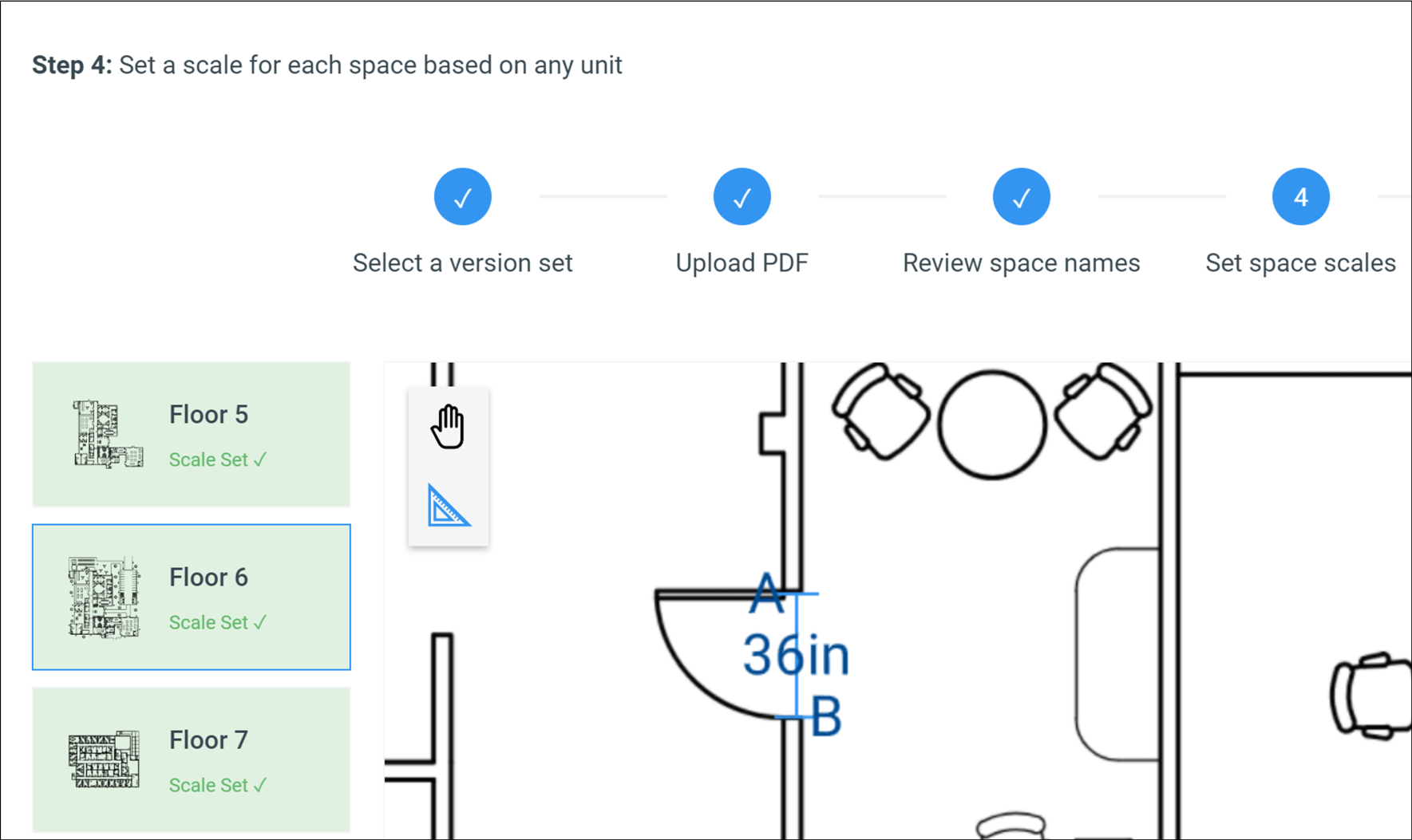
3. Click **Next** to create your spaces.
---
## Step 5 - Create Spaces
You are now ready to create your new space. Click **Create**. This activity may take a few minutes based on the number of background files you have uploaded. Once the process is complete, you can view your new spaces in the **SPACES** module.