---
title: "Deleting a Catalog Item"
slug: "deleting-a-catalog-item"
description: "Learn how to delete catalog items in Xyicon to keep your catalog up to date."
updated: 2025-06-05T03:36:22Z
published: 2025-06-05T03:36:22Z
canonical: "support.xyicon.com/deleting-a-catalog-item"
---
> ## Documentation Index
> Fetch the complete documentation index at: https://support.xyicon.com/llms.txt
> Use this file to discover all available pages before exploring further.
# Deleting a Catalog Item
Xyicon Users
Use this article to learn how to delete a catalog item from Xyicon permanently. Deleting a catalog item is necessary to maintain accuracy and relevance by ensuring that only relevant and up-to-date catalog items are available.
**CAUTION:** Once you delete a catalog item, the action cannot be undone.
## Before you begin
- Make sure your ****Xyicon User**** has the necessary permission to delete the catalog item. User permissions are managed by your organization's ****Xyicon Administrator**.**
- You cannot delete catalog items that have xyicons created from them. To delete a catalog item that is in use, you must first [delete all related xyicons](/v1/docs/deleting-a-xyicon).
---
## Steps
1. Navigate to the **Catalog** module from the **Main** **Menu ( ).**
2. Select the checkbox against the catalog items you want to delete.
**TIP:** If the catalog item you want to delete is not visible, check that you are on the correct **V****iew**.
3. Click the **Delete** button ( ) on the **Action Bar.** You will be prompted to confirm the number of catalog items to be deleted.
4. Enter the number that is displayed in the text field to enable the **Delete** button. If you want to change the number, click **Cancel,** and repeat steps 2 and 3.
5. Click **Delete.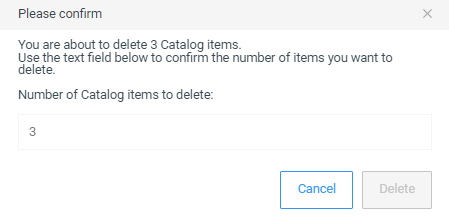**