---
title: "Importing Xyicon Updates to the Whole Organization"
slug: "importing-xyicon-updates-to-the-whole-organization"
description: "Import bulk updates to Xyicons across your organization using the XYICONS module. Map field data seamlessly!"
updated: 2025-04-21T06:10:46Z
published: 2025-04-21T06:10:46Z
canonical: "support.xyicon.com/importing-xyicon-updates-to-the-whole-organization"
---
> ## Documentation Index
> Fetch the complete documentation index at: https://support.xyicon.com/llms.txt
> Use this file to discover all available pages before exploring further.
# Importing Xyicon Updates to the Whole Organization
Xyicon Administrators
Use this article to learn how to import updates in bulk to the entire organization using an Excel file in your **XYICONS** module.
## Before you begin
### Prepare XYICON module for Import
- Make sure you have set up the following module settings for the **Xyicon** module under **Settings**: Xyicon Types, Xyicon Fields, and Xyicon Layouts
- Verify that your **{{variable.xyicon_user}}** has the necessary permissions to update xyicons.
Module settings and user permissions are managed by your organization's **{{variable.xyicon_org_admin}}**.
### Prepare your Excel File for Import
- Make sure your Excel file is in the `*.csv` or `*.xlsx` format and contains changes related to the **xyicons of the active organization** at the time of importing.
- **The file must include column headings.** Xyicon considers the first row the header row. If the first row contains values instead of column names, the values will not be imported.
- Your file must contain a column with the xyicon IDs.
- **To avoid accidental data changes**, only include the columns whose data you want to change.
- Xyicon supports files **up to 5 MB** in size and **10,000 rows** per single import.
- If your file has more than one sheet, Xyicon will only import the data on the **first sheet.**
---
## Step 1 - Upload File
1. Go to **Main Menu( ) > XYICONS** of your chosen portfolio.
2. Click the **Import** button ( ) on the **Action Bar**. The **Import Updates from the Excel** panel will open.
3. Set the scope of the import in the **Scope** field as **Organization.**
4. You can choose to either drag and drop your Excel file (`*.csv` or `*.xlsx`) into the **Upload File** box ( ) or click anywhere inside the box to browse your documents and select your file.
5. If the upload is successful, you will see the file at the bottom of the panel
6. To replace the uploaded file with a new file, repeat step 4. The uploaded file at the bottom will be replaced automatically with the new file.
7. Once you have successfully uploaded your Excel file, click **Next**.
## Step 2 - Match IDs
In this step, you will select the Excel column that corresponds to the **Xyicon ID** field in Xyicon, so the application can determine which xyicons to update. Make sure the Excel column you select corresponds to the **Xyicon ID** field.
1. On the **Import Updates from Excel > Match IDs** step, select the Excel column name from the **Excel Column** dropdown that matches the **Xyicon ID** field under **Xyicon Field**.**TIP:** If your Excel column header is named **Xyicon ID** or **ID**, Xyicon will automatically select the column and display it in the dropdown.
2. Click **Next** to map the rest of the xyicon fields to Excel columns.
## Step 3 - Map Columns to Fields
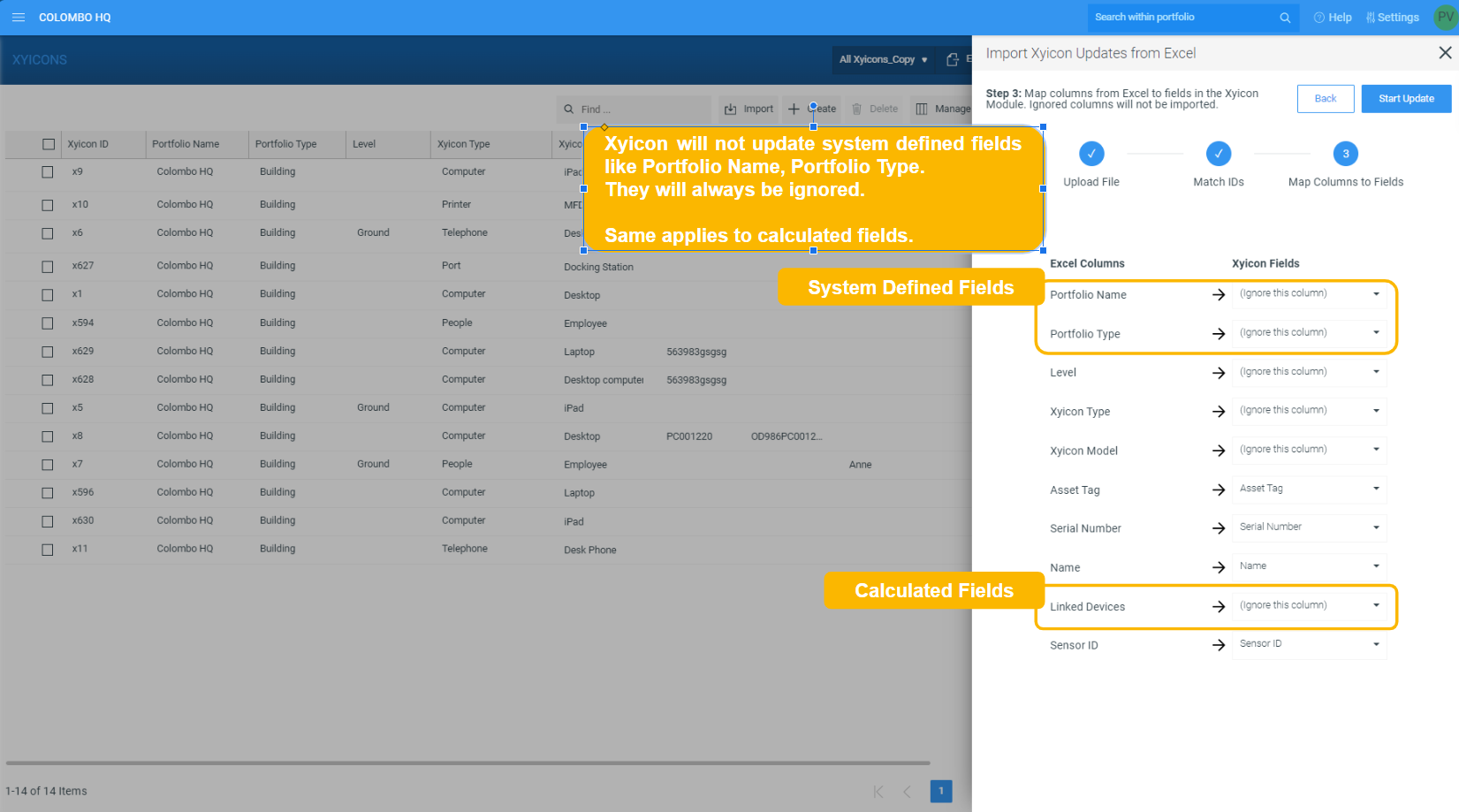
Xyicon will try to automatically map fields to the Excel Column by matching the field and column names. Xyicon will set the mapping to **(ignore this column)** where the field and column names differ. Calculated fields and system-defined fields (Xyicon Type, Xyicon Model, Last Modified By, Last Modified At) will be ignored by default since they are predefined fields.
**IMPORTANT:** All automatic mappings are recommendations only. Always verify the field mapping between the Excel columns and Xyicon fields are correct to prevent any erroneous updates.
1. On the **Import Updates from Excel >** **Map Columns to Fields** step, select the correct xyicon field from the respective dropdowns under **Xyicon Fields** for each Excel column.**TIP:** You must map at least one column to a field to import your changes.
2. Select the default value **(Ignore this column)** if you do not want to import an update to a particular field.
3. Once you have completed mapping fields between Excel and Xyicon, you are ready to import your updates.
---
## Step 4 - Import your Updates
Click **Start Update** to import your updates. The import process may take a few minutes based on the number of records and updates per record. During this time, you will see one or more of the following alerts indicating the progress of your Import.
### Alerts during the Import Process
#### Import Status Alerts
1. Import completed successfully without any errors.
.png)
2. Import was partially successful. Click the **Download Error Report** button to see a list of records with errors, including the cause of the errors.
3. Import completed without updating a single record. Click the **Download Error Report** button to see a list of records with errors, including the cause of the errors.
- #### Import Progress
Import consists of a large number of records and is updated in batches. 
#### Refreshing Records
Another {{variable.xyicon_user}} has imported xyicon data updates to the portfolio in which you are currently working. A manual refresh is required to get the latest update.
