---
title: "Layers Panel"
slug: "layers-panel"
description: "Manage object visibility and lock states in Xyicon's Layers Panel. Control backgrounds, boundaries, xyicons, and markups with options to show, hide, lock, or unlock objects"
updated: 2023-12-19T10:25:31Z
published: 2023-12-19T10:25:31Z
canonical: "support.xyicon.com/layers-panel"
---
> ## Documentation Index
> Fetch the complete documentation index at: https://support.xyicon.com/llms.txt
> Use this file to discover all available pages before exploring further.
# Layers Panel
## Layers Panel
The **Layers Panel** is accessible by clicking the **Layers** button ( ) on the **View Bar**. Layers are used to manage the objects' visibility and locked state.
- **Visible** ( ) - The objects are visible in the background area.
- **Hidden** ( ) - The objects are hidden from the background.
- **Locked** ( ) - The objects are locked and cannot be moved. They can still be selected, rotated and linked (where applicable) with other objects.
- **Unlocked** ( ) - The objects can be moved on the background.
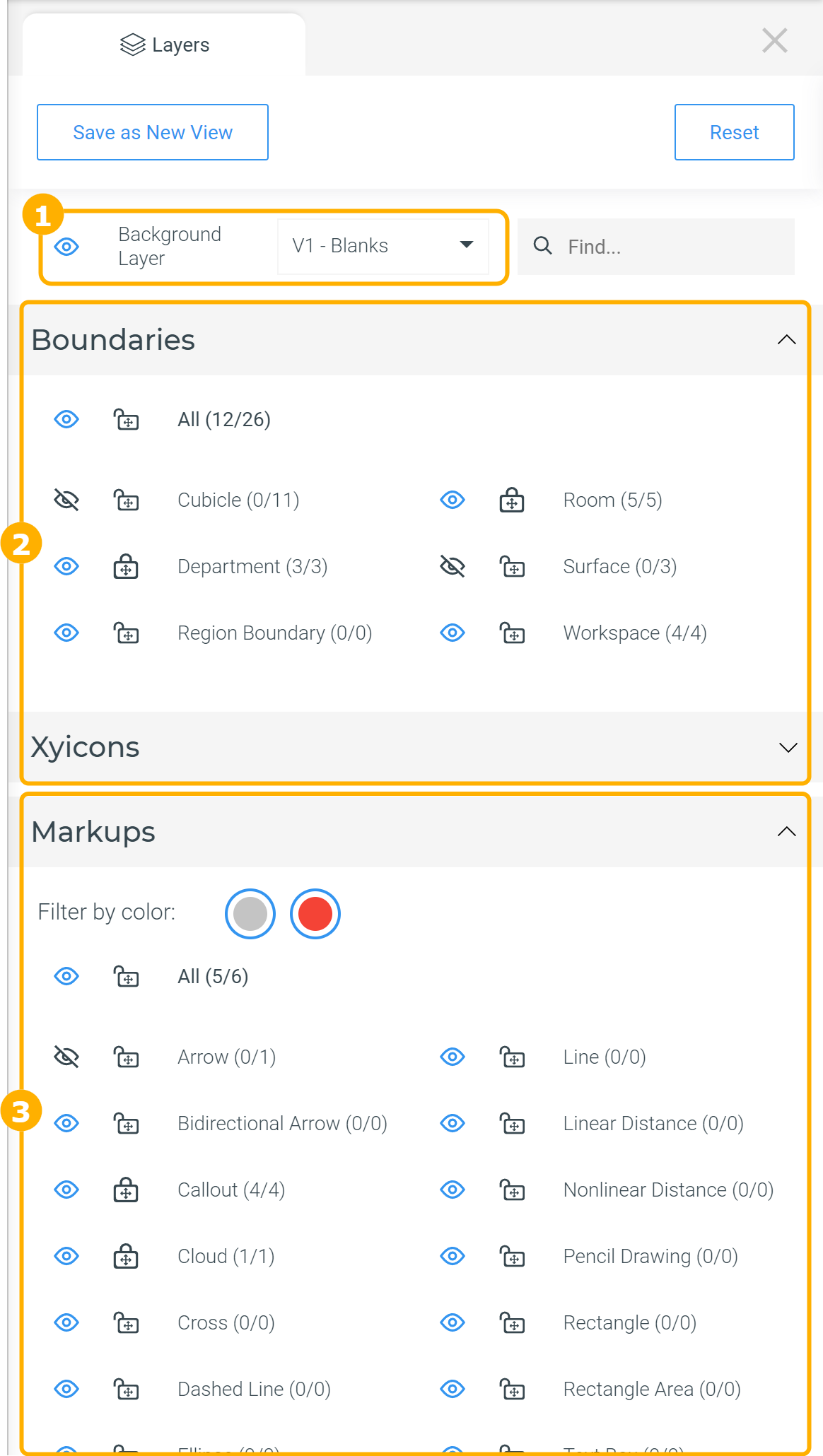
### 1. Background Layer
Under this section, you can select which version of the space is displayed as the background and to show/hide the background layer.
### 2. Boundaries and Xyicons
Under these two sections, you can control the visibility and the locked state of individual **types** of boundaries and xyicons; for example, you can hide all "Rooms" and all "Telephones."
| %20(42).png)Room Boundary Type and Telephone Xyicon Type Visible | %20(43).png)Room Boundary Type and Telephone Xyicon Type Hidden |
| --- | --- |
### 3. Markups
Under this section, you can manage the visibility and the locked state of all markups based on their type, as well as filter all markups based on color.
| %20(46).png)All Markups Visible and Locked | %20(47).png)Callout Markup Type Hidden and Pale Green Markups Hidden (Filtered) |
| --- | --- |