---
title: "Linking Xyicons with a Ports Template"
slug: "linking-xyicons-with-a-ports-template"
description: "Learn how to link xyicons with ports templates in Xyicon's Space Editor. Create, manage, and break links between xyicons efficiently."
updated: 2024-04-03T07:24:08Z
published: 2024-04-03T07:24:08Z
canonical: "support.xyicon.com/linking-xyicons-with-a-ports-template"
---
> ## Documentation Index
> Fetch the complete documentation index at: https://support.xyicon.com/llms.txt
> Use this file to discover all available pages before exploring further.
# Linking Xyicons with a Ports Template
Xyicon Users
Use this article to learn how to link xyicons when at least one of them includes a ports template.
## Before you begin
- Make sure you have set up ports for your xyicons. Xyicon inherits ports from its [catalog item's port template](/v1/docs/creating-a-catalog-item#step-4-optional-set-up-port-template).
- Verify that your **Xyicon User** has the necessary permissions to view and update xyicons. User permissions are managed by your organization's **Xyicon Administrator**.
---
## Link Xyicons and Ports
You can link a xyicon to a port using different methods based on whether a xyicon has a port set up or not.
### Use Case 1 - Xyicon (with ports) to Xyicon (with ports)
Use this method when you need to create a relationship between two xyicons without using their ports. The link will be shown under the **Links** section in the **Details** tab ( ) of the **Side Panel**, for each xyicon.
1. [Open the Space Editor](/v1/docs/opening-your-space-in-the-space-editor) and select a xyicon that has ports.
2. Click the **Create Link** button ( ) on the **Action Bar**.
3. On the **Create a Link..****.** popup, hover over the xyicon at the top and click **Link to Xyicon. Your** cursor will change to indicate you are in the linking mode ( ).
4. Next, click on another xyicon that has ports.
5. Repeat step 3. The two xyicons are now connected at the xyicon level.
ToXyicon(Port).gif)
### Use Case 2 - Xyicon Port to Xyicon Port
Use this method when you need to specifically know which ports of the two xyicons are creating the relationship. The link will be shown under the **Ports** section in the **Details** tab ( ) of the **Side Panel**, for each xyicon.
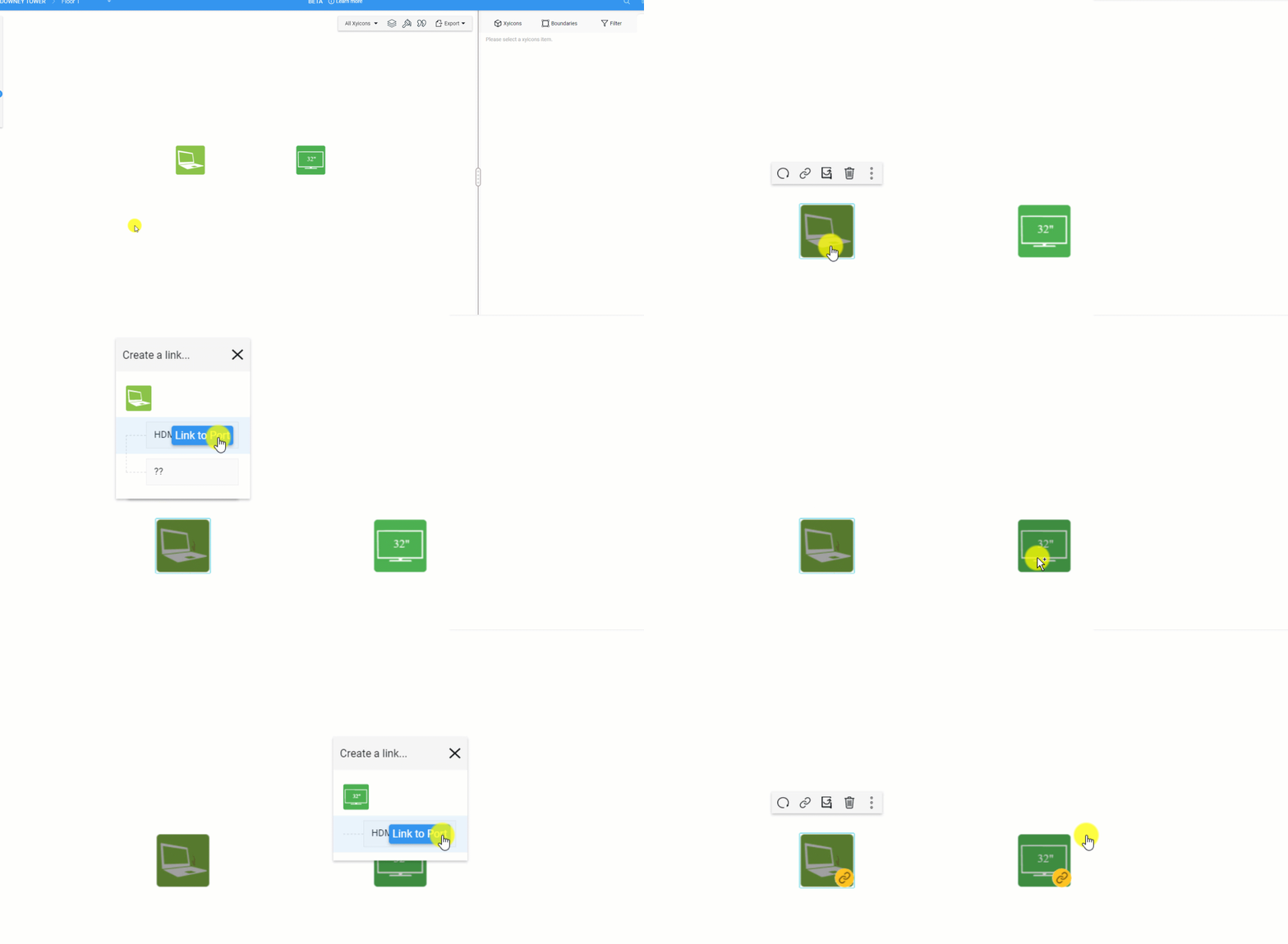
1. [Open the Space Editor](/v1/docs/opening-your-space-in-the-space-editor) and select a xyicon that has ports.
2. Click the **Create Link** button ( ) on the **Action Bar**.
3. On the **Create a Link..****.** popup, hover over a port and click **Link to Port**. Your cursor will change to indicate you are in the linking mode ( ).**TIP:** You can only create links to the end-nodes of a port template. End-nodes are those that do not have child nodes below them.
4. Next, click on another xyicon that has ports.
5. Repeat step 3. The two xyicons are now connected at the port level.
### Use Case 3 - Xyicon Port to Xyicon
Use this method when you need to create a relationship between two xyicons by connecting a specific port on your first xyicon directly to a second xyicon. The link will show up under the **Ports** and **Links** sections respectively for the first and second xyicons, in the **Details** tab ( ) of the **Side Panel**.
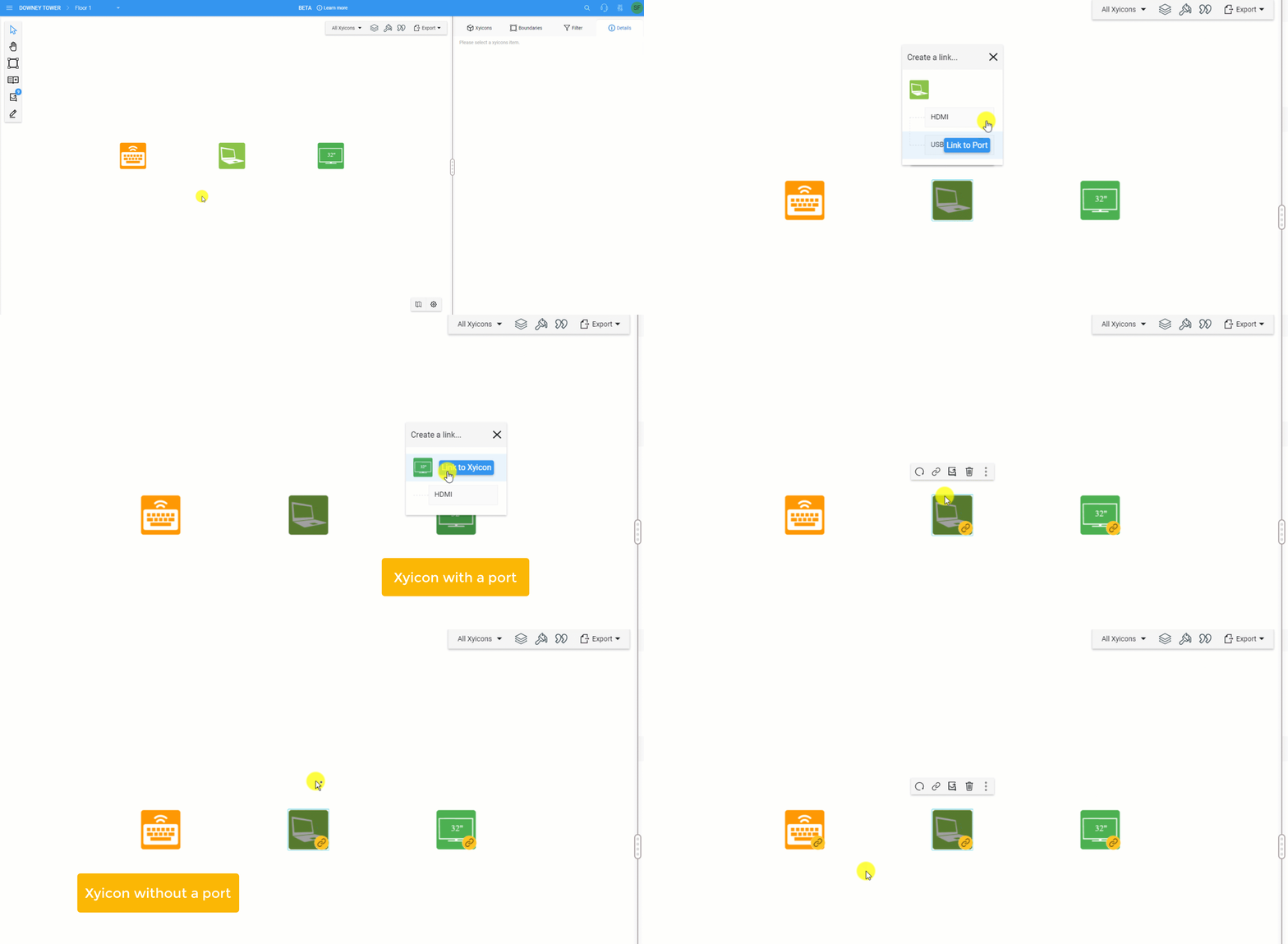
1. [Open the Space Editor](/v1/docs/opening-your-space-in-the-space-editor) and select a xyicon that has ports.
2. Click the **Create Link** button ( ) on the **Action Bar**.
3. On the **Create a Link..****.** popup, hover over a port and click **Link to Port**. Your cursor will change to indicate you are in the linking mode ( ).**TIP:** You can only create links to the end-nodes of a port template. End-nodes are those that do not have child nodes below them.
4. Next, click on another xyicon with or without ports.
- For xyicon that has ports, the **Create a Link...** popup will be displayed. Hover over the xyicon and click **Link to Xyicon**.
- For a xyicon that does not have ports, clicking the xyicon creates the link.
5. You have now linked a port to a xyicon.
### Use Case 4 - Xyicon to Xyicon Port
Use this method when you need to create a relationship between two xyicons by directly connecting the first xyicon to a specific port on the second xyicon. The link will show up under the **Links** and **Ports** sections respectively for the two xyicons, in the **Details** tab ( ) of the **Side Panel**.
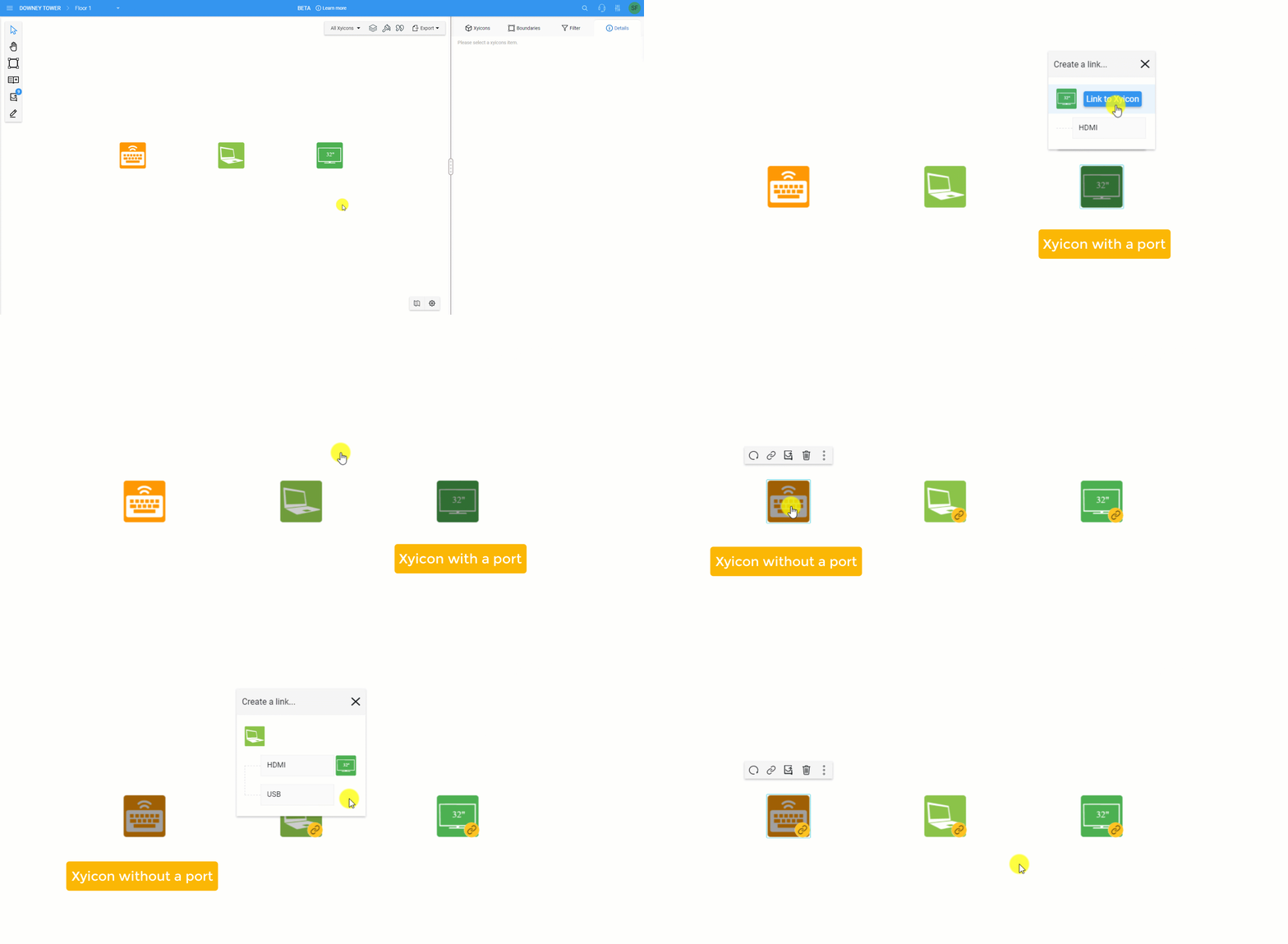
1. [Open the Space Editor](/v1/docs/opening-your-space-in-the-space-editor) and select a xyicon with or without ports.
2. Click the **Create Link** button ( ) on the **Action Bar**,
- If the selected xyicon has ports, the **Create a Link...** popup will be displayed. Hover over the xyicon located at the top of the popup and click **Link to Xyicon**.
- If the selected xyicon does not have ports, your cursor will change to indicate you are in the linking mode ( ). Proceed to the next step.
3. Next, click a xyicon that has ports. On the **Create a Link..****.** popup, hover over a port and click **Link to Port**.**TIP:** You can only create links to the end-nodes of a port template. End-nodes are those that do not have child nodes below them.
4. You have now linked a xyicon to a port.
---
## Breaking Links
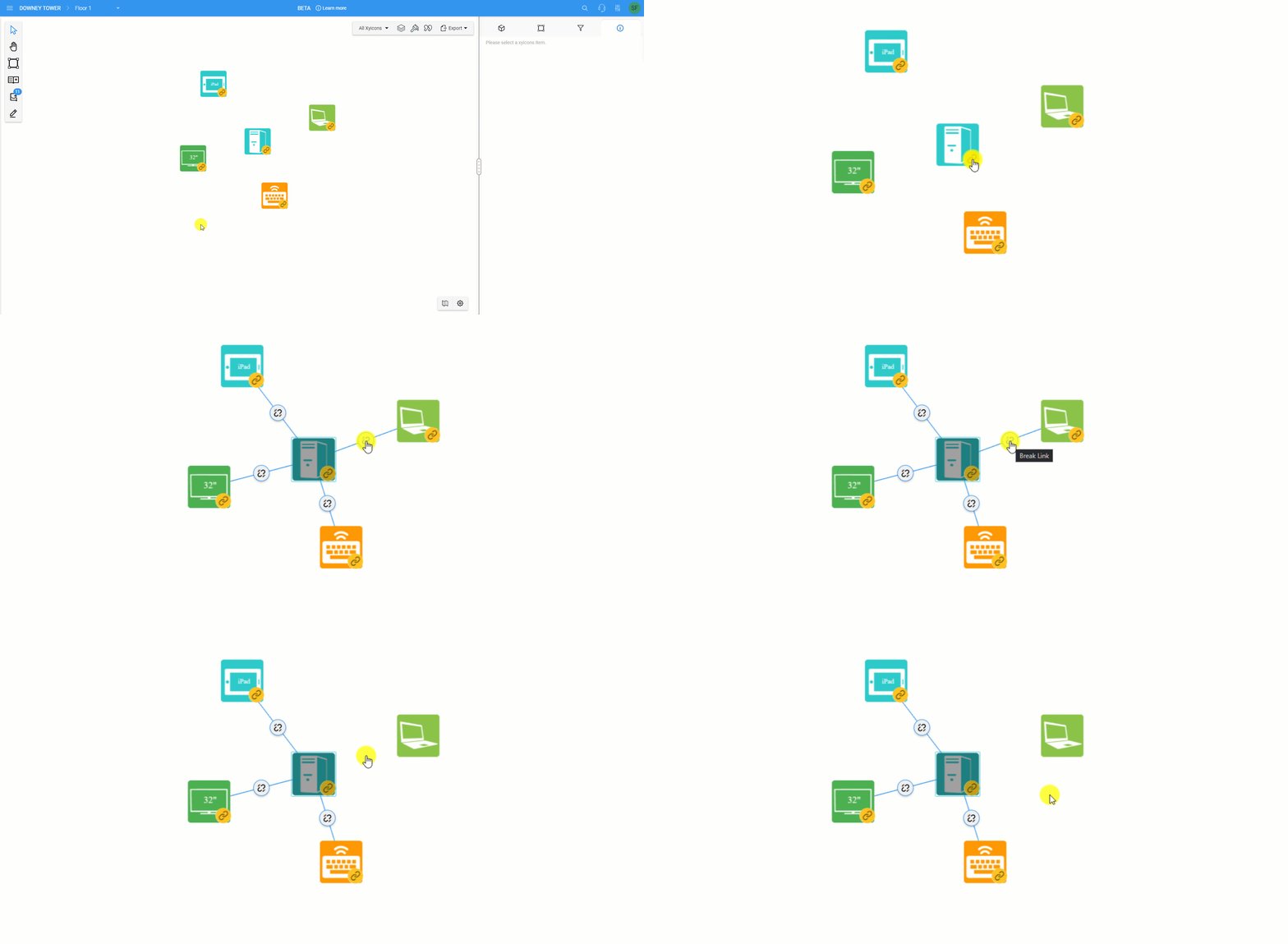
1. Locate the xyicon that contains the link you want to break.
2. Click the **Has Links** indicator ( ) for that xyicon. Xyicon will display all available links for the selected xyicon along with the **Break Link** button ( ).
3. Click the **Break Link** button ( ) for the link you want to break.