---
title: "Managing Versions"
slug: "managing-versions"
description: "Learn how to create, view, update, or delete Version Sets with step-by-step guidance for efficient version management in Xyicon's SPACES module."
updated: 2025-05-05T05:58:00Z
published: 2025-05-05T05:58:00Z
canonical: "support.xyicon.com/managing-versions"
---
> ## Documentation Index
> Fetch the complete documentation index at: https://support.xyicon.com/llms.txt
> Use this file to discover all available pages before exploring further.
# Managing Version Sets
Xyicon Users
Use this article to learn about **Version Sets** and how to manage versions in the **Space** module.
## Before you begin
Make sure you have set up the following module settings for the **Space** module under Xyicon **Settings** ( ): Space Types, Space Fields, and Space Layouts.
Module Settings and User Permissions are managed by your organization's **Xyicon Administrator**.
---
## Create a New Version Set
#### METHOD 1 - Using '**Manage Versions**' Panel
1. Go to **Main Menu** ( **** ) **> SPACES** for your chosen portfolio.
2. On the action panel of the space module, you will find '**Manage Versions**'.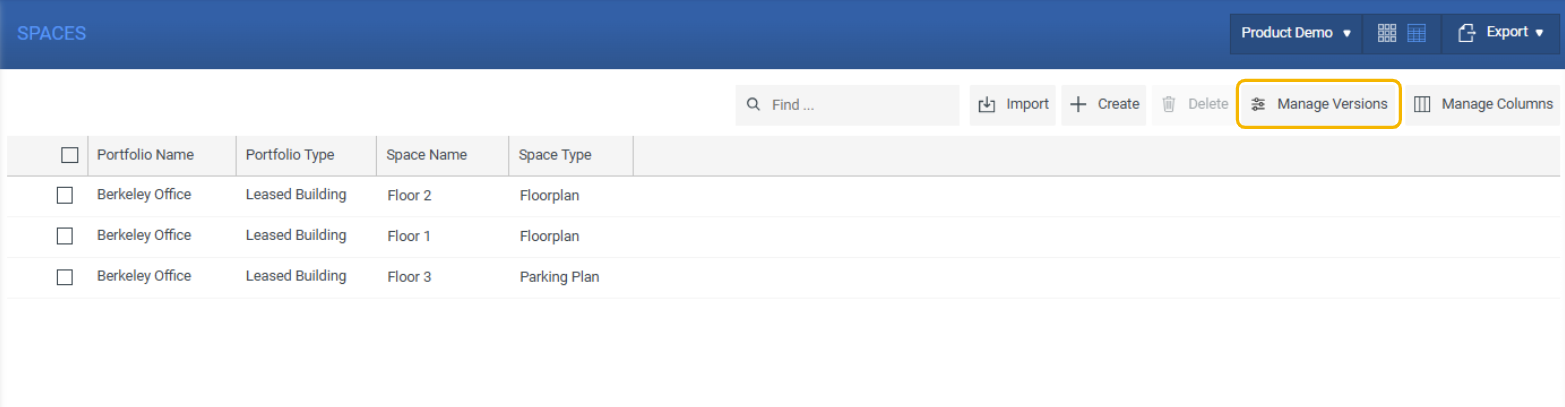
3. Click the **Create Versions Set** button ( ) on the right corner.
4. On the **Create New Version Set** panel, enter a unique name in the **New Version Name** field.
5. Select the checkmark ( ) next to the field to save the changes. Alternatively, you can also press the **Tab** key or the **Enter** key to do the same.
6. Next, set the **Issuance Date**. The issuance date is usually the date of the version.
7. The Version Set will be created once you hit **Create**.
#### METHOD 2 - Using '**Create New Space**' Panel
1. Go to **Main Menu** ( **** ) **> SPACES** for your chosen portfolio.**NOTE:** The **S****PACES** module window corresponds to the active portfolio selected in the **PORTFOLIOS** module.
2. On the **Create New Space** panel displayed to the right, enter a unique name in the **New Version Name** field.
3. Select the checkmark ( ) next to the field to save the changes. Alternatively, you can also press the **Tab** key or the **Enter** key to do the same.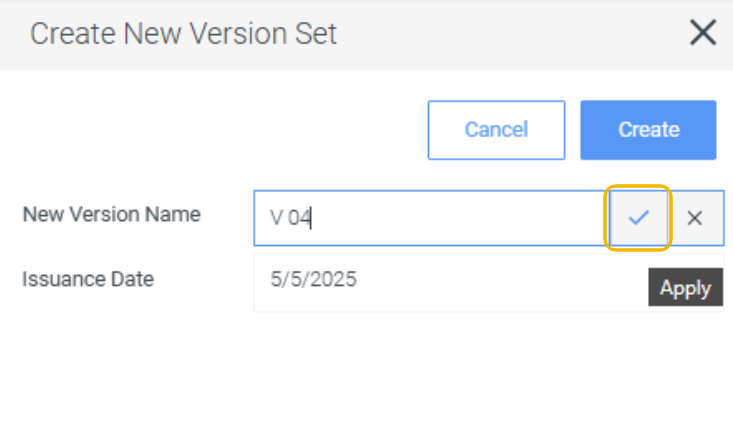
4. Next, set the **Issuance Date**. The issuance date is usually the date of the version.
5. After you complete all the steps to create the space, the new version will be created along with the new space.
---
## View all the Version Sets
1. Go to **Main Menu** ( **** ) **> SPACES** for your chosen portfolio.
2. On the action panel of the space module, click **Manage Versions**.
3. You will see all the created Version Sets along with the version name, issuance date, and the space details relevant to the specific portfolio.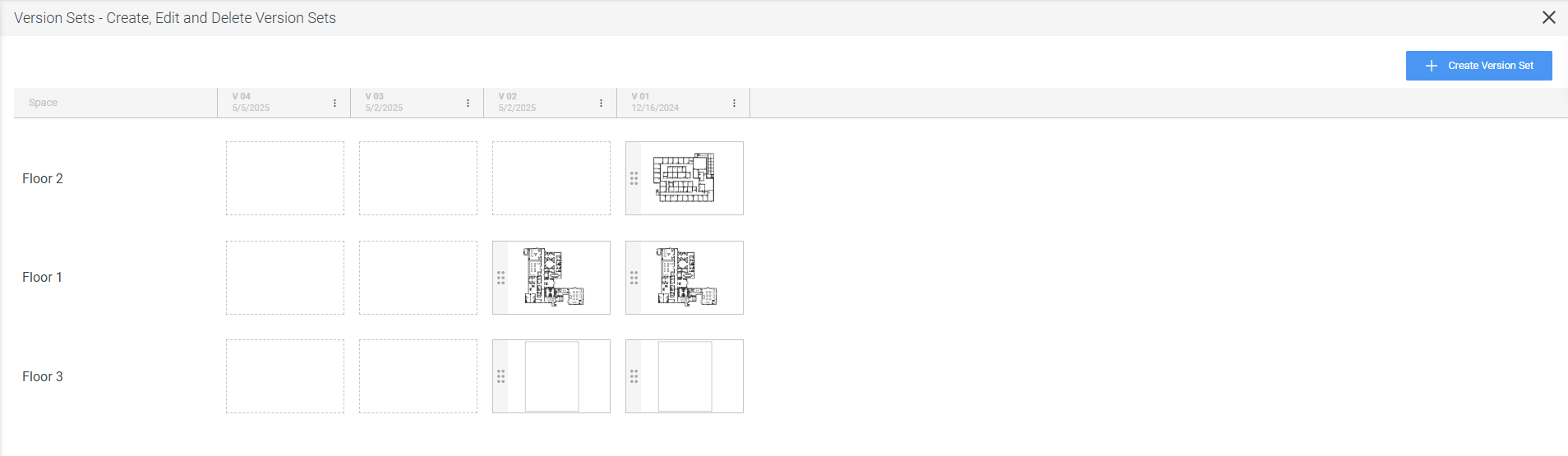
---
## Update a Version Set
1. Go to **Main Menu** ( **** ) **> SPACES** for your chosen portfolio.
2. On the action panel of the space module, clickj **Manage Versions**.
3. Click on the **Options** button ( ) next to the name of the version set and you will get the option **Edit Version**.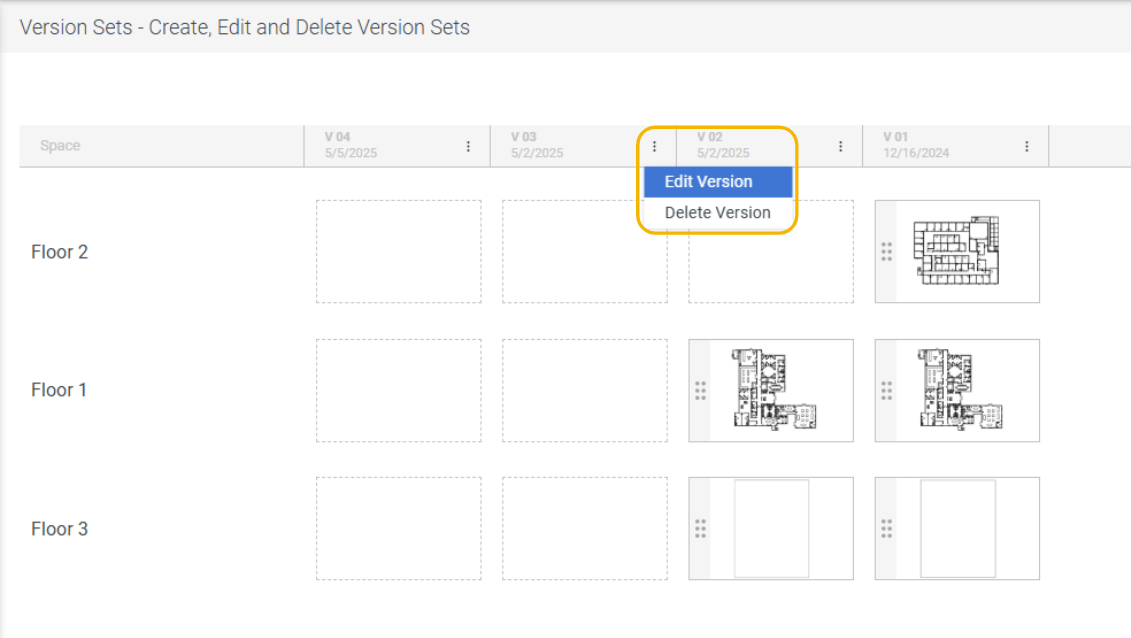
4. You can edit the name of the version and the issuance date in the **Edit a Version Set** panel.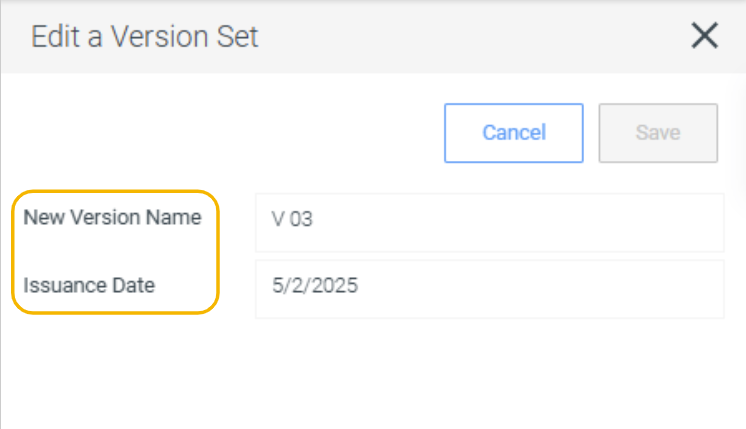
5. Click **Save**.
---
## Delete a Version Set
1. Go to **Main Menu** ( **** ) **> SPACES** for your chosen portfolio.
2. On the action panel of the space module, click **Manage Versions**.
3. Click on the **Options** button ( ) next to the name of the version set and you will get the option **Delete** **Version**.**IMPORTANT:** The user will not be allowed to delete a version set if there's a space already linked to it. The **Delete Version** button in the above image is disabled because there is a space [*Ground* *Floor*] already linked to this version set [*Version 1.0*].
4. You will be prompted to enter the name of the version set in order to delete it.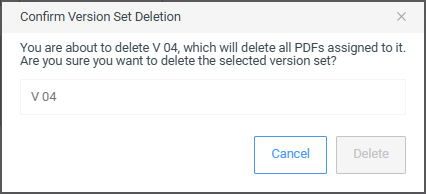
5. Enter the name that is displayed in the text field to enable the **Delete** button. If you want to delete a different version set, click **Cancel**, and repeat steps 3 and 4.
6. Click **Delete**.