---
title: "Mar 2021"
slug: "mar-2021"
updated: 2022-07-11T16:58:12Z
published: 2022-07-11T16:58:13Z
canonical: "support.xyicon.com/mar-2021"
---
> ## Documentation Index
> Fetch the complete documentation index at: https://support.xyicon.com/llms.txt
> Use this file to discover all available pages before exploring further.
# Mar 2021
Take a look at the new features and improvements we've released this month.
## March 29, 2021
#### Introducing the new and improved SpaceRunner Views!
Our developers have been working hard to make creating and managing views a lot more intuitive and straightforward. You can now effortlessly customize how you and your team see your data in the Portfolio, Space, Catalog, Xyicon, Boundary modules, and the [**Space Editor**](/v1/docs/about-the-space-editor).
Need to add or remove columns to the view while working with it? No problem, hover over a column, click **Manage Columns**, and choose the columns you want.
Want to hide a single column? Click **Hide Column**; it is that simple. You can manage columns in all modules and the **Xyicons** ( ) and **Boundaries** ( ) tabs in the [**Space Editor**](/v1/docs/about-the-space-editor).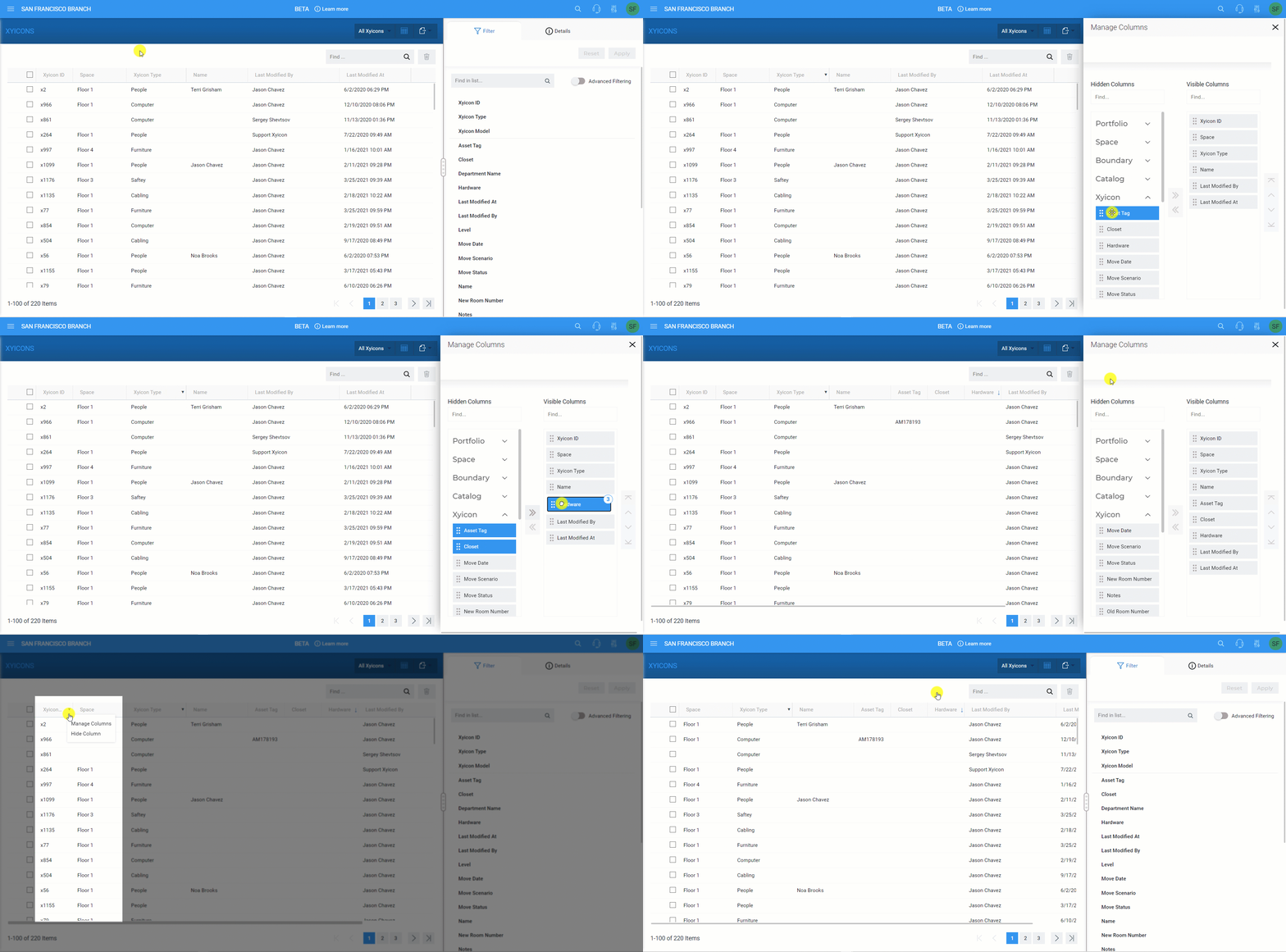
Use the **Side Panel > Filters** tab ( ) to quickly apply basic and advanced filters to your view. And if you want to remove the filter, click the **Reset** button to go back to the last saved filter.
Additionally, we have made it possible for you to save filters to your [**Space Editor**](/v1/docs/about-the-space-editor) views too!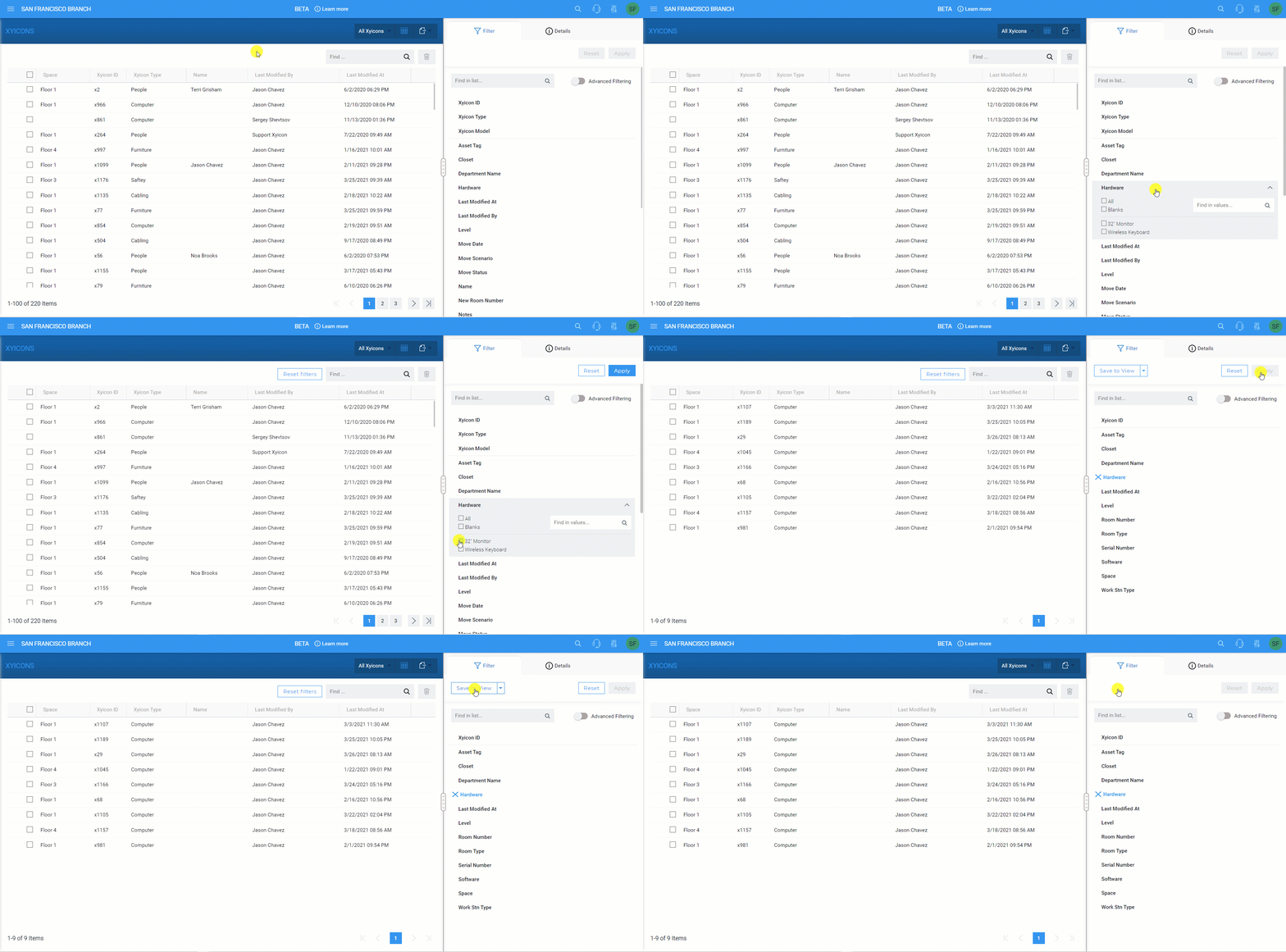
**Save captions, layers, and formatting to the view while applying them**
Apply and save your layers, captions, and formattings to your [**Space Editor**](/v1/docs/about-the-space-editor) view as part of your everyday work task.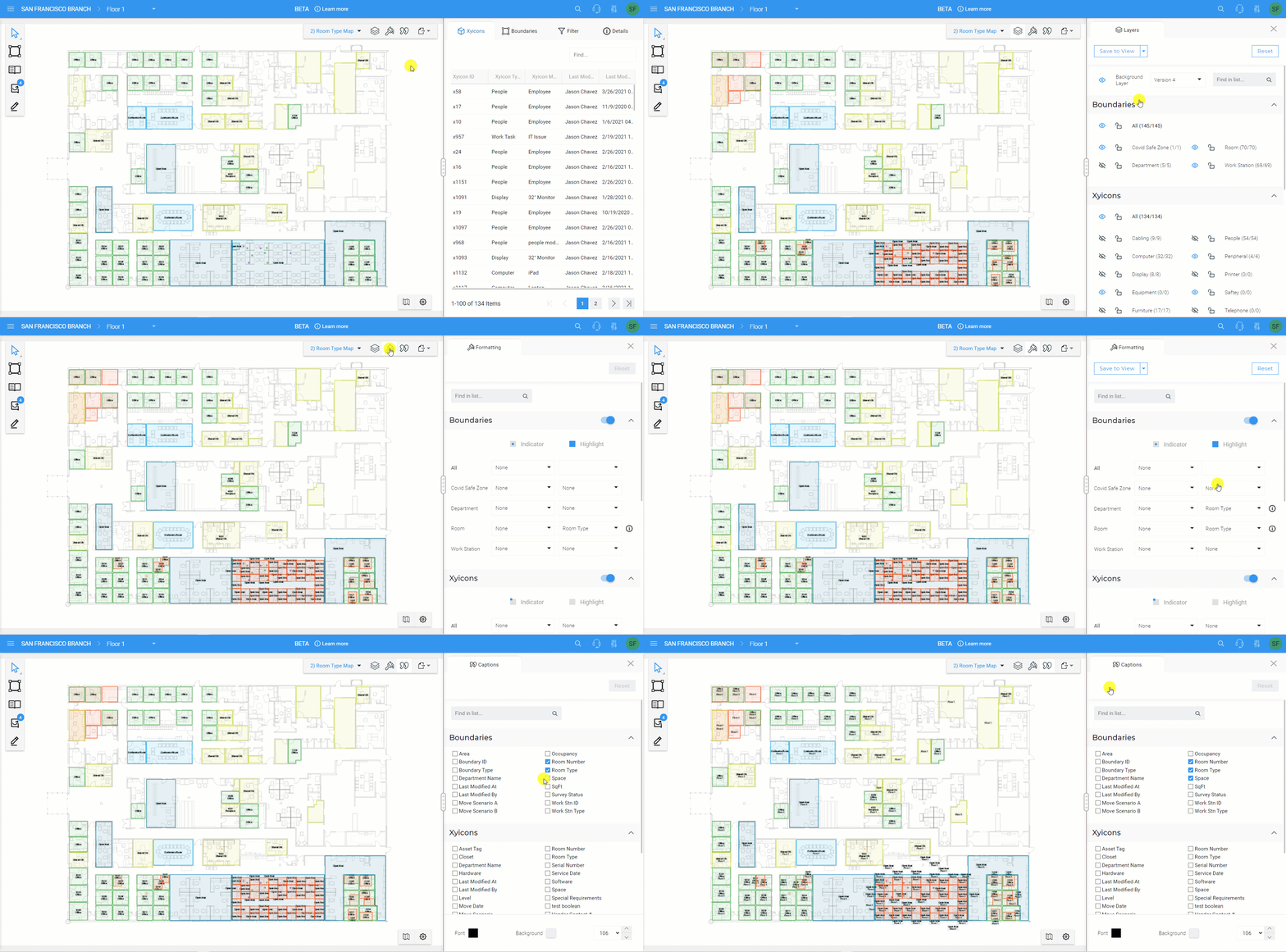
**Effortlessly build new views by using existing ones as templates**
If you do not want to make any changes to the original view or you do not have access to modify it, take the current view, customize it to your liking, and save your changes as a new view with a few clicks.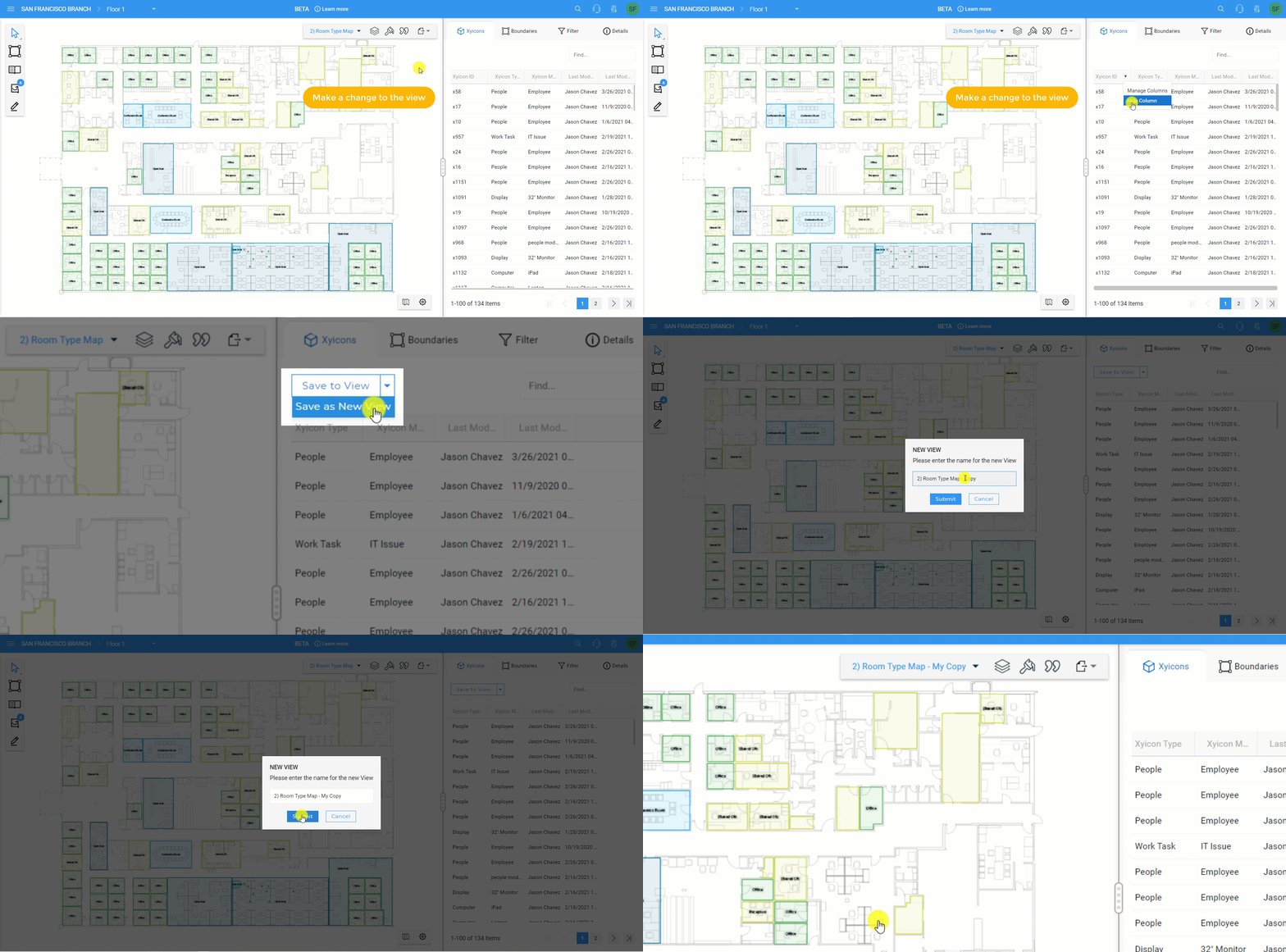
To learn more about how to work with views, make sure to check out the articles below:
- [Creating a view](/v1/docs/creating-a-view)
- [Managing columns in a view](/v1/docs/manage-columns-view)
- Apply and save filters to a view
- Apply and save layers, captions, and formats to a Space Editor view
- [Share](/v1/docs/sharing-a-view) and pin a view
- [Exporting a view](/v1/docs/exporting-a-view)
#### Unembed multiple Xyicons
SpaceRunner now allows you to unembed multiple xyicons in one go.
Click on the **Has Embeds** indicator ( ) to see the list of embedded xyicons. Next, while holding down the **CTRL** key on your keyboard, select the xyicons you want to unembed.
Finally, drag and drop the selected xyicons onto the space.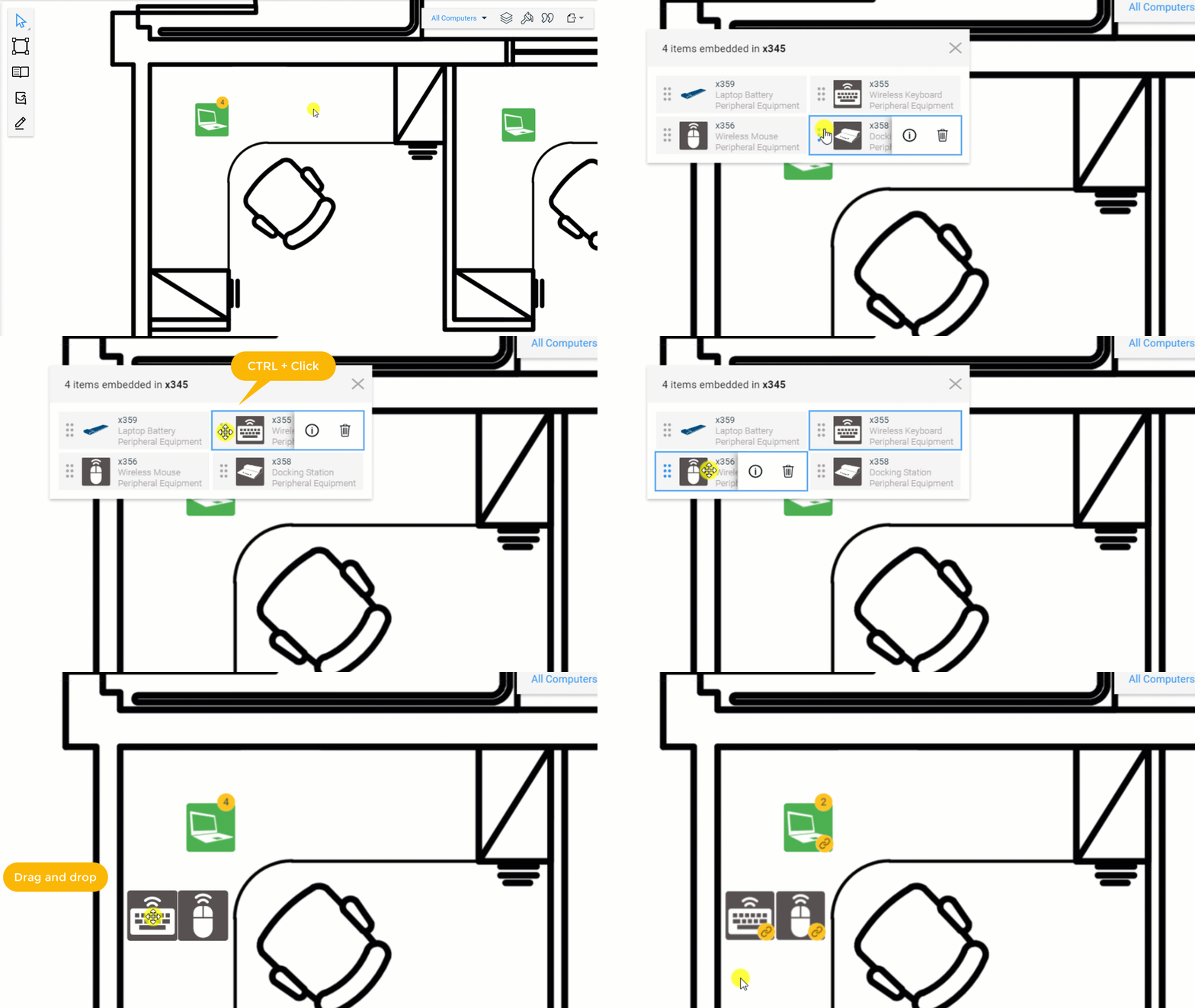
#### Improvements to User Preferences
| Enable or disable the **Snap-to-Angle** mode ( ) or the **Snap-to-Grid** mode ( ) on the **Space Editor Navigator Panel**, and SpaceRunner will remember your choice the next time you log in. |
| --- |
---
## March 15, 2021
#### Dock panels in the Space Editor
Dock and resize the **Boundary**, **Catalog**, and **Unplotted Xyicons** panels from the **Space Editor** toolbar for easy access, and SpaceRunner will remember your preference the next time you open the **Space Editor**.
To dock a panel, open the panel you want from the **Space Editor Toolbar** and click the **Dock Panel** button ( ).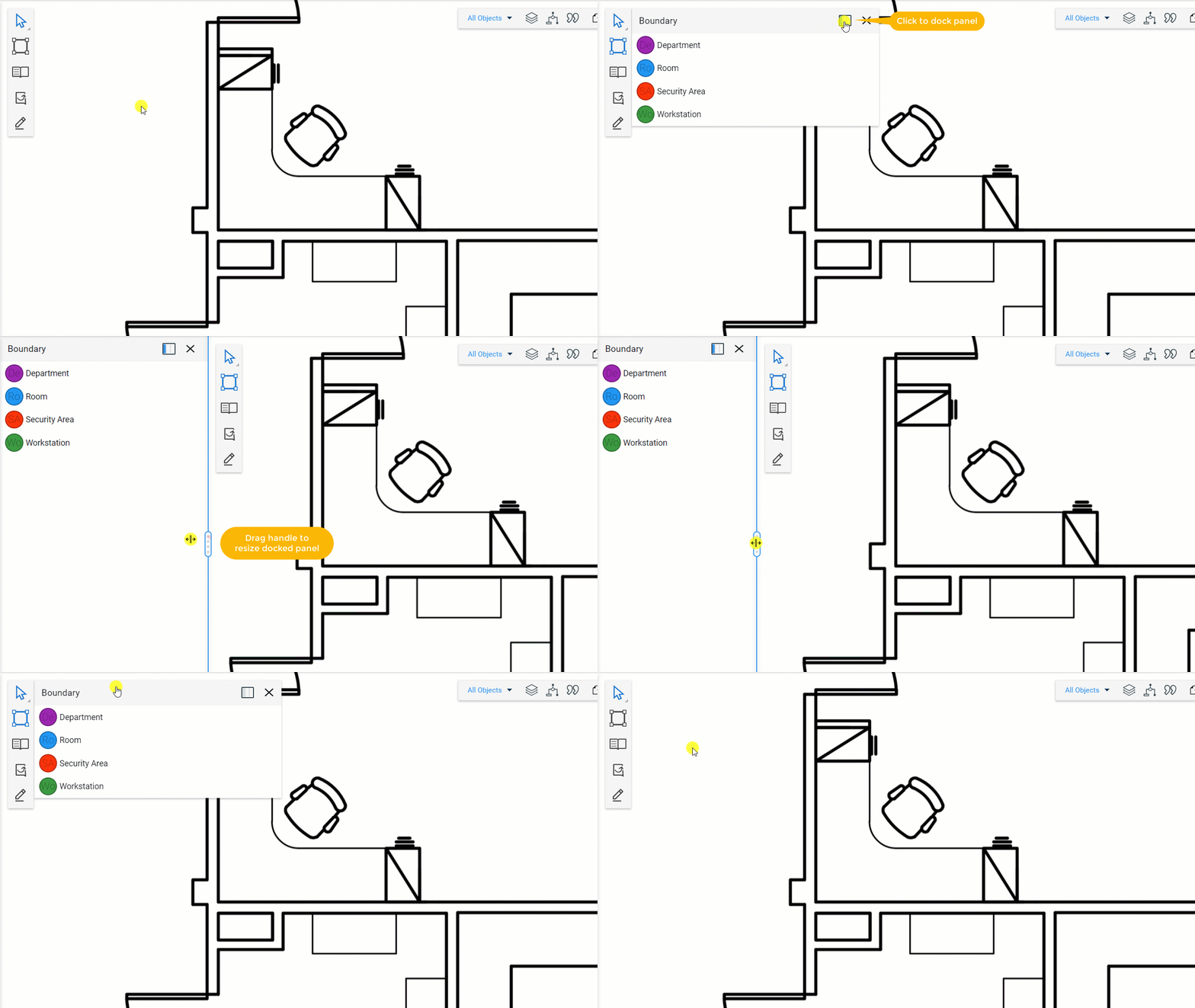
#### Last Used View - All Modules
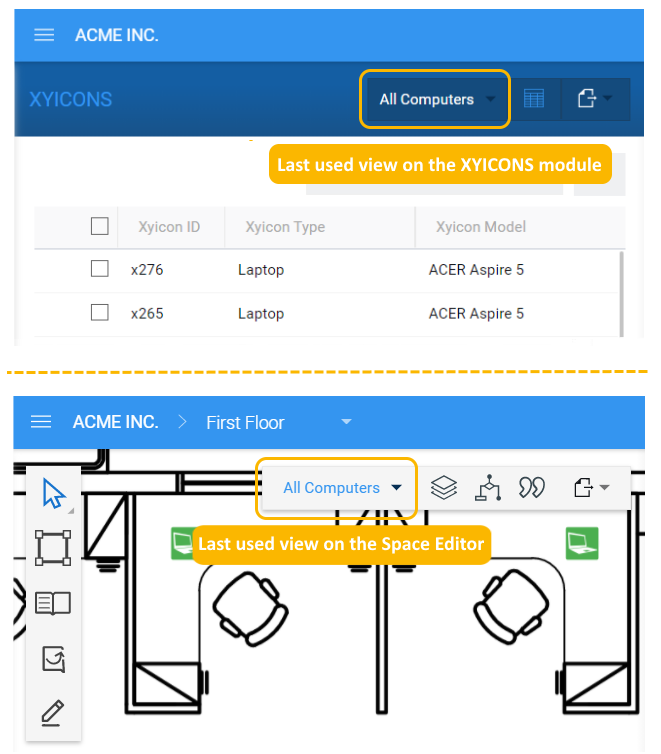
SpaceRunner will load the most recent view you worked on for all modules so you can swiftly resume your work from where you left off. You can find the name of the last used view on the respective **View Bar** of the module or **Space Editor**.