---
title: "Organizing Views using Folders"
slug: "organizing-views-using-folders"
description: "Organize views into separate folders for better management. Sort and rename folders in Xyicon modules for a more customized, efficient, and well-organized experience."
updated: 2023-08-23T05:22:04Z
published: 2023-08-23T05:22:04Z
canonical: "support.xyicon.com/organizing-views-using-folders"
---
> ## Documentation Index
> Fetch the complete documentation index at: https://support.xyicon.com/llms.txt
> Use this file to discover all available pages before exploring further.
# Organizing Views using Folders
Xyicon Users
Use this article to learn how to create folders to organize your views in the Xyicon module windows; Portfolios, Spaces, Catalog, Xyicons, Boundaries and the [**Space Editor**](/v1/docs/about-the-space-editor).
## Before you begin
Make sure that your **Xyicon User** has the necessary permissions to the respective modules to work with views. User Permissions are managed by your organization's **Xyicon Administrator**.
---
## Create a Folder
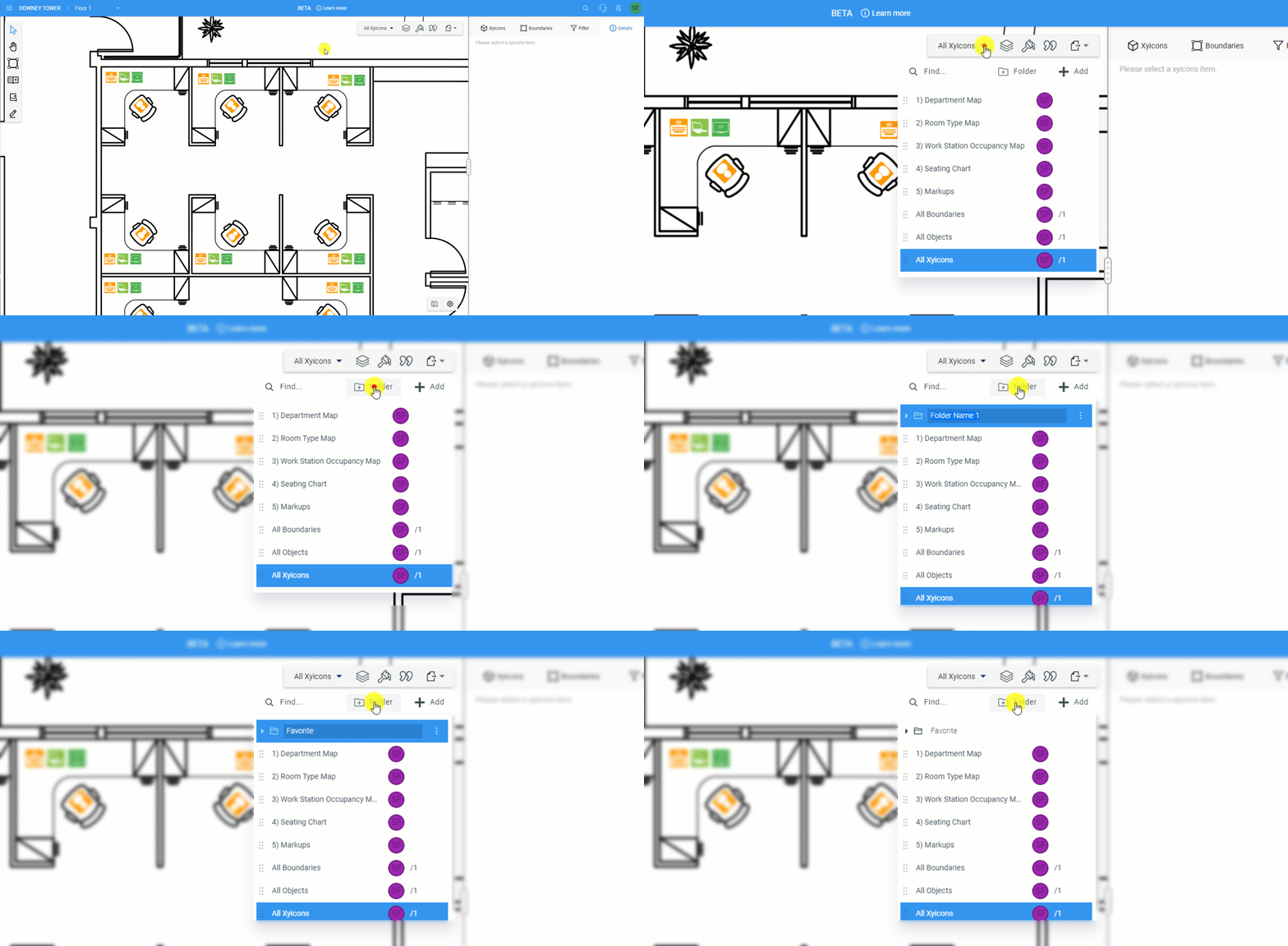
1. Navigate to the desired module on the **Main Menu** ( ) or [open the **Space Editor**](/v1/docs/opening-your-space-in-the-space-editor).
2. Click the **View Selector** field on the **Views Bar** of the module window or [**Space Editor**](/v1/docs/about-the-space-editor).
3. To create a new folder, 'Add New Folder' from the 'Add New View' dropdown.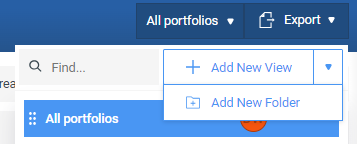
4. Type the name of the folder and press **ENTER** on your keyboard or click anywhere outside the field.
5. Next, [](/v1/docs/using-folders-in-views#add-and-remove-views-from-a-folder)[add views to your folder.](/v1/docs/organizing-views-using-folders#add-views-to-a-folder)
Nested folders can be created as well, by adding folders under folders.
---
## Add and Remove Views from a Folder
### Add Views to a Folder
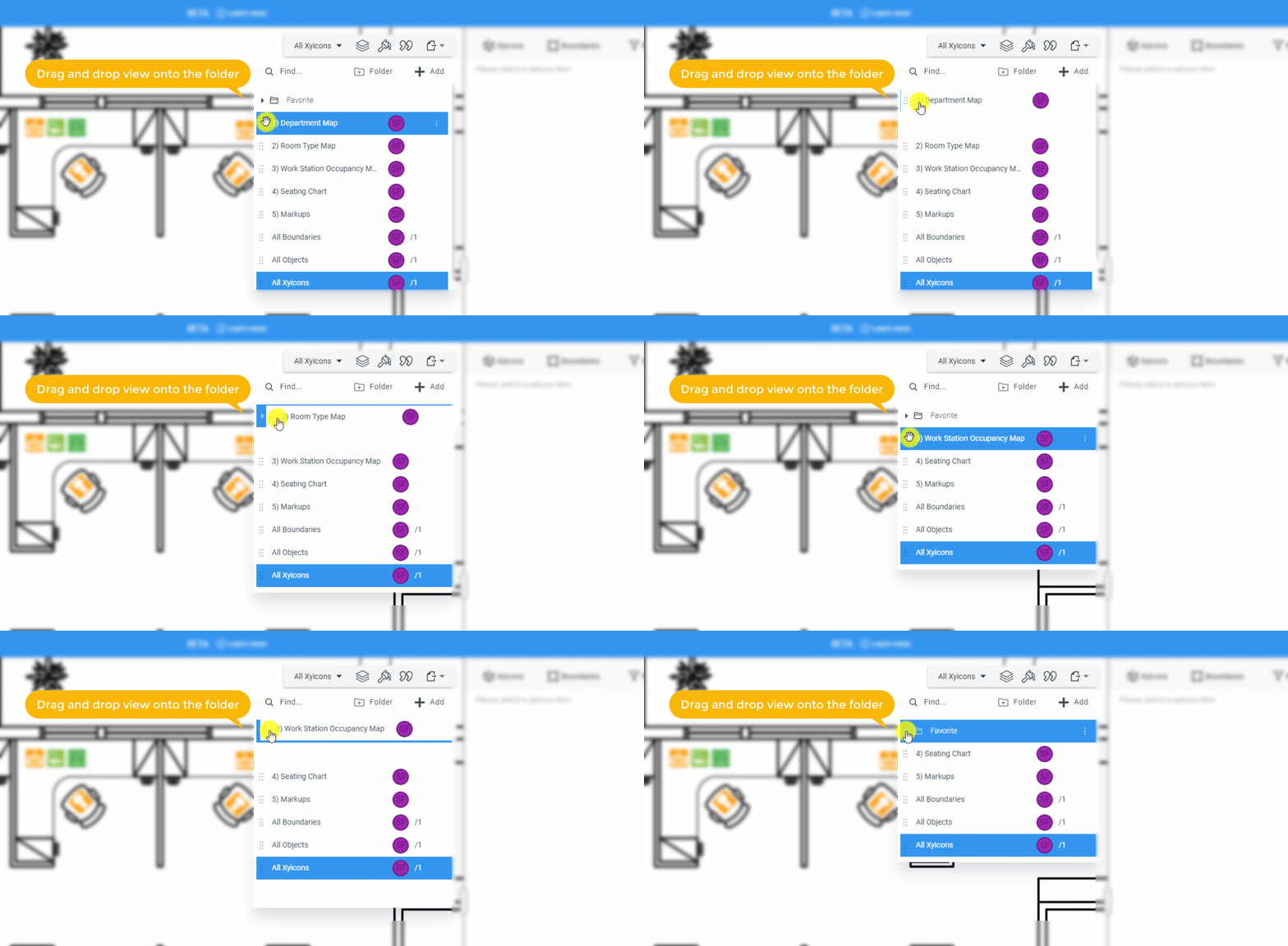
To add views to a folder, drag and drop an existing view onto the folder you want.
### Remove or Move Views from a Folder
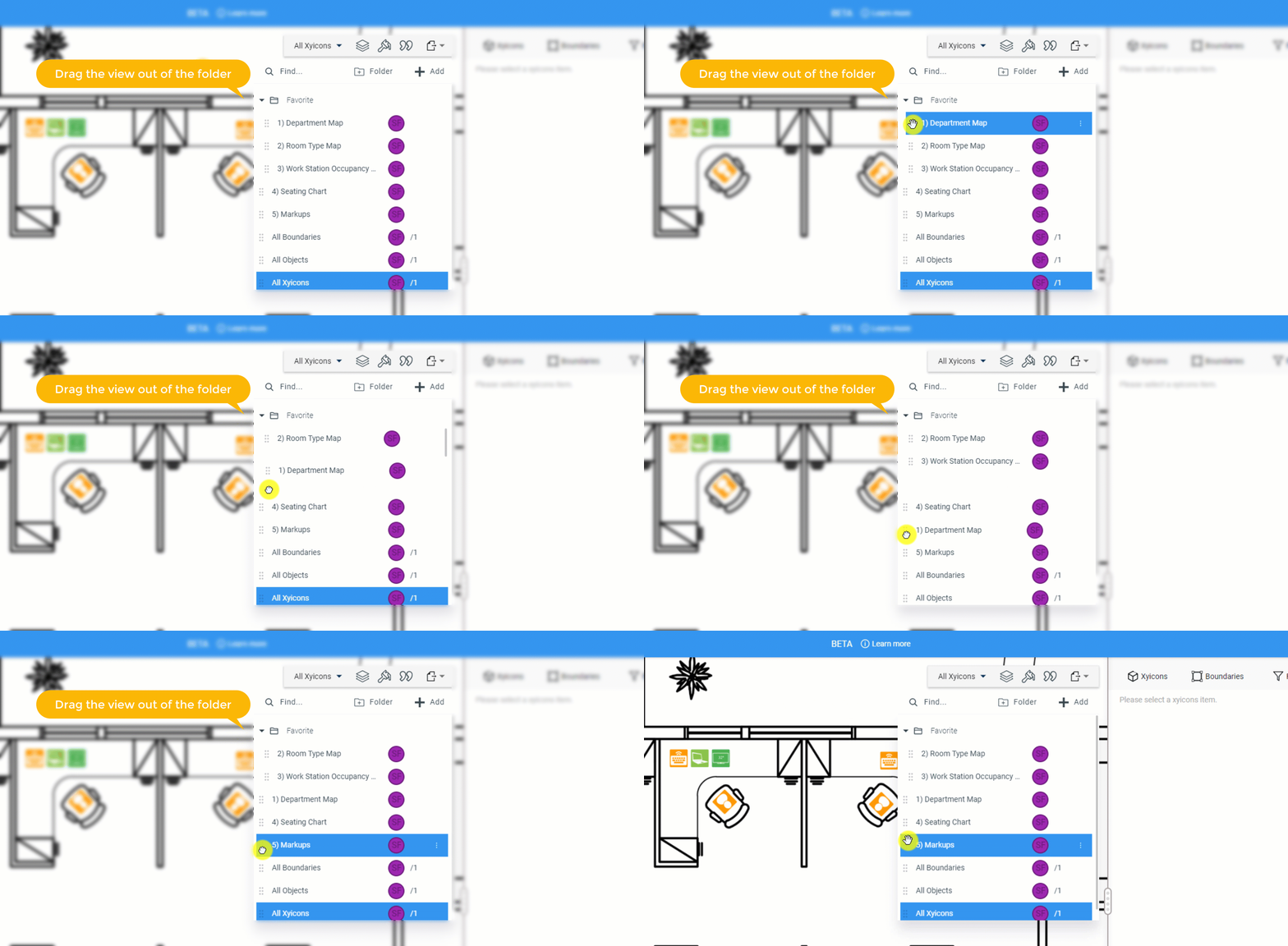
To remove the view from a folder, drag the view from the original folder and drop it to the **Views** dropdown. You can also move views between folders using the same method.
---
## Saving the Sort Order of the Views and Folders
In the **View Selector**, if a new folder is created it will be placed in the bottom of the list but the order of the views and folders in the **View Selector**. can be rearranged.
1. Navigate to the desired module on the **Main Menu** ( ) or [open the **Space Editor**](/v1/docs/opening-your-space-in-the-space-editor).
2. Click the **View Selector** field on the **Views Bar** of the module window or [**Space Editor**](/v1/docs/about-the-space-editor).
3. To change the order of the selected views, drag the view and drop it in the correct location in the view selector.
4. The order will automatically get saved even when you log in later.
---
## Rename a Folder
1. Navigate to the desired module on the **Main Menu** ( ) or [open the **Space Editor**](/v1/docs/opening-your-space-in-the-space-editor).
2. Click the **View Selector** field on the **Views Bar** of the module window or [**Space Editor**](/v1/docs/about-the-space-editor).
3. Hover over the folder you want to rename and click **Options** ( ).
4. Click **Rename**.
5. Type in the new name of the folder and press **ENTER** on your keyboard or click anywhere outside the field.
---
## Delete a Folder
**TIP:** Only folders that do not have views can be deleted.
1. Navigate to the desired module on the **Main Menu** ( ) or [open the **Space Editor**](/v1/docs/opening-your-space-in-the-space-editor).
2. Click the **View Selector** field on the **Views Bar** of the module window or [**Space Editor**](/v1/docs/about-the-space-editor).
3. Hover over the folder you want to delete and click **Options** ( ).
4. Click **Delete**. You will be prompted to confirm the action.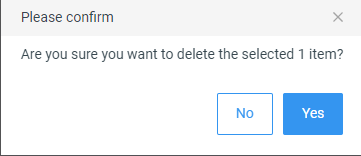
5. Click **Yes** to delete the folder.