---
title: "Renaming Views"
slug: "renaming-views"
description: "Rename views, including the necessary permissions to perform the action in various modules like Portfolios, Spaces, Catalog, Xyicons, and Boundaries."
updated: 2023-08-23T05:23:09Z
published: 2023-08-23T05:23:09Z
canonical: "support.xyicon.com/renaming-views"
---
> ## Documentation Index
> Fetch the complete documentation index at: https://support.xyicon.com/llms.txt
> Use this file to discover all available pages before exploring further.
# Renaming Views
Xyicon Users
Use this article to learn how to rename your views in a module or the [**Space Editor**](/v1/docs/about-the-space-editor).
## Before you begin
Make sure that you are either the owner of the view or have edit privileges to the view for shared views. Once established this can be done in the Portfolios, Spaces, Catalog, Xyicons, and Boundaries modules.
---
## Steps
1. [Navigate to the Space Editor](/v1/docs/opening-your-space-in-the-space-editor) or open the desired module from the **Main Menu** ( ).
2. Click the **View Selector** field on the **Views Bar** of the [**Space Editor**](/v1/docs/about-the-space-editor) or module window. A dropdown will appear with a list of existing views.
3. Hover over the view you want to rename, click the **More Options** button ( ) and click **Rename**. 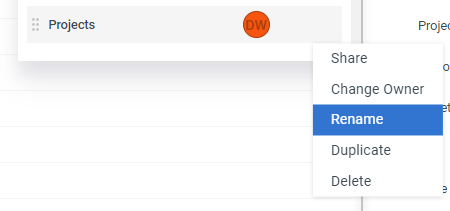
4. Type in the new name of your view and press ENTER on your keyboard or click anywhere outside the text field to save the new view name.