---
title: "Replacing a Space"
slug: "replacing-a-space"
updated: 2025-06-04T08:06:12Z
published: 2025-06-04T08:06:12Z
canonical: "support.xyicon.com/replacing-a-space"
---
> ## Documentation Index
> Fetch the complete documentation index at: https://support.xyicon.com/llms.txt
> Use this file to discover all available pages before exploring further.
# Replacing a Space
Xyicon Administrators
Xyicon Users
Use this article to learn how to **replace** **the existing background file** of your space **with a new file version**. If you want to create a space using a new background file, read the [Creating a New Space](/v1/docs/creating-a-new-space) article.
## Before you begin
- Make sure you have set up the following module settings for the **Space** module under **Settings ( )**: Space Types, Space Fields, and Space Layouts.
- Make sure that your **Xyicon** **User** has the necessary permissions to create and replace a space. User permissions are managed by your organization's **Xyicon** **Administrator**.
---
## Step 1 - Select a Version Set
1. Navigate to the **SPACES** module.
2. Click the **Create Space** button ( ) on the **Action Bar**.
3. Select a version set from the available versions in the **Create New Space** panel.
**NOTE:** If there are no version sets available, you can [create a new version set](https://support.xyicon.com/docs/managing-versions#create-a-new-version-set).
4. Click **Next** to upload a background file.
---
## Step 2 - Upload PDF (Upload Background File)
A background file is a two-dimensional graphical representation of a space, such as a floor plan, site map, image, drawing, illustration, or sketch. The background file serves as the backdrop on which you build your space (including object placement such as boundaries and xyicons). The file must be in ***.pdf** format.
1. On the **Create New Space, Upload PDF** panel, select the type of space you are uploading in the **Space Type** field.
2. Click on the **Upload File** box ( ) and add the ***.pdf** file you want. Alternatively, you can drag and drop your ***.pdf** file into the **Upload File** box as well**.**
3. To create multiple spaces at once, use one of the following methods when adding files to the **Upload File** box ( )
- Select a multi-page PDF file; **Xyicon** will separate them into individual background files.
- Select multiple PDF files.
4. Click **Next** to review your space names.
---
## Step 3 - Review Space Names
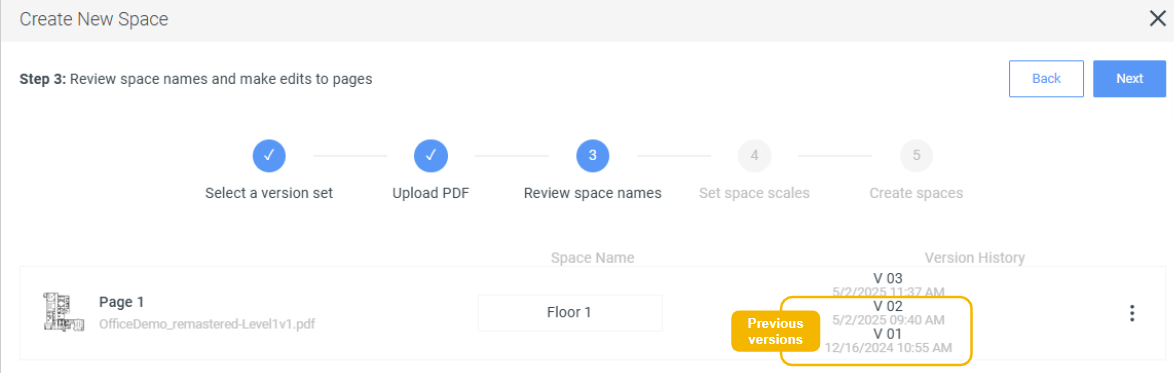
1. On the **Create New Space, Review Space Names** panel, locate the **Space Name** field. Make sure the name displayed in the field is identical to the name of the space you are updating with the new background file version.
If you upload multiple pages or multiple background files, make sure that the names displayed in the fields are identical to the names of the spaces you are updating with the new background files.**IMPORTANT:** If you enter a unique name, **Xyicon** will create a completely new space object and NOT a new version.**NOTE:** If there is a new floor in the PDF file that you upload, it will be created as a new space.
2. Check that the correct list of versions is displayed in the **Version History** field. All previous versions will be displayed when adding a new version of a space.
3. To rotate your background, click on the **Options** button ( ), and click **Rotate 90° CW** (clockwise) or **Rotate 90° CCW** (counter-clockwise).
4. To delete a background file, click on the **Options** button ( ) and click **Delete**.
5. Click **Next** to confirm the alignment of the new space version.
---
## Step 4 - Confirm Alignment (Set Space Scales)
The scale of your space plays a critical role in how xyicons and boundaries are displayed, how they will plot, and what the model of your space will look like in the [**Space Editor**](/v1/docs/introduction-to-space-editor).
When you upload a new version of the file, ensure that the new background aligns perfectly with the old background. This alignment is essential to prevent any scale discrepancies between the two backgrounds.
**IMPORTANT:** If the scale is offset in the new background file you will have to manually realign all the objects on your space.
The new background is shown in green and the old background in red.
1. On the **Create New Space, Set space scales** panel, zoom in to your background file using the scroll wheel of your mouse (scroll up to zoom in and down to zoom out).
2. The **Space Scales Toolbar** will appear on the left corner of the uploaded space, along with the **Alignment Toolbar** on the right corner.
- The **Space Scales Toolbar** contains three tools:
- **Pan Tool:** Move around the space.
- **Move Background:** Adjust the old and new backgrounds.
- **Set Pin:** Pin a corner of the background and adjust it using the **Alignment Toolbar**.
3. To align the old and new backgrounds, you can:
- Pin a corner using the **Set Pin** tool and adjust the scale of the background using the alignment tool in the top-right corner. The position of the pin affects the direction of the scaling. For example, if you pin the center, the scaling will apply in all directions.
- Reposition the background using the **Move Background** tool to align boundaries and xyicons accurately.
- Adjust the scale by dragging the handle or using the left and right arrows on the **Scale Bar** on the **Alignment Toolbar**.
4. After completing your adjustments, click **Confirm Alignment** to save the changes.
5. Click **Next** to create your spaces.
[Video](https://cdn.document360.io/d689d9b5-af1b-4ba8-a27d-d8cad72c9618/Images/Documentation/Set%20scale.mp4)
---
## Step 5 - Update the Space (Create Spaces)
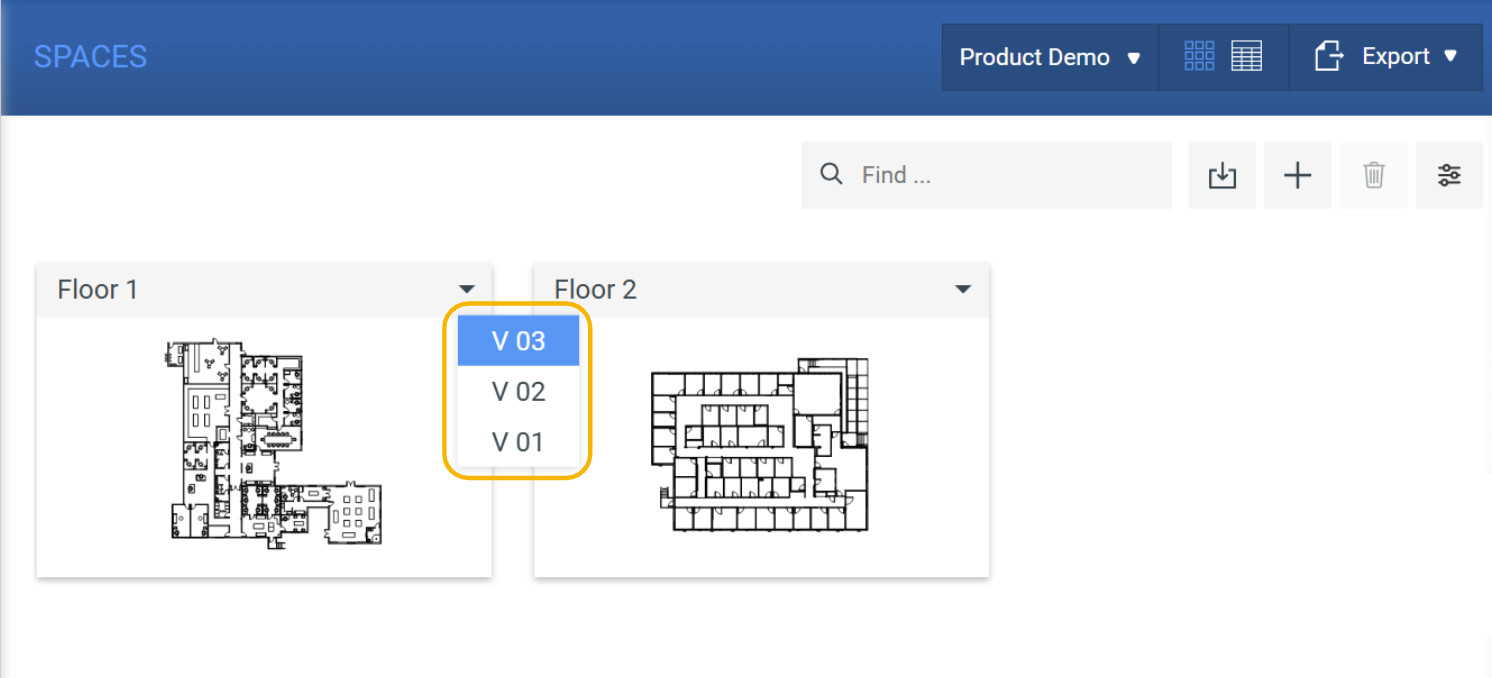
You are now ready to update your space with the latest background file version. Click **Create** (this activity may take a few minutes based on the number of background files you have uploaded). Once the process is complete, you can view your updated spaces in the **SPACES** module. You can access the new version by clicking the drop-down arrow ( ) on the space tile.