---
title: "Viewing and Updating Spaces"
slug: "viewing-and-updating-spaces"
description: "Effortlessly view and update Spaces in Xyicon. Navigate, switch views, track version history, and update multiple Spaces efficiently."
updated: 2025-04-21T05:46:29Z
published: 2025-04-21T05:46:29Z
canonical: "support.xyicon.com/viewing-and-updating-spaces"
---
> ## Documentation Index
> Fetch the complete documentation index at: https://support.xyicon.com/llms.txt
> Use this file to discover all available pages before exploring further.
# Viewing and Updating Spaces
Xyicon Users
Use this article to view and update spaces in the **SPACES** module.
## Before you begin
Make sure that your **Xyicon User** has the necessary permissions to view and update xyicons. User Permissions are managed by your organization's **Xyicon Administrator**.
## View a Space
1. Go to **Main Menu ( ) > SPACES** to see spaces for the active portfolio or
2. Open a space from the **PORTFOLIOS** module:
1. On the **PORTFOLIOS** module, select the portfolio for which you want to view spaces.
2. Click the **Quick Links** button or right-click on the selected portfolio and click **Spaces.** **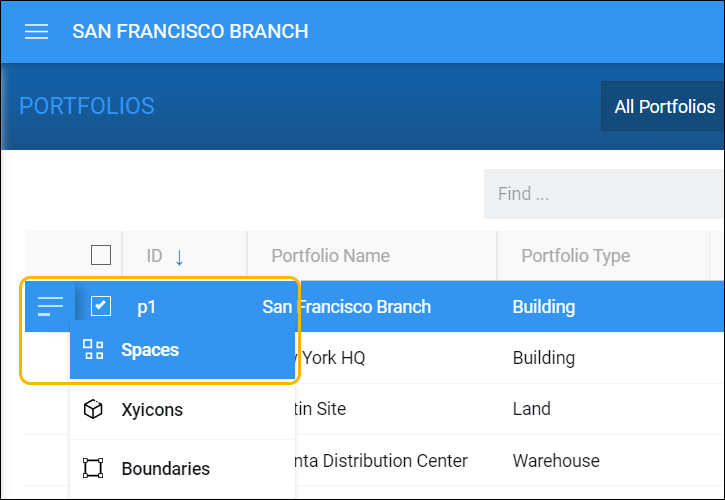**
3. To switch views, click the **View Selector** field on the **View Bar**, and select an existing view. **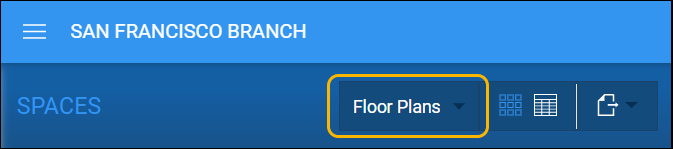**If your view is pinned to the navigator, you can access it directly. Go to **Main Menu > SPACES > *View Name*.** Or create your own view.
4. Click on a tile to see the selected space's details on the **Side Panel > Details** tab ( **** ).
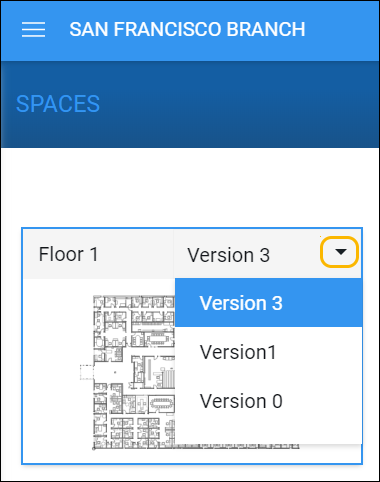
5. To view the version history of a space, click the drop-down arrow ( ) next to the version name on the tile, and select an entry from the list. This option is only available in the **Tile** layout of the **SPACES** module.
6. By default, spaces are displayed in a **Tile** layout ( ). To view the spaces in a different layout, click on a layout button on the **View Bar**:
- **Table Layout** button ( )
**TIP:** When you are on the Tile layout, the Table layout of the view is also displayed on the **Side Panel > Spaces** tab. Use the tab to see details of the space which are not available in the Tile layout.
---
## Update Space Details
### Rename a Space
1. Navigate to the **SPACES** module and select the space you want to rename.
2. Click the **Side Panel > Details** tab ( ) and click on the **Name** field to rename the space.
3. Select the checkmark ( ) next to the field to save the changes. Alternatively, you can also press the **Tab** key to do the same.
### Update a Single Space
1. Navigate to the **SPACES** module and select the space you want to update. **TIP:** To refine the list of spaces in the current view, use the **Side Panel >**[**Filter**](/v1/docs/using-filters) tab ( ) or the **[**Quick Find**](/v1/docs/using-quick-find)** field on the **Action toolbar** (only applicable for the **Table** layout).
2. Click **Side Panel > Details** tab ( ) to see the available fields. Use the **Splitter** to resize the **Side Panel** to your liking.
3. Add, delete, or edit the values in the respective fields.
4. Select the checkmark ( ) next to the field to save the changes. Alternatively, you can also press the **Tab** key to do the same.
### Update Multiple Spaces
1. On the **SPACE****S** module, click the **Table** **Layout** button ( ) from the **View Bar**, and select the checkboxes against the spaces you want to update. To update all records, select the checkbox on the table header.
2. Next, click the field you want to edit on the **Side Panel > Details** tab ( ). The field will expand to show two additional fields.
3. Select the values you want to change in the **Current Value(s)** field using the options below:
- **(All Values)** - Replace all existing and blank values for the selected records with the new value.
- **(Blank Values)** - Update records that only have blank values.
- **** - Update records with a specific value.
4. In the **New Value** field, enter or select the value that will replace the value in Step 3. If you want to remove the old values, leave this field empty.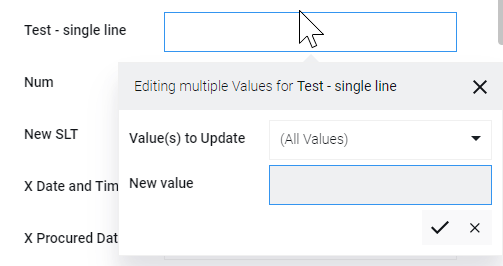
5. Select the checkmark ( ) or hit the "Enter" key and the **Confirm Update** alert box will be displayed to confirm the changes. If you want to discard the changes, select the cross ( x ) or hit the "ESC" key.
6. In the **Confirm Update** alert box, select **Yes** or hit the "Enter" key to confirm changes. Select **No** or hit the "ESC" key to not go ahead with the changes.
7. Repeat steps 2 to 6 as required.