---
title: "Accessing Merged Boundaries"
slug: "accessing-merged-boundaries"
description: "Access merged boundaries in Xyicon using Portfolio Wide Search, the Space Editor, or the Boundaries module. View and locate connected boundaries quickly and easily."
updated: 2024-04-03T07:21:22Z
published: 2024-04-03T07:21:22Z
canonical: "support.xyicon.com/accessing-merged-boundaries"
---
> ## Documentation Index
> Fetch the complete documentation index at: https://support.xyicon.com/llms.txt
> Use this file to discover all available pages before exploring further.
# Accessing Merged Boundaries
Xyicon Users
Use this article to learn how to access merged boundaries on the [**Space Editor**](/v1/docs/about-the-space-editor).
## Before you begin
Make sure that your **Xyicon User** has the necessary permissions to view spaces and boundaries. User Permissions are managed by your organization's **Xyicon Administrator**.
---
## Method 1 - From a Portfolio Wide Search result
1. Click the **Portfolio Wide Search** field on the Xyicon **Header** and search for the boundary.
2. Hover over the boundary on the search result and click the **Open in Space Editor** icon( ).
3. On the dropdown, click the same icon ( ) next to the boundary you want to open in the [**Space Editor**](/v1/docs/about-the-space-editor).
[Video](https://cdn.document360.io/d689d9b5-af1b-4ba8-a27d-d8cad72c9618/Images/Documentation/Accessing%20Merged%20Boundaries%20-%20from%20Portfolio-Wide%20Search.mkv)
---
## Method 2 - From within the Space Editor
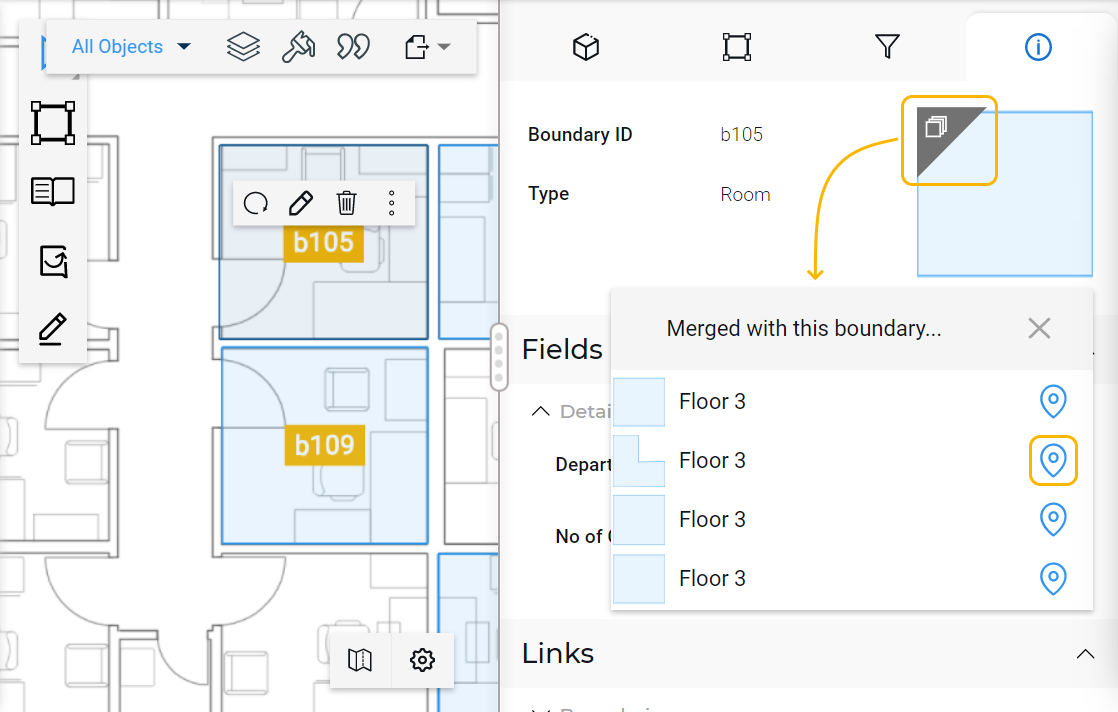
1. Select the boundary on the [**Space Editor**](/v1/docs/about-the-space-editor). A merged boundary will display the **Merged Boundaries Indicator** ( ) on the **Side Panel > Details** tab ( ),
2. Click the indicator to see a list of merged boundaries.
3. On the dropdown, click the **Open in Space Editor** button ( ) next to the boundary you want to locate.
---
## Method 3 - From the BOUNDARIES Module
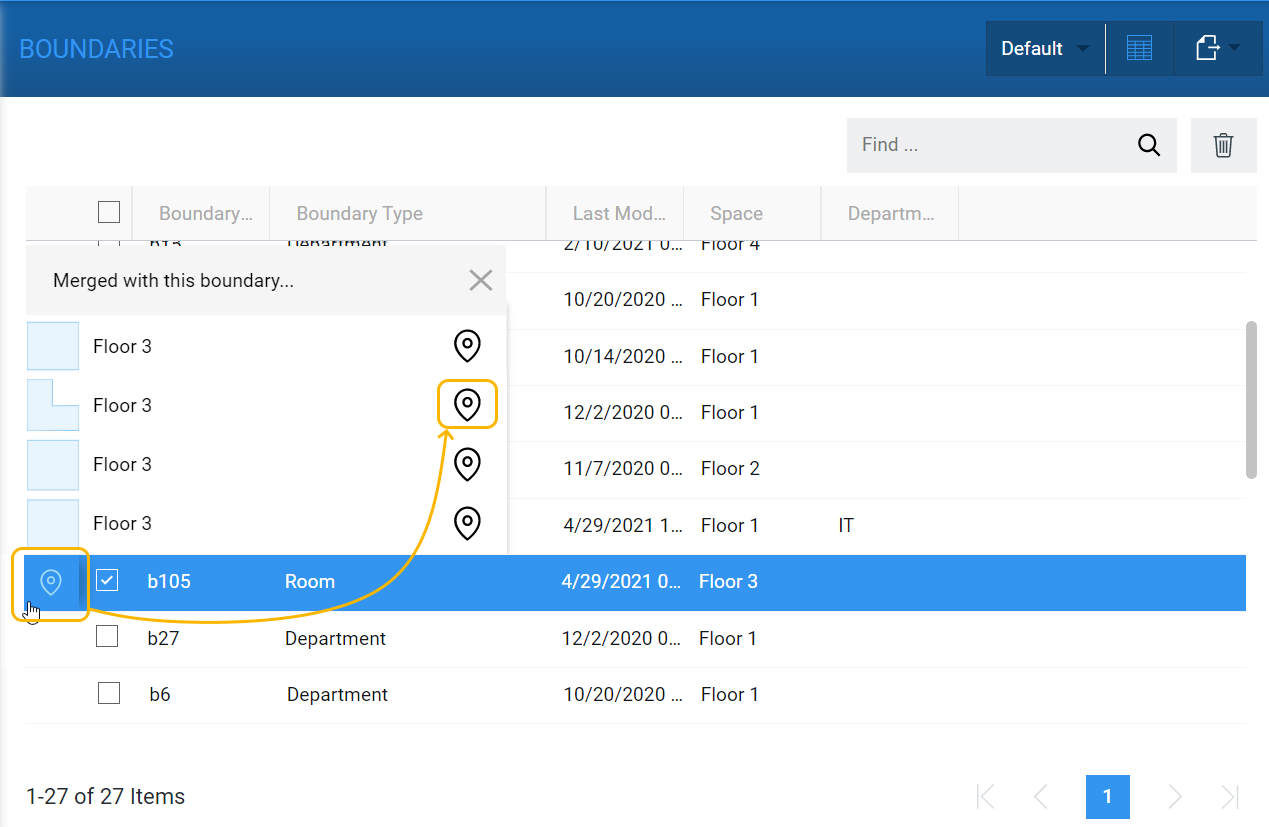
1. Go to the **BOUNDARIES** module and select a boundary from the table.
2. Hover over the boundary record on the table, and click the **Open in Space Editor** button ( ) displayed to the left.
3. For merged boundaries, you will see a pop-up with a list of the connected boundaries. Click the **Open in Space Editor** button ( ) next to the boundary you want to open in the [**Space Editor**](/v1/docs/about-the-space-editor).