---
title: "Adding Xyicons to your Space"
slug: "adding-xyicons-to-your-space"
description: "Learn how to add xyicons to your space in Xyicon's Space Editor. Use the Catalog Panel to drag and drop xyicons or clone existing ones with Copy and Copy to Stamp methods."
updated: 2025-04-02T04:37:41Z
published: 2025-04-02T04:37:41Z
canonical: "support.xyicon.com/adding-xyicons-to-your-space"
---
> ## Documentation Index
> Fetch the complete documentation index at: https://support.xyicon.com/llms.txt
> Use this file to discover all available pages before exploring further.
# Adding Xyicons to your Space
Xyicon Users
Use this article to learn how to add xyicons to your space inside the [**Space Editor**](https://spacerunner.document360.io/v1/docs/about-the-space-editor).
## Before you begin
- Make sure catalog items are available in the **CATALOG** module.
- Module settings such as Xyicon Types, Xyicon Fields, and Xyicon Layouts are set up for the Xyicon module.
- Verify your **Xyicon User** has the necessary permissions to create xyicons.
The Xyicon Catalog, Module Settings, and User Permissions are managed by your organization's **Xyicon Administrator**.
---
## Add a Xyicon from the Catalog Panel
1. Navigate to the **SPACES** module and double-click on your space to open it in the [**Space Editor**](https://spacerunner.document360.io/v1/docs/about-the-space-editor).
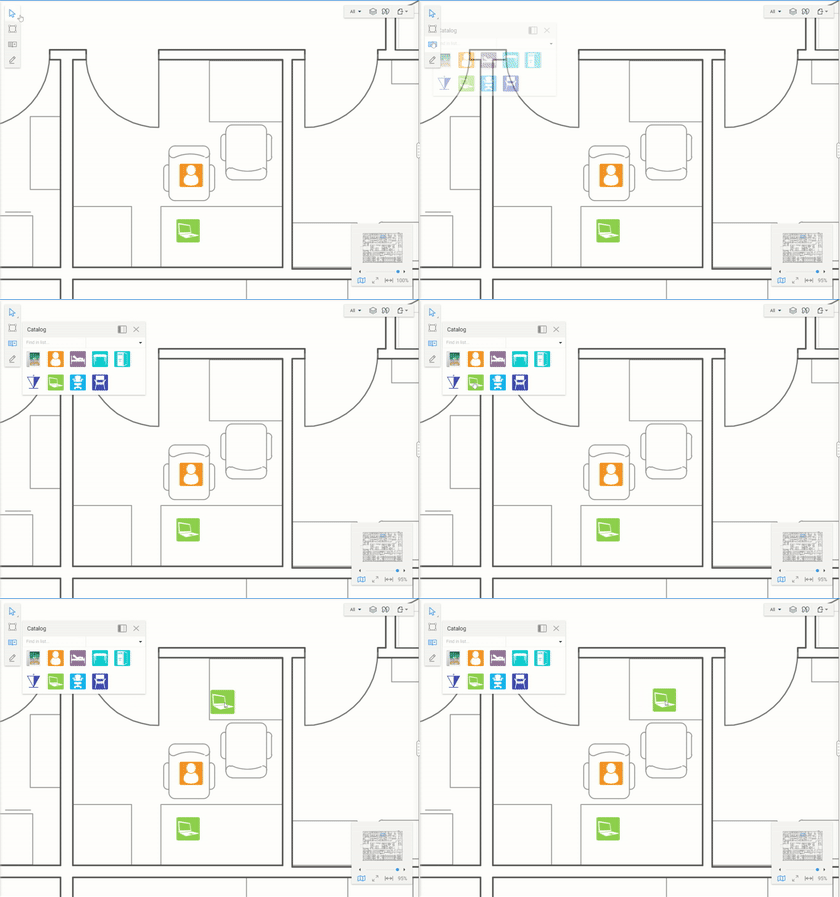
2. On the **Space Editor Toolbar**, click the **Show Catalog** button ( ). The **Catalog** panel will open with a list of available xyicons.**TIP:** Dock the **Catalog** panel to access all available xyicons easily. To dock, click the **Dock Catalog** button ( ) on the panel.
3. To add a xyicon, drag and drop the desired xyicon from the **Catalog** panel onto the space background. Repeat as needed.
4. You can view the list of xyicons for the space on the **Side Panel > Xyicons** tab ( ). You can also view them in the **XYICONS** module.
---
## Add Xyicons by Cloning
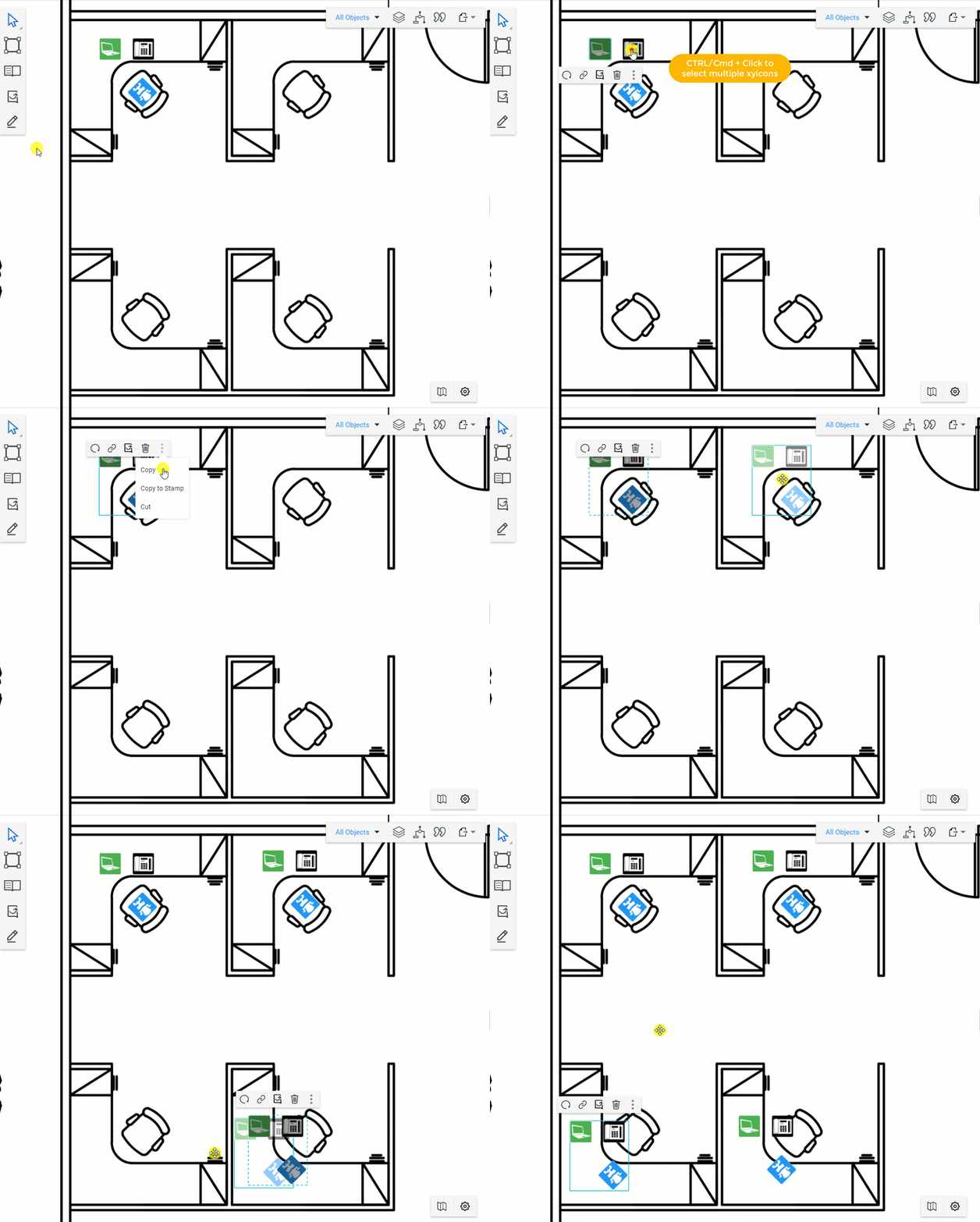
Both **Copy** and **Copy to Stamp** methods help you speed up creating xyicons by cloning existing xyicons and their information. Use them when you need to create multiple xyicons from the same xyicon model or when you want to duplicate a xyicon arrangement, for example, a computer and related peripheral equipment.
### Copy
1. Select one or more xyicons you want to copy.
2. Click **Copy** on the **Action Bar.**
3. Move to the desired location on your space and click to paste a single copy of the selected xyicons.**TIP:** You can also use the keyboard shortcuts **Ctrl+C** and **Ctrl+V** to copy and paste your xyicons.
### Copy to Stamp
4. Select one or more xyicons you want to clone.
5. On the **Action Bar,** click the **More Options** button ( ) and click **Copy to Stamp**. Your cursor will turn into stamp mode.
6. Move to the desired location on your space and click to paste the copied xyicons.
7. Repeat step 3 as often as you need to make multiple copies.
8. When you are done copying your xyicons, press the **Esc** key on your keyboard to exit the stamp mode.**TIP:** You can use the keyboard shortcuts **Ctrl+S** to stamp and **Ctrl+V** to paste.