---
title: "Creating a Catalog Item"
slug: "creating-a-catalog-item"
description: "Learn how to create a Catalog Item in Xyicon, customize models, set up port templates, and manage 3D models for seamless data integration."
updated: 2025-08-15T11:36:29Z
published: 2025-08-15T11:36:29Z
canonical: "support.xyicon.com/creating-a-catalog-item"
---
> ## Documentation Index
> Fetch the complete documentation index at: https://support.xyicon.com/llms.txt
> Use this file to discover all available pages before exploring further.
# Creating a Catalog Item
Xyicon Users
Use this article to learn how to create a catalog item in the [**Catalog** module](https://support.xyicon.com/preview/v1/en/c1646a7b-e56d-41f0-bb36-0fd801542bb7/17#catalog-module). Creating a catalog item is essential because it serves as a template from which specific xyicons are generated.
## Before you begin
- Make sure that your **Xyicon User** has the necessary permissions to create catalog items. User permissions are managed by your organization's **Xyicon Administrator**.
- Ensure you set up the following module settings for the **Catalog** module under Xyicon **Settings** ( ): Catalog Types, Catalog Fields, Catalog Layouts, and Navigation.
- Have your custom `*.glb` and *.gltf files ready if you are looking to upload your own models.
---
## Step 1 - Enter Catalog Item Properties
1. Navigate to the **Catalog** module from the **Main** **Menu ( ).**
2. Click the **Create Catalog Item** button ( ) on the **Action Bar**. The **Create Catalog Item** wizard will open.
3. Click the **Type** field and select the catalog type for which you want to create a new catalog item.
4. Next, specify the model of the new catalog item. The value you enter must be unique across all catalog types.
5. Optionally, enter values for the rest of the fields appear.**TIP:** These additional fields are the fields that are assigned to the selected catalog type. If you do not see any fields for the selected type, check whether any fields are assigned to the catalog type and added to the module's layout under the **Catalog** module in **Settings** ( ).
6. Click **Step 2** ( **** ) or the **Next** button to select a model for the new catalog item.
.png)
---
## Step 2 - Select the Model for your Catalog Item
The model you select determines if the xyicons created from this catalog item will show up as standard xyicons or model xyicons.
### Option 1 - Select Model for Standard Xyicon
1. Select the default tile located at the top of the list if you want the new catalog item to produce xyicons that show up as standard xyicons.
2. Click **Step 3** ( ) or the **Next** button to [customize the model](/v1/docs/creating-a-catalog-item#option-1--customizing-a-simple-xyicon).
[Video](https://cdn.document360.io/d689d9b5-af1b-4ba8-a27d-d8cad72c9618/Images/Documentation/Select%20Model%20for%20Standard%20Xyicon.mp4)
### Option 2 - Select Model for Model Xyicon
1. Select a custom 3D model if you want the catalog item to produce xyicons that show up as model xyicons.
2. If a suitable model is unavailable, click the **Upload** button ( ) on the panel to upload your own model. The **Open** dialog will appear.
3. In the dialog, navigate to the location on your computer where your `*.glb` or *.gltf files are stored, select the file you want to upload, and click **Open**.
4. On the popup that appears, the file name will automatically appear in the **Add Keywords** dialog box. You may add, edit, and delete keywords here. You can use these keywords to search for the model on this panel when creating future catalog items. A catalog model will not be saved without this step.
5. Select the uploaded model.
6. Click **Step 3** ( ) or the **Next** button to [customize the selected model](/v1/docs/creating-a-catalog-item#option-2--customizing-a-model-icon).
[Video](https://cdn.document360.io/d689d9b5-af1b-4ba8-a27d-d8cad72c9618/Images/Documentation/CreateCatalogItem_Step2_2-Select3DModel%20(online-video-cutter.com).mp4)
---
## Step 3 - Customize the Selected Model
The available properties for customization in this step will differ based on whether you selected a default tile (standard xyicon) or a custom 3D model (model xyicon) in the previous step.
### Option 1 - Customizing a Standard Xyicon
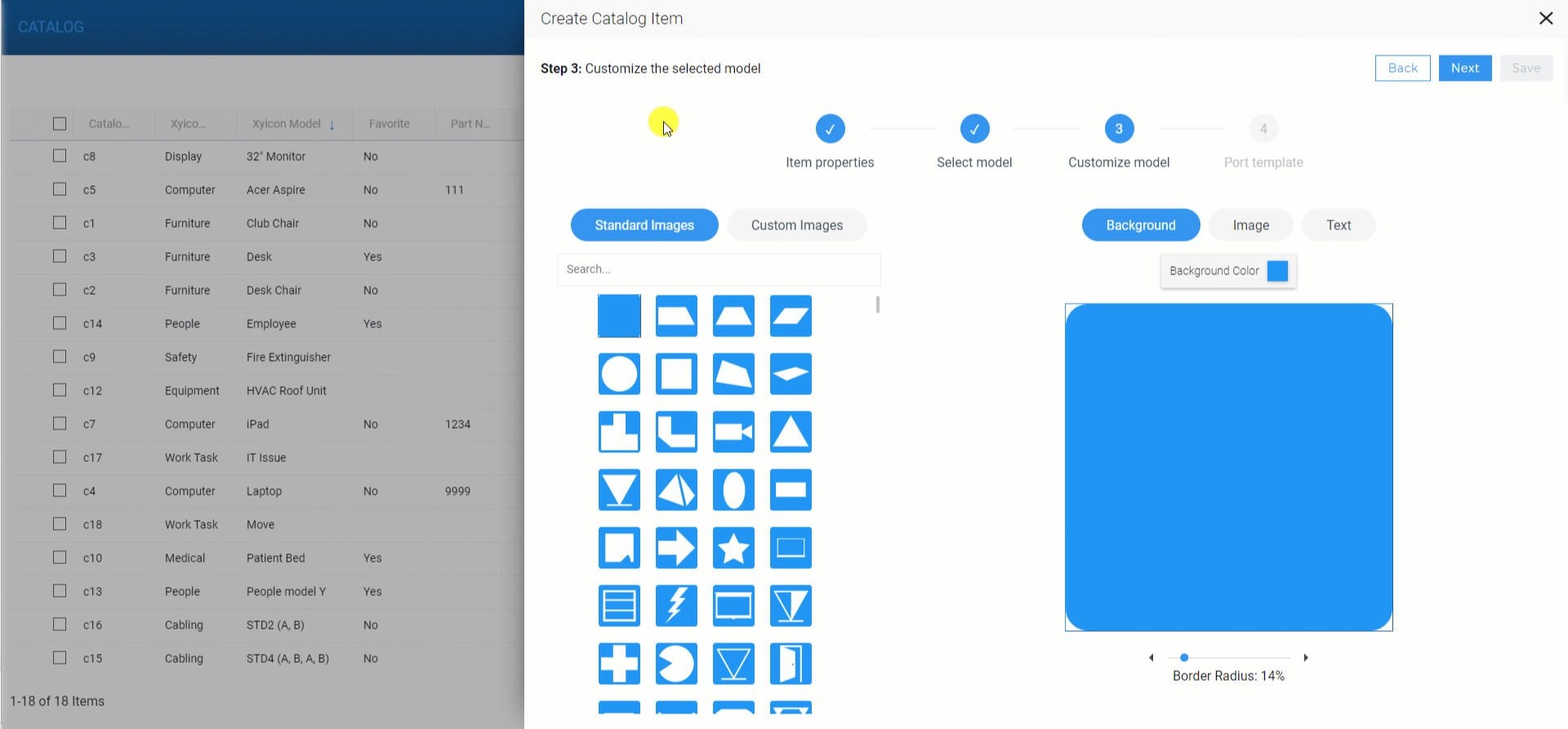
The default tile (standard xyicon) can be customized using images, colors, and text. You can choose from the standard images that come preloaded in Xyicon, or you can upload your own images using files from your computer or Google Search.
#### Select a Standard Image
1. Click the **Standard Images** button and select an appropriate image from the available list.**TIP:** Use the **Search** field to filter the list of standard images in the list.
2. Next, based on your requirement:
- [Change the background color and radius.](/v1/docs/creating-a-catalog-item#change-background-color-and-radius)
- [Adjust the image properties.](/v1/docs/creating-a-catalog-item#adjust-the-image)
- [Add text to the image.](/v1/docs/creating-a-catalog-item#add-text-to-the-image)
3. Click **Step 4** ( ) or the **Next** button to set up a port template.
#### Select a Custom Image
1. Click the **Custom** **Images** button and select an appropriate image from the available list (if any).**TIP:** Use the **Search** field to filter the list of custom images in the list.
2. To upload your custom images.
- Click the **Upload** button ( ) and upload an image file from your computer.
- Click the **Google Search** button ( ), search for the image you want, hover over the image you want to use and click **Add to Library**.
- On the popup that appears, the file name will automatically appear in the **Add Keywords** dialog box. You may add, edit, and delete keywords here. You can use these keywords to search for the model on this panel when creating future catalog items. A catalog image will not be saved without this step.
3. Next, based on your requirement, apply one of the modifications below to the selected image.
- [Change the background color and radius.](/v1/docs/creating-a-catalog-item#change-background-color-and-radius)
- [Adjust the image properties.](/v1/docs/creating-a-catalog-item#adjust-the-image)
- [Add text to the image.](/v1/docs/creating-a-catalog-item#add-text-to-the-image)
4. Click **Step 4** ( ) or the **Next** button to set up a port template.
[Video](https://cdn.document360.io/d689d9b5-af1b-4ba8-a27d-d8cad72c9618/Images/Documentation/add%20custom%20images%20to%20catalogs.mp4)
#### Change Background Color and Radius
The color you assign to the **Catalog Type** in the **Catalog settings** module serves as the default background color for catalog items created with that type. You can easily change it to your preferred color and customize the background using these steps.
1. Click the **Background** button and then the **Background Color** button ( **** ).
2. Next, select a color using the **Basic** or **Advanced** tabs.
3. Finally, adjust the radius of the background using the **Border Radius** slider.
[Video](https://cdn.document360.io/d689d9b5-af1b-4ba8-a27d-d8cad72c9618/Images/Documentation/change%20background%20color%20and%20radius.mp4)
#### Adjust the Image
1. Click the **Image** button.
2. Select the actual image. The selected image will have a blue rectangle around it.
3. Use the options below to adjust the selected standard or custom image.
- **Color** ( **** ) - Change the color of the image.
**NOTE:** Changing color applies to standard images only.
- **Rotate** ( ) - Rotate the image. The rotate icon is located on the blue rectangle around the image.
- **Move** - Move the image.
- **Scale** - Use the slider to scale the image.
- **Delete** ( ) - Delete the image from the preview.
- **Flip Vertically** ( ) - Flip the image vertically.
- **Flip Horizontally** ( ) - Flip the image horizontally.
[Video](https://cdn.document360.io/d689d9b5-af1b-4ba8-a27d-d8cad72c9618/Images/Documentation/Adjust%20the%20image.mp4)
#### Add Text to the Image
1. Click the **Text** button and start typing in the textbox.
2. Use the available **Formatting Bar** to apply text formatting and align the text.
3. You can also rotate and move the textbox on the image.
[Video](https://cdn.document360.io/d689d9b5-af1b-4ba8-a27d-d8cad72c9618/Images/Documentation/Add%20text%20to%20image.mp4)
### Option 2 - Customizing a Model Xyicon
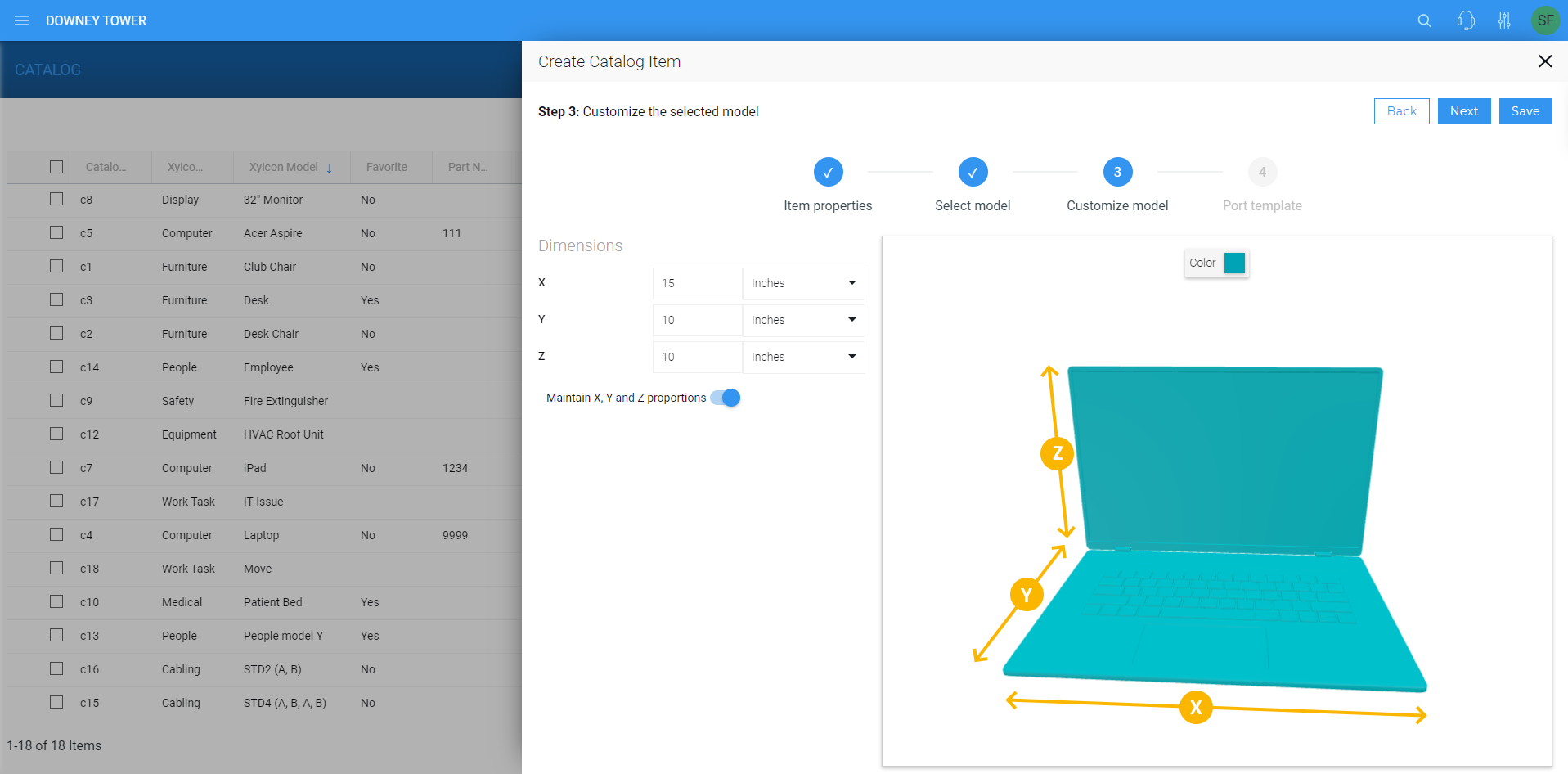
The dimensions of a `*.glb` or *.gltf file-based model are measured using X, Y, and Z coordinates.
1. On the **Customize Model** step of the **Create Catalog Item** wizard, enter values for the **X**, **Y**, **Z** fields and select the appropriate unit of measure for each coordinate using the dropdown field next to it.
2. Next, switch on the **Maintain X, Y, and Z proportions** toggle if you want Xyicon to automatically calculate all measurements when you change the value of a single coordinate.
3. To change the color of the model, click the **Color** ( **** ) button above the preview and select a color from the **Color Palette**. **TIP:** Click the preview of the selected model and rotate the object to see all aspects of it.
4. Click **Next** or **Step 4** ( ) to set up a port template optionally.
---
## Step 4 (Optional) - Set Up Port Template
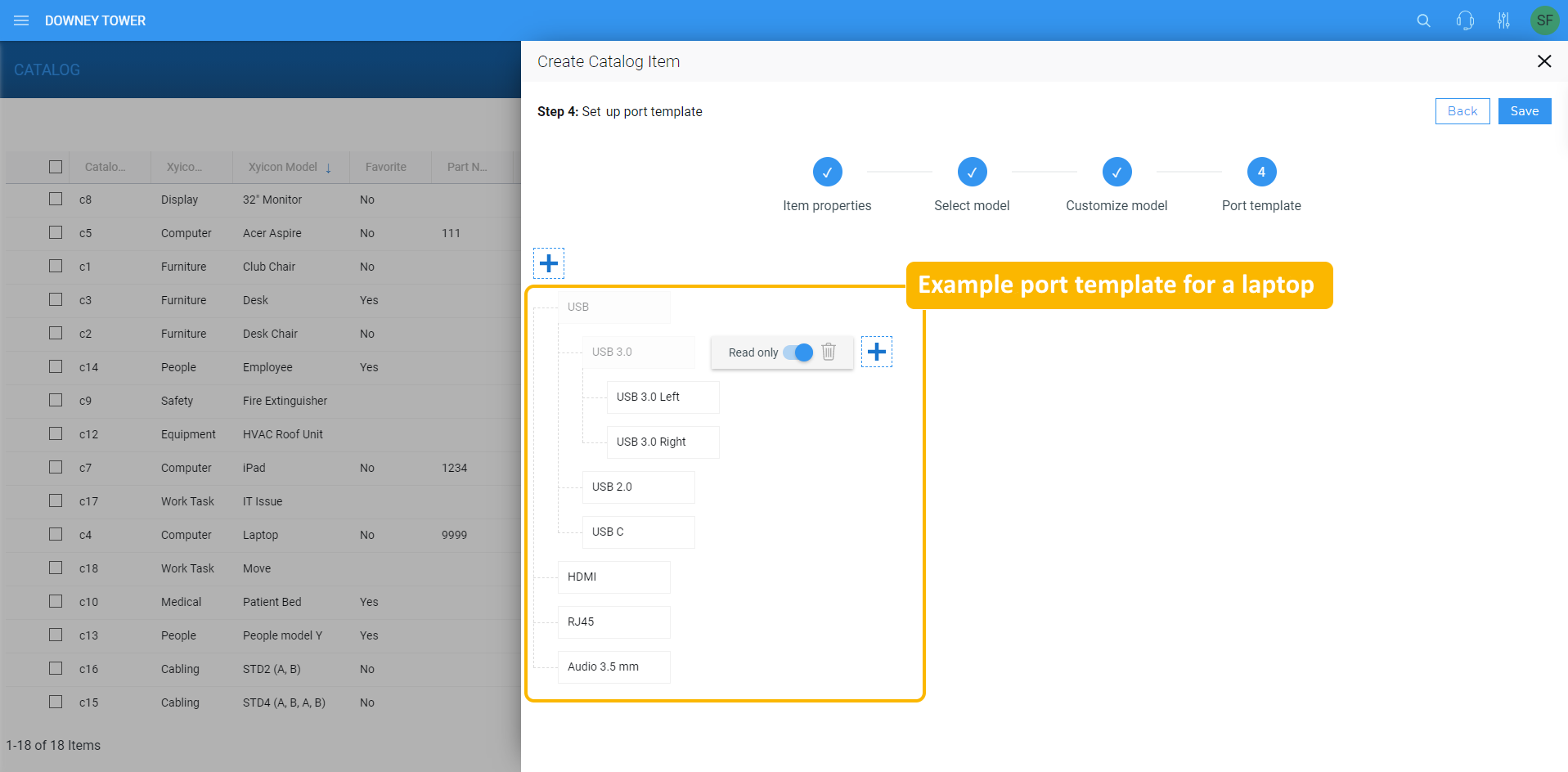
As the name suggests, a port template allows you to build a template of ports that, in turn, will be inherited by the respective xyicons as ports. The template can be a single port or a structure consisting of several levels. Ports allow you to create detailed relationships between xyicons.
1. Click the **Add Port Template** button ( ) on the panel and optionally enter a name to identify the port.
2. Repeat the above step as needed.
3. To create a port structure, click the **Add Port Template** button ( ) next to a port you entered previously and optionally enter a name to identify it.
4. To make a port read-only, turn on the **Read only** toggle. This ensures that no one can change the port name.
5. Once you have completed setting up the port template, [create the catalog item](/v1/docs/creating-a-catalog-item#step-5-create-the-catalog-item).
---
## Step 5 - Create the Catalog Item
Click **Save** to complete creating your new catalog item. You can view your new catalog item in the **Catalog** module and the **Catalog Panel** of the [**Space Editor**](/v1/docs/about-the-space-editor).