---
title: "Creating a New Section"
slug: "creating-a-new-section"
description: "In Xyicon modules, use Layouts to add multiple sections for better data organization and categorization of fields based on business needs."
updated: 2024-11-27T08:10:25Z
published: 2024-11-27T08:10:25Z
canonical: "support.xyicon.com/creating-a-new-section"
---
> ## Documentation Index
> Fetch the complete documentation index at: https://support.xyicon.com/llms.txt
> Use this file to discover all available pages before exploring further.
# Creating a New Section
Xyicon Administrators
Use this article to learn how to add a new section in **Layouts** under **Settings**. This feature helps in organizing fields in each module object by categorizing them into various sections upon your business needs.
After you create and assign fields, **Layouts** in Xyicon allows you to arrange these fields into different sections. These arranged sections will be displayed in the **Details Tab** for the selected object in each module.
## Before you begin
- Ensure you have created fields in the module.
- Only **Xyicon Administrator** can arrange layouts in the modules.
---
## Adding a New Section
1. On the header**,** click **Settings** ( ).
2. Navigate to the desired module from **Modules**.
3. Go to the **Layouts** tab and click the **Add New Section** **button** on the action bar.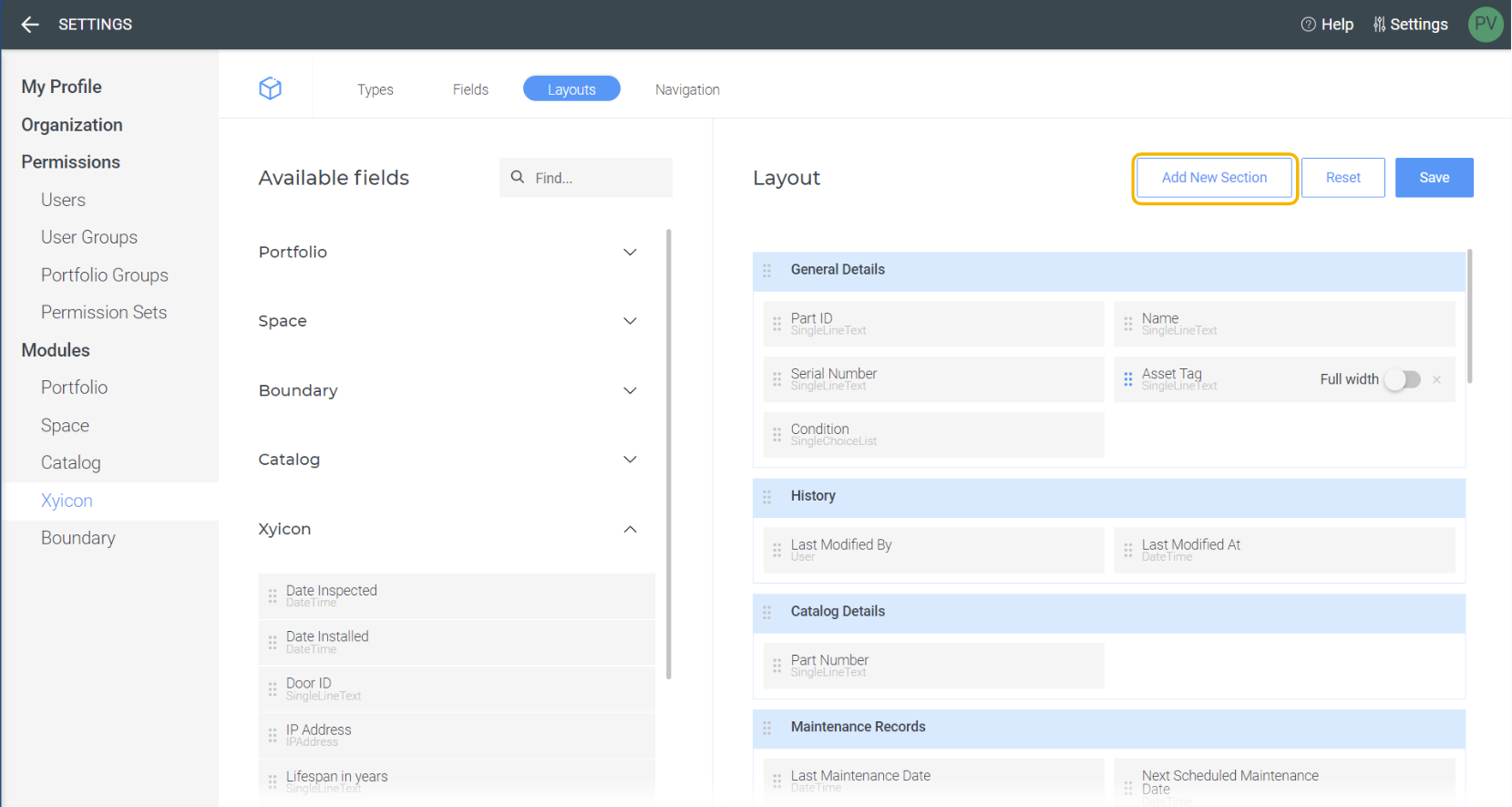
4. Give a name to the created section and [assign fields](/v1/docs/creating-a-new-section#adding-fields-to-the-section).
5. Once you have arranged the fields into the new section, save the layout to ensure the changes are applied.
**NOTE:** Once you create new fields, they will automatically be added to the top of the first section in layouts
## Adding Fields to the Section
1. On the header**,** click **Settings** ( ).
2. Navigate to the desired module from the **Modules** and go to the **Layouts** tab.
3. Use the drag icon ( ) to drag the fields from the **Available Fields** and drop the fields to the relevant layout section.
You can use the dropdown icon next to the module name to expand the available fields in each module. Also, you can use **Find** ( ) to search for the available fields.
**Display On Links** is enabled fields will also be displayed under the respective modules in the **Available Fields.**
4. Once you have added the fields to the section, save the layout to ensure the changes are applied.[Video](https://cdn.document360.io/d689d9b5-af1b-4ba8-a27d-d8cad72c9618/Images/Documentation/assigning%20fields%20to%20layouts%201.mp4)
**NOTE:** The fields and sections you see on the **Details Tab** of an object depend on the fields assigned to that object’s type. For example, if no fields from the 'Location Details' section are assigned to the object type, then the entire 'Location Details' section will be hidden on the **Details Tab** for that object.