---
title: "Jan 2021"
slug: "jan-2021"
updated: 2025-04-17T08:23:17Z
published: 2025-04-17T08:23:17Z
canonical: "support.xyicon.com/jan-2021"
---
> ## Documentation Index
> Fetch the complete documentation index at: https://support.xyicon.com/llms.txt
> Use this file to discover all available pages before exploring further.
# Jan 2021
Take a look at the new features we've released this month.
## January 25, 2021
#### Snap-to-Angle for Boundaries
**Snap to Angle** is a tool you can use to draw boundaries by snap-aligning each line segment at 45-degree increments. The tool is enabled by default and comes in handy when you need to draw boundaries with consistent angles.
To enable or disable the mode, select **Settings** ( ) on the **Navigation Bar** at the **Space Editor**'s lower right corner and click **Snap to Angle** ( ). You can also temporarily turn off the tool by simply holding down the ALT key while drawing your boundary.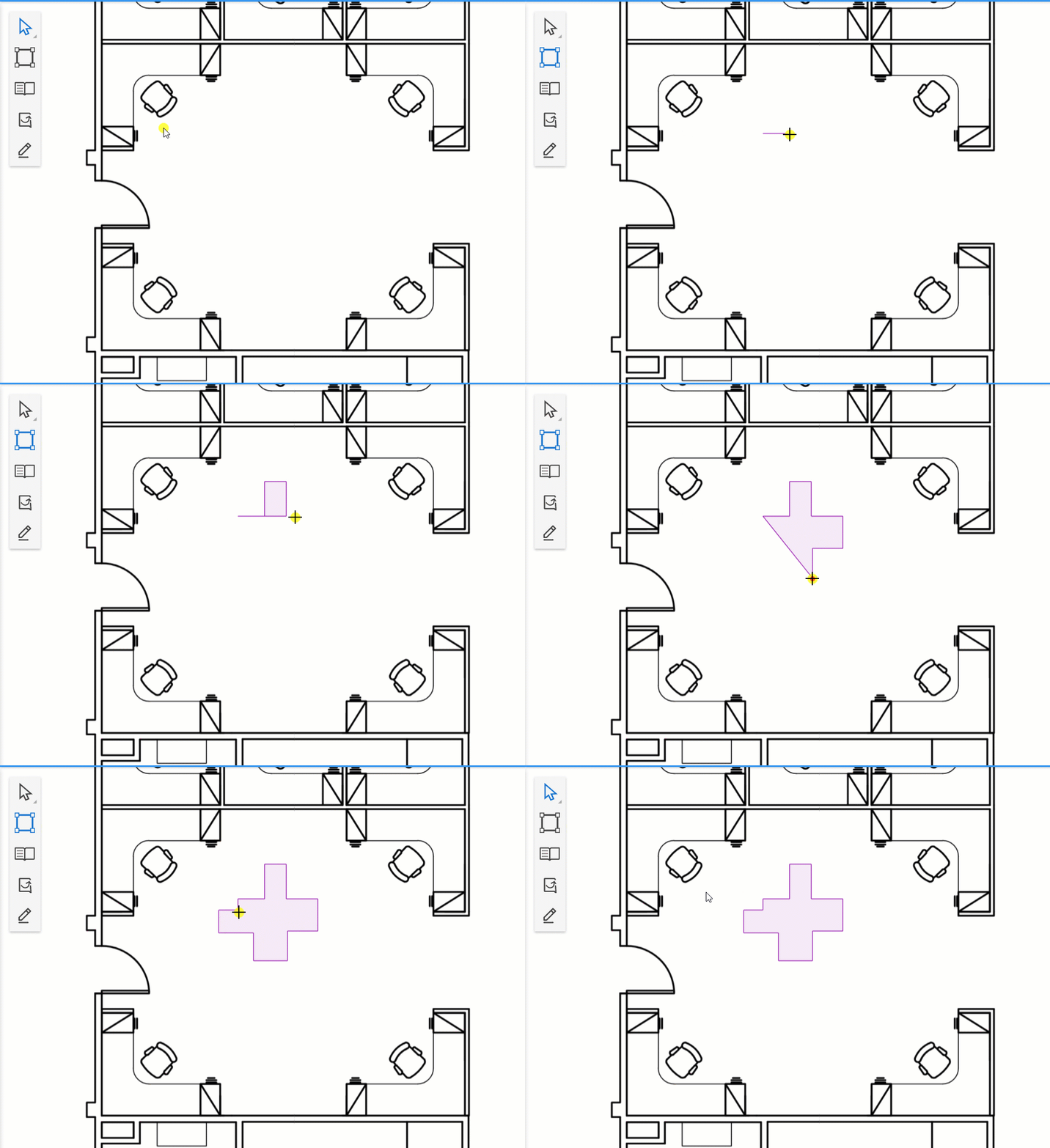
#### Introducing the Text Box markup
[Add text to your space](https://spacerunner.document360.io/docs/using-markups-to-annotate-a-space#adding-text) using our new [Text Box](/v1/docs/markup-tool#text-box-tool) markup. Simply select the text box from the toolbar, draw it on the space and start typing.
[Change the font, size, style, and color](https://spacerunner.document360.io/docs/using-markups-to-annotate-a-space#adding-text) of your text as well as [the alignment](/v1/docs/using-markups-to-annotate-a-space#change-text-alignment) using the available options on the **Action Bar**.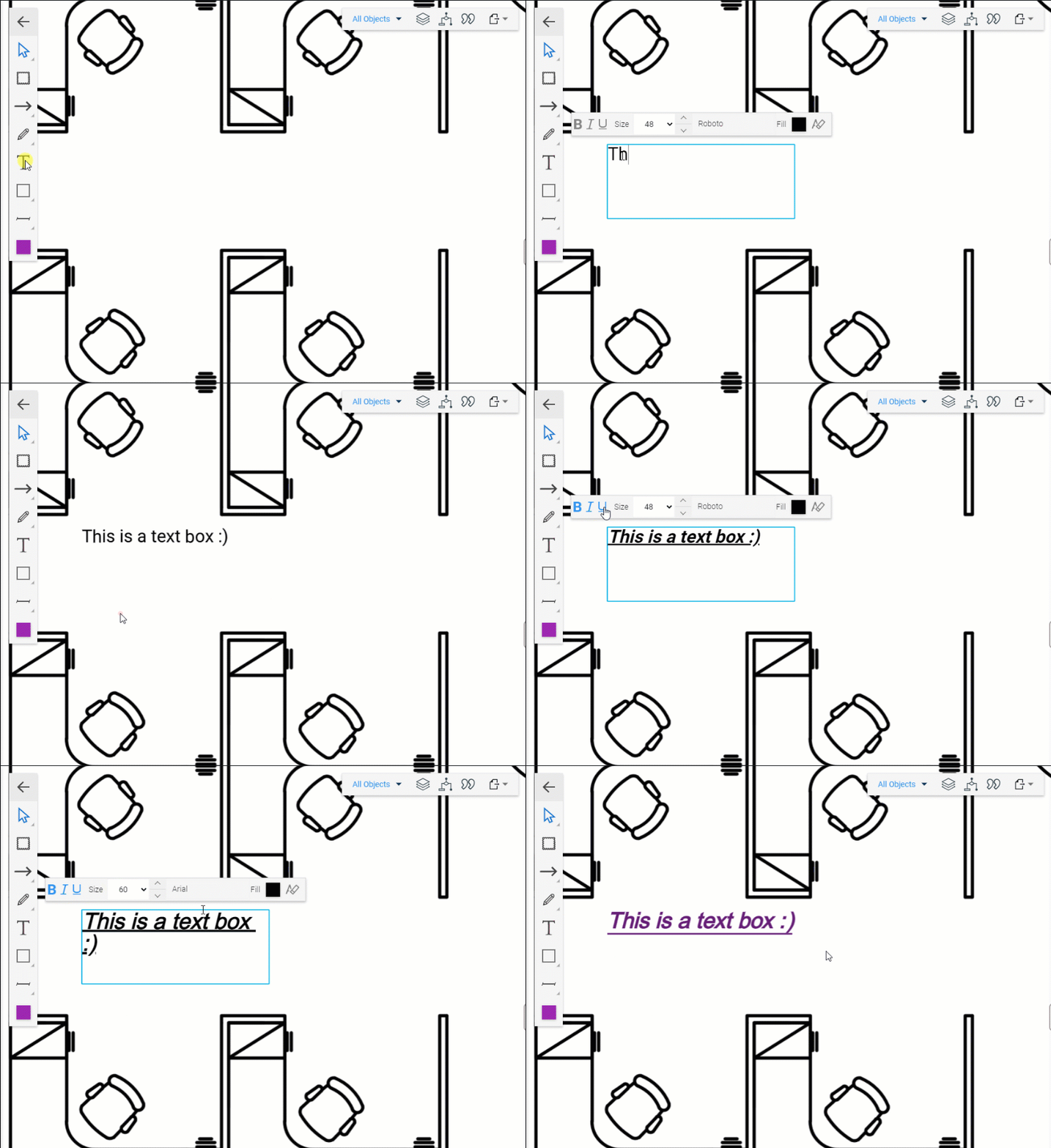
#### Add text to the Cloud and Shape Markups
Add text to the [Cloud](/v1/docs/markup-tool#cloud-tool) and [Shape](/v1/docs/markup-tool#shapes-tool) markups to leave notes or feedback to your teammates.
Use the available formatting options to change your text's [font, size, style, and color](/v1/docs/using-markups-to-annotate-a-space#add-text-to-other-markups). You can also [change the alignment and placement](/v1/docs/using-markups-to-annotate-a-space#change-text-alignment) of your text inside the markup.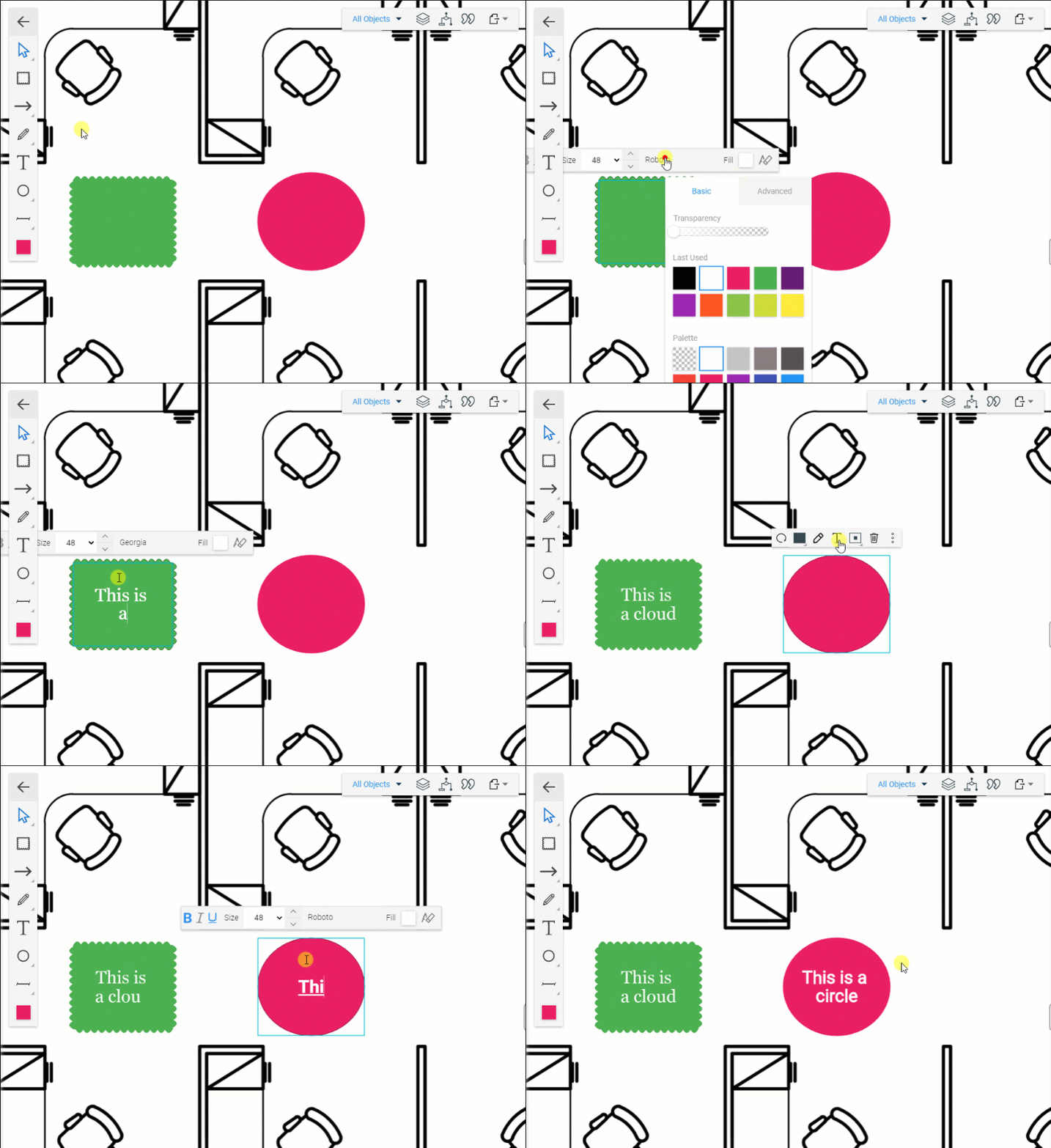
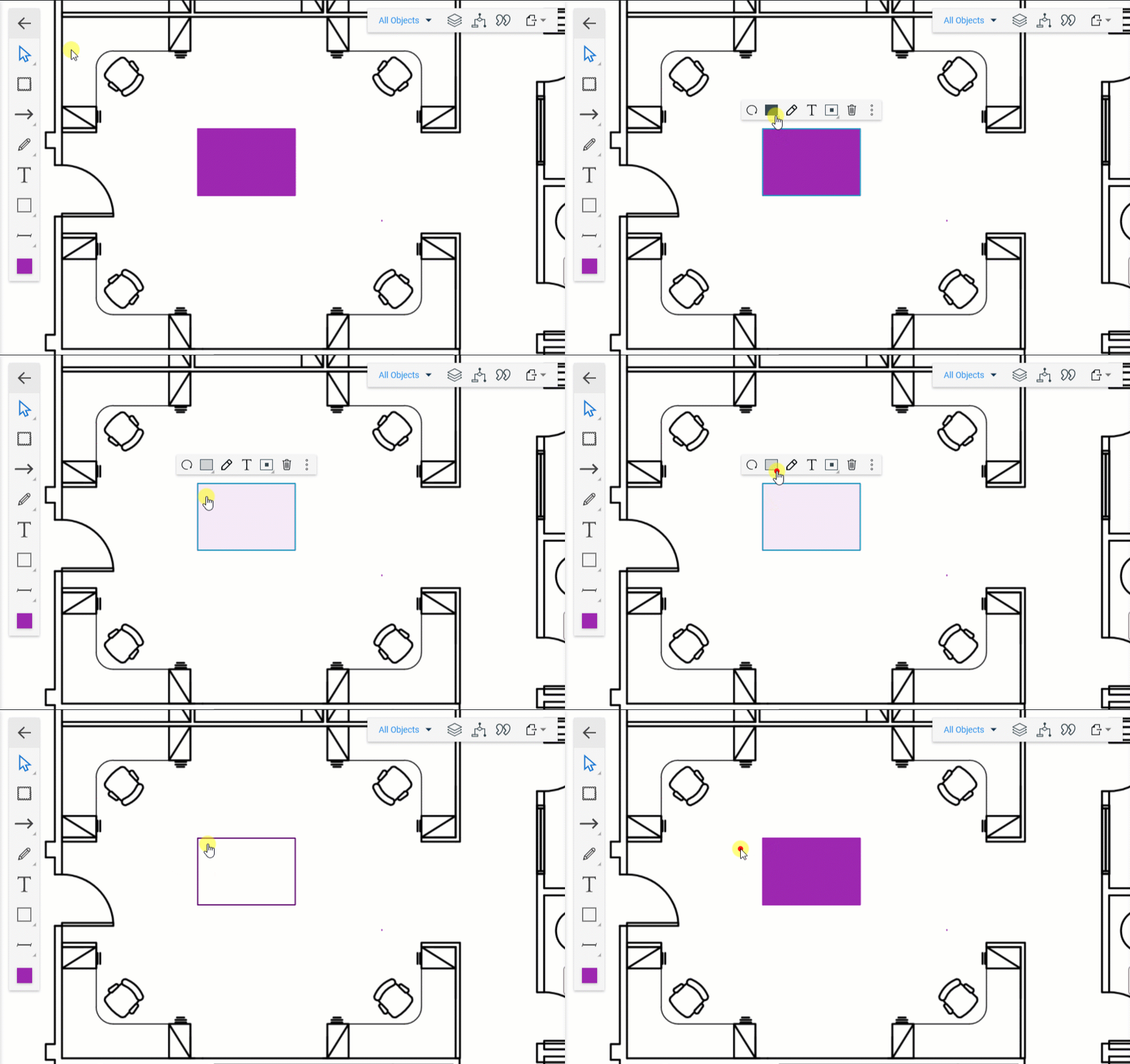
#### Change a markup’s background opacity
[Control the background opacity](/v1/docs/using-markups-to-annotate-a-space#change-background-transparency) of your markup shapes from the **Action Bar** of the markup. Click the **Background Opacity** ( ) button and select one of the three preset levels:
- **Solid** ( )
- **Semi-transparent** ( )
- **Outline** ( )
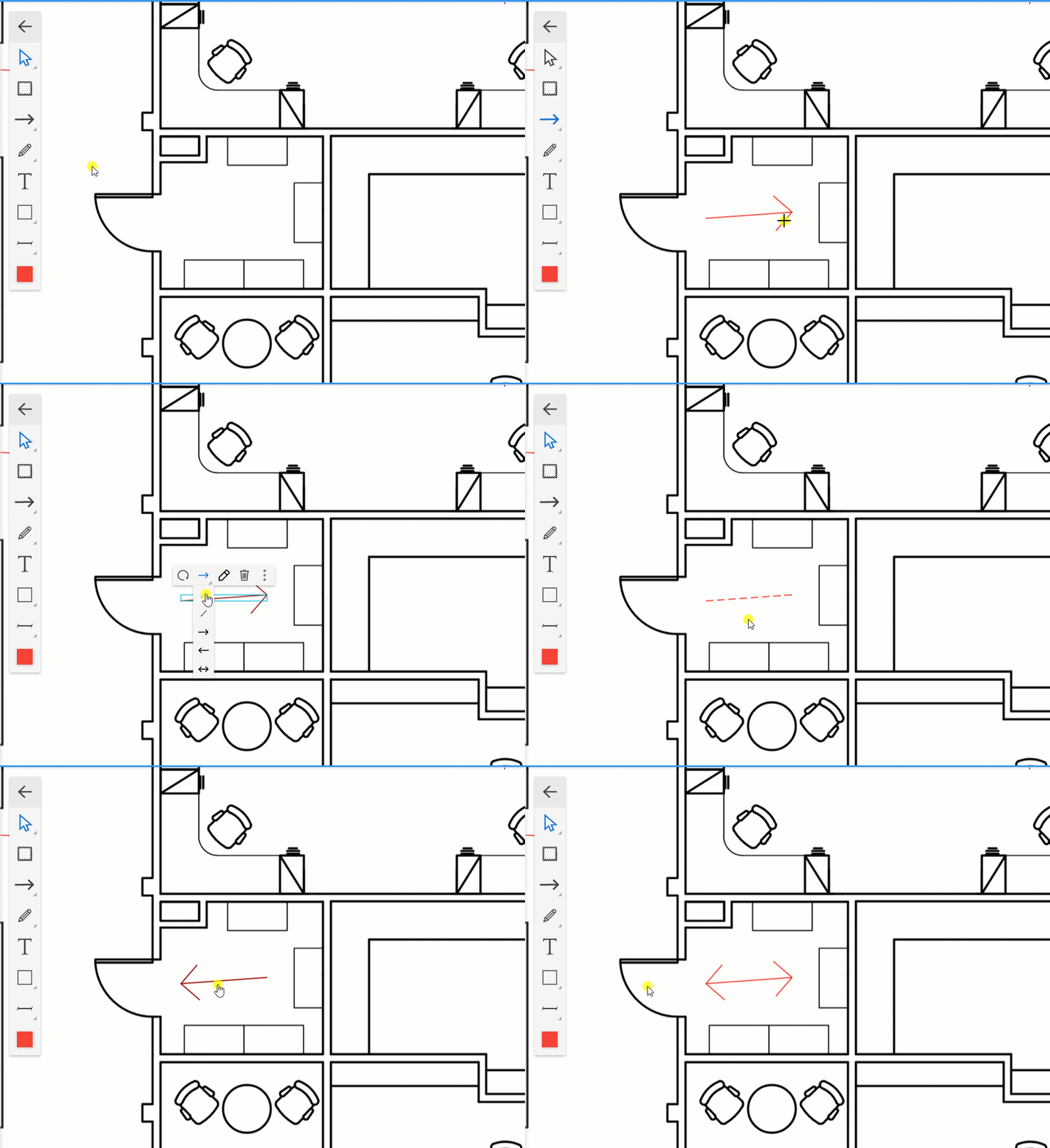
#### Arrow and Line Markup – Change line style
The [Arrow and Line](/v1/docs/markup-tool#arrow-and-line-tool) markups are great tools to point out an exact spot or highlight an item on your space. Now you can change the line style of an existing arrow or line, right from the **Action Bar**.