---
title: "Markup Tool"
slug: "markup-tool"
description: "Annotate spaces in Xyicon with the Markup Tool. Add clouds, callouts, arrows, shapes, and measurements. Customize with colors and text for clear visualization!"
updated: 2025-03-20T20:09:18Z
published: 2025-03-20T20:09:18Z
canonical: "support.xyicon.com/markup-tool"
---
> ## Documentation Index
> Fetch the complete documentation index at: https://support.xyicon.com/llms.txt
> Use this file to discover all available pages before exploring further.
# Markup Tool
Markups are used to annotate your space in the [**Space Editor**](https://spacerunner.document360.io/v1/docs/about-the-space-editor). Xyicon comes with a range of markup tools that you can use to add comments in the form of text, drawings, or highlights to communicate and collaborate with your team members working in the same space. Once you add a markup, you can view the details from the **Details Panel** of each markup. Listed below are the different types of markups available within Xyicon. Read the [Using Markups to Annotate a Space](/v1/docs/using-markups-to-annotate-a-space) article, to learn how to add, edit, and delete a markup.
## Cloud Tool
- As the name suggests, the Cloud tool is a markup with a cloud-like appearance. It is generally used to draw special attention to an area in your space. The cloud markup supports inline text and three levels of transparency as shown below.
| 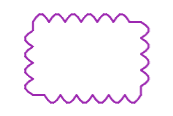Example 1 **No Fill** cloud markup. **No Fill** is the default style for all new cloud markups. | 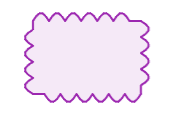Example 2 **Semi Fill** cloud markup | 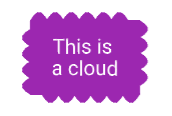Example 3 **Fill** cloud markup with text |
| --- | --- | --- |
## Callout Tool
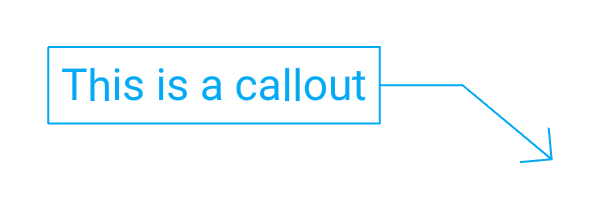
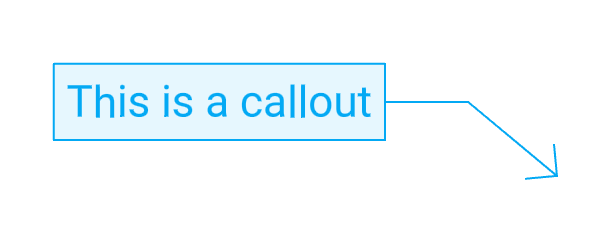
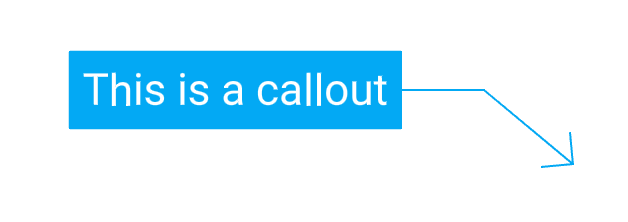
- The Callout tool is a markup that combines an arrow, a line segment, and a text box. The spot you click first is where the arrow would point. The callout markup supports inline text and three levels of transparency as shown below.
Example 1 No Fill callout markup with text. The outline is the default style for all new callouts.
Example 2 Semi Fillcallout markup with text
Example 3 Fillcallout markup with text
## Arrow and Line Tool
- The Arrow and Linetool is used to organize and connect information on your space. The tool includes four types of line styles that can be drawn at any angle.
TOOL
DESCRIPTION
Line Arrow
The line arrow tool creates a straight line segment with a pre-configured arrowhead on one end of the segment.
Line Arrow: Double
This tool creates a straight line segment with a pre-configured arrowhead on both ends of the segment.
Line
Creates a solid straight line segment.
Dashed Line
Creates a line segment with short strokes and breaks (i.e., dashed line).
## Pencil Tool
- The Pencil tool lets you draw your own shape from scratch. The tool has two options.
TOOL
DESCRIPTION
Pencil
Used to draw freeform shapes.
Highlighter
Used to highlight an area or text with a lighter shade of the selected color.
## Text Box Tool
- The Text Box tool is a markup that allows you to add text to your space. You can use it to add titles or leave messages for your team.
## Shapes Tool
- The Shapes tool has four basic shapes.
TOOL
DESCRIPTION
Rectangle
Creates a rectangle or square shape.
Ellipse
Creates an ellipse or a circle.
Triangle
Creates a triangle.
Cross
Creates a shape with intersecting lines.
Rectangle, ellipse, and triangle support inline text and three levels of transparency.
## 360 Photo Tool
[PDF document](https://cdn.document360.io/d689d9b5-af1b-4ba8-a27d-d8cad72c9618/Images/Documentation/360%20Markup.svg) - The **360 Photo Tool** allows you to upload a 360-degree photo from your local storage. You can use it to position the photo in the exact location within the **Space Editor**. Once the photo is uploaded, select the photo previewer to view the image.
## Measuring Tool
- The Measuring tool lets you quickly take measurements of a section of your space.
TOOL
DESCRIPTION
Linear Distance
Used to measure a linear distance from point A to B.
Rectangular Area
Used to measure the area of rectangular shapes.
Nonlinear Distance
Used to measure a nonlinear distance.
Freeform Area
Used to measure a freeform area.
## Markup Color Palette
The Markup Color Palette allows you to change the color of your markup. You can choose from a basic set of colors or use the advanced options.
Basic - The Markup Color Palette's Basic tab lets you select the color of your markup from a predefined set of colors. You can also use the Color Picker tool ( ) to select a color from your current window.
Advanced - The palette's Advanced tab lets you select the specific color you want by either entering the Hex color code or selecting it from the available color range. You can use the Color Picker tool here as well.
.png)
 Example 1
  Example 2
  Example 3