---
title: "Sharing a Report"
slug: "sharing-a-report"
description: "Share a report with another user or group of users by giving relevant permission to access the Report (Edit Access or View Access)"
updated: 2023-10-20T11:46:20Z
published: 2023-10-20T11:46:20Z
canonical: "support.xyicon.com/sharing-a-report"
---
> ## Documentation Index
> Fetch the complete documentation index at: https://support.xyicon.com/llms.txt
> Use this file to discover all available pages before exploring further.
# Sharing a Report
Xyicon Administrators
Use this article to learn how to share reports in Xyicon**s** with individual users as well as user groups.
## Before you begin
Make sure you have created user groups and have assigned **Xyicon User** to them.
---
## Steps
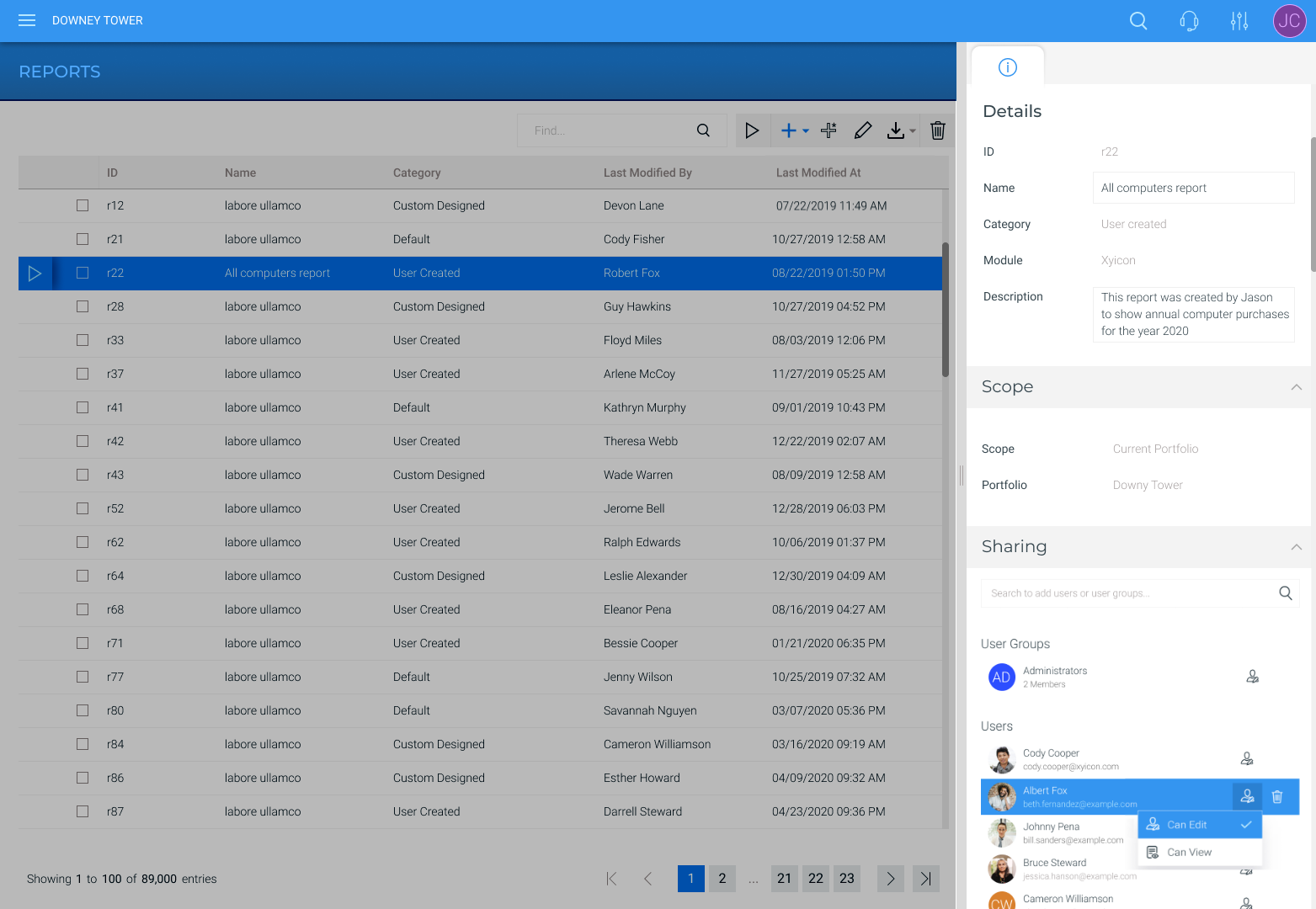
1. Go to **Main Menu ( ) > REPORTS** and select the report you want to share. The details of the report will be displayed on the **Side Panel > Details** tab ( ).
2. Under **Sharing**, click the search box and start typing the person's name or user group with whom you want to share your report.
3. Next, hover over the user or group in the dropdown list and click **Add**. Repeat as required.
4. Assign a permission level to each user and group in the list by clicking one of the following **Permission Level** icons.
- **Can Edit** ( ) - Applicable to Xyicon Administrators. An Administrator can [run, preview, and export](/v1/docs/run-a-report) the report and make modifications to the shared report. You can also assign this permission to other **Xyicon Administrator****s** within the same organization.
- **Can View** ( ) - The user or the selected group's members can only [run, preview, and export](/v1/docs/run-a-report) the shared report.