---
title: "Updating and Deleting Boundaries"
slug: "update-delete-boundary"
description: "Learn how to update and delete boundaries in Xyicon's Space Editor. This guide covers selecting boundaries, updating single or multiple boundary details, and deleting boundaries efficiently."
updated: 2025-01-30T05:52:04Z
published: 2025-01-30T05:52:04Z
canonical: "support.xyicon.com/update-delete-boundary"
---
> ## Documentation Index
> Fetch the complete documentation index at: https://support.xyicon.com/llms.txt
> Use this file to discover all available pages before exploring further.
# Updating and Deleting Boundaries
Xyicon Users
Use this article to learn how to update a boundary's details and delete a boundary inside [**Space Editor**](/v1/docs/about-the-space-editor).
## Before you begin
- Make sure module settings such as Boundary Fields and Boundary Layouts are defined for the Boundary module.
- Verify your **Xyicon User** has the necessary permissions to update and delete boundaries.
Module Settings and User Permissions are managed by your organization's **Xyicon Administrator**.
---
## Updating Boundary Details
### Select a Boundary
1. [Open your space in the **Space Editor**](/v1/docs/opening-your-space-in-the-space-editor)**.**
2. Locate the boundary on the space background by using the **Pan Tool** ( ) from the **Space Editor Toolbar**. Alternatively, click the **Side Panel > Boundaries** tab ( ), and click a row to zoom in on the boundary in the background.
3. To select the boundary, move the cursor towards the boundary's edge until the cursor turns into a hand pointer and the boundary changes color.
4. Click to select.
5. **To select multiple boundaries**, press and hold the **C****trl/Cmd** key and repeat steps 1, 2, and 3.
[Video](https://cdn.document360.io/d689d9b5-af1b-4ba8-a27d-d8cad72c9618/Images/Documentation/Select%20a%20Boundary.mp4)
### Update a Single Boundary
1. [Select the boundary](https://support.xyicon.com/preview/v1/en/a9d1cfd2-80c6-4627-aeba-ebd7643cb487/19#select-a-boundary) you want to update.
2. Click the **Side Panel > Details** tab to see the available fields for the selected boundary. Use the **Splitter** to resize the **Side Panel** to your liking.
3. Add, delete, or edit the values in the respective fields.
4. Select the checkmark ( ) next to the field to save the changes. Alternatively, you can also press the **Tab** key or **Enter** key to do the same.
### Update Multiple Boundaries
1. [Select the boundaries](https://support.xyicon.com/preview/v1/en/a9d1cfd2-80c6-4627-aeba-ebd7643cb487/19#select-a-boundary) you want to update.
2. Next, click the field you want to edit on the **Side Panel > Details** tab ( ). The field will pop out in a new dialog box to show the following additional fields.
- **Value(s) to Update -** Specify the values that need updating.
- **New value -** Enter the value that will replace the existing value.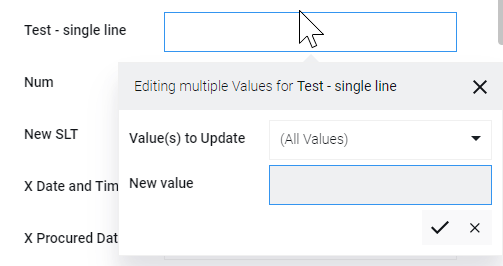
3. Select the values you want to change in the **Value(s) to Update** field using the options below:
- **(All Values)** - Replace all existing and blank values for the selected records with the new value.
- **(Blank Values)** - Update records that only have blank values.
- **** - Update records with a specific value.
4. In the **New Value** field, enter or select the value that will replace the value in step 3. If you want to remove the old values, leave this field empty.
5. Select the checkmark ( ) or hit the **Enter** key to proceed with the changes. If you want to discard the changes, select the cross ( x ) or hit the **ESC** key.
6. A **Confirm Update** alert box is displayed to confirm the number of items that you are updating. Select **Yes** or hit the **Enter** key to confirm changes. Select **No** or hit the **ESC** key to revert the changes.
7. Repeat steps 2 to 7 as required.[Video](https://cdn.document360.io/d689d9b5-af1b-4ba8-a27d-d8cad72c9618/Images/Documentation/Update%20Multiple%20Boundaries.mp4)
---
## Deleting a Boundary
1. [Select the boundaries](https://support.xyicon.com/preview/v1/en/a9d1cfd2-80c6-4627-aeba-ebd7643cb487/19#select-a-boundary) you want to delete.
2. Click the **Delete** button ( ) on the **Action Bar** or press the **Delete** key on your keyboard. You will see a prompt asking you to confirm the action.
3. Click **Yes** to delete the selected boundary.