Switch to V5 to access this functionality.
By changing link styles, you can customize the appearance of connections between objects. You can adjust colors, line styles, and arrow directions to visually represent different relationship types within your Space view.
Before You Begin
You should have existing links to see styling options. Link properties apply only to connections between xyicon to xyicon, xyicon to xyicon port, or xyicon port to xyicon port.
Steps
In your workspace, locate an object that has existing links and click the link icon (
 ). This displays all links associated with that object.
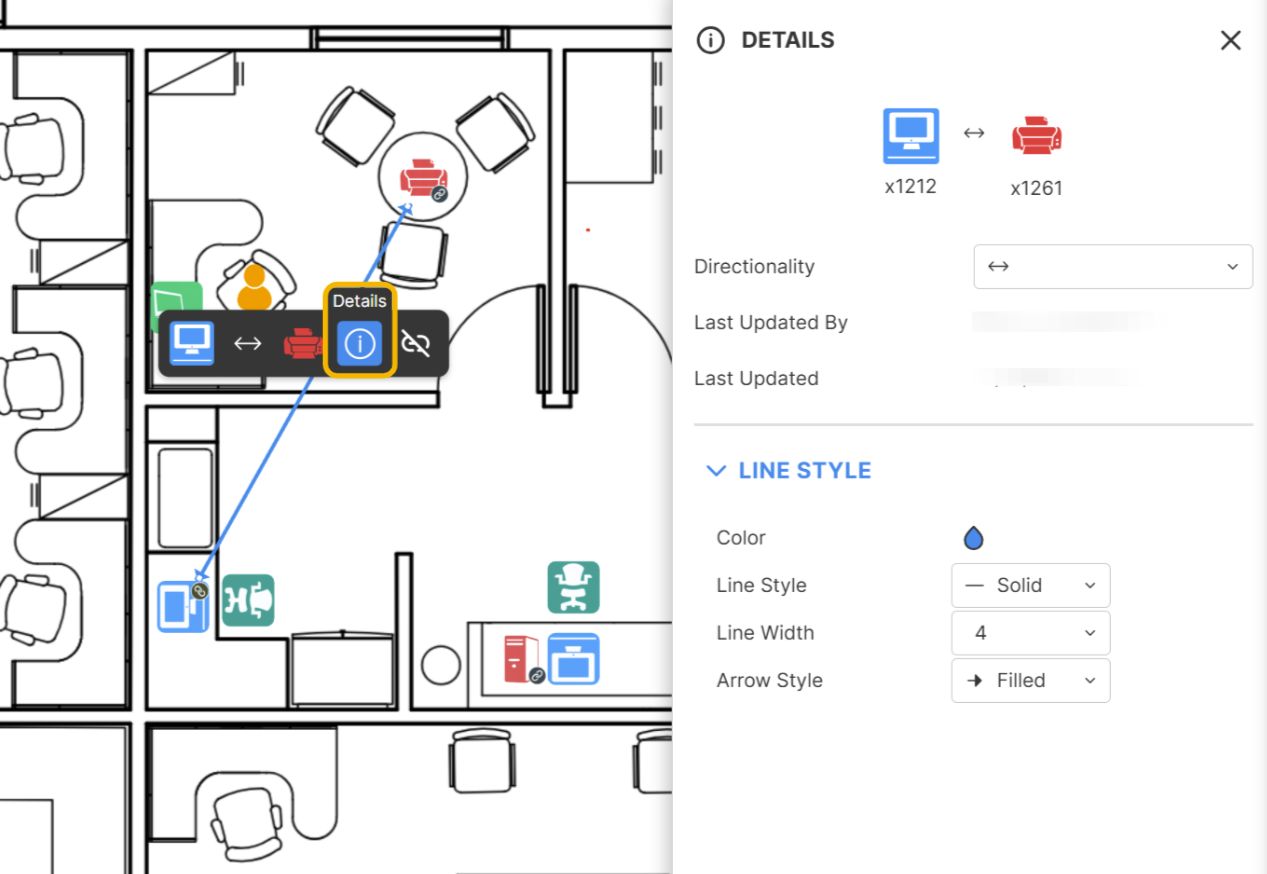
Click on the link connecting the two objects. Then the Action Bar will pop up, and the selected link will be highlighted visually.
Click on the (
 ) icon on the Action Bar of the link to open the Details Panel.
The Details Panel displays the current properties of the link, including:
Directionality - You can select the direction of the link to be either unidirectional, bidirectional, or no direction at all.
Line Style - You can adjust the Color, Line Style, Line Width, and Arrow Style for the selected link.
TIP: Use colors and arrow styles to make your workspace easier to read - especially if you manage multiple relationship types.
For example:
Blue arrows for network connections
Green dashed lines for ownership
Red lines for inactive or temporary link
Once you’ve made changes, the updates are instantly applied to your workspace. No need to refresh, your link visuals update in real time.
IMPORTANT: After making changes, the changes will reflect for all users sharing the view.