Switch to V5 to access this functionality.
Spotlight is a visual formatting feature in Xyicon that allows you to highlight and color-code data directly inside your Views. You can apply formatting to both Space Views and List Views, helping you quickly identify important information at a glance.
In Space Views, you can create Xyicon Spotlights and Boundary Spotlights separately.
Creating a Spotlight Rule
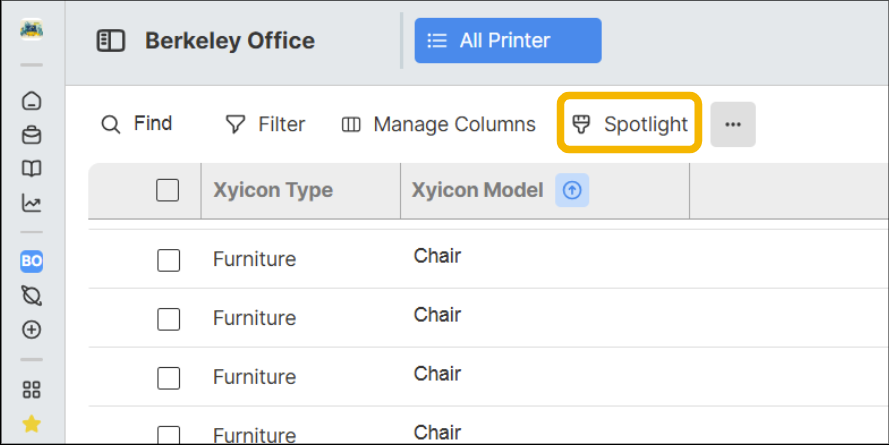
Open a view and click the Spotlight(
 ) button on the toolbar.
List View
 Space View
Select the type of rule you want to create:
Condition-Based Rule: Create rules based on the available conditions.
Field-Based Rule (Single-Select Only): Automatically apply colors from the existing colors assigned to a single-select field.
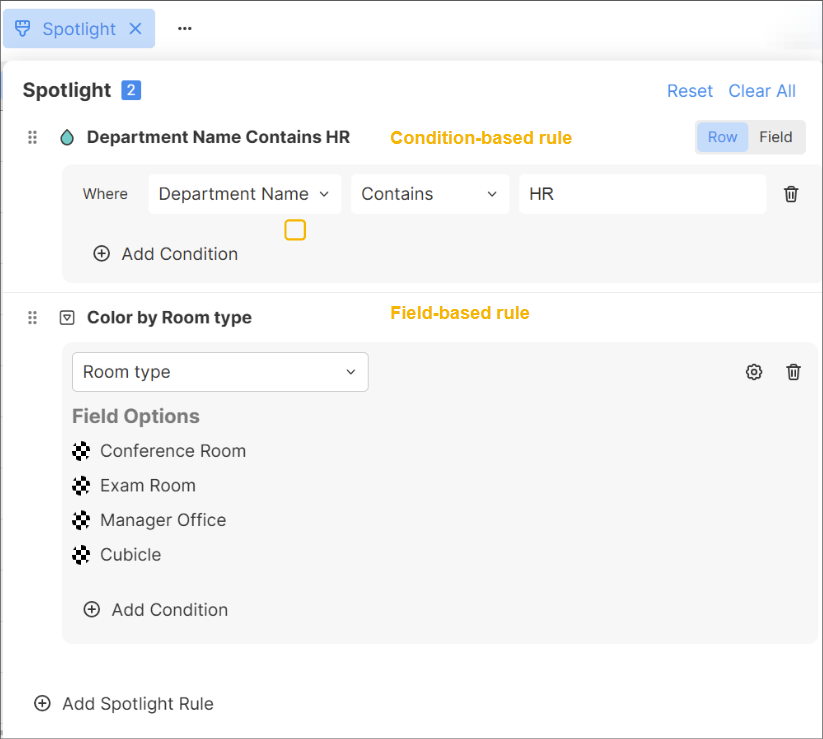
Select a display format:
Highlight or Indicator
Row or Field (for Condition-Based rules only)
Select the field you want to use.
Choose the condition from the available list.
Save the spotlight rules to the view if you want to keep the changes. Your spotlight will appear in the list view, as shown below.
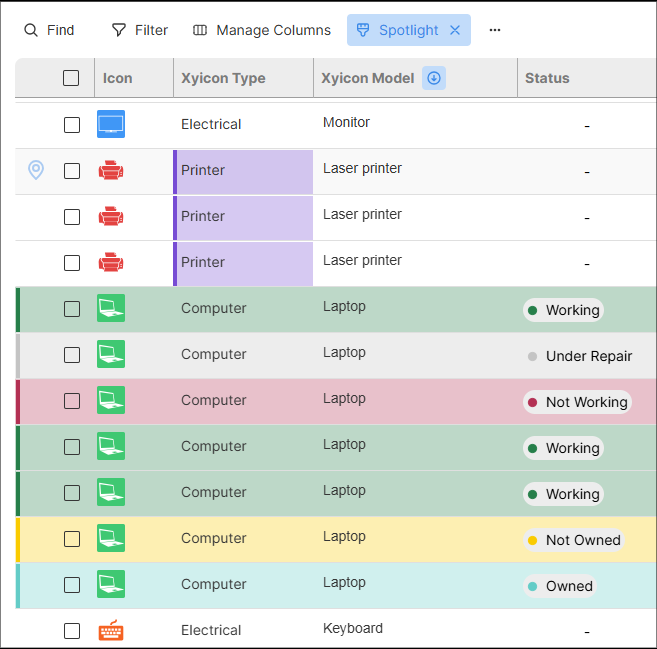
NOTE: Rules are applied top-down. The topmost rule runs first. To change priority, drag and drop a rule to a new position.
Managing Rules
Add Rule: Click Add Spotlight Rule. New rules are added at the end of the list.
Reorder: Drag rules up or down.
Edit: Expand a rule to change fields, conditions, values, colors, or display format.
Collapse: Click a rule title to collapse or expand.
Delete: Use the delete icon to remove a rule or condition.
Clear All: Remove every rule at once.