Use this article to learn how to locate xyicons, boundaries, and markups in your workspace in the Space Editor using their field data, inherited data, or text.
TIP: Objects cannot be located if they are filtered out and hidden from view.
Before you begin
Make sure xyicons, boundaries, and markups are created within the relevant Space Editor view.
Verify your Xyicon User has the necessary permissions to access the Space Editor.
Permissions are managed by your organization's Xyicon Administrator.
Switch to V5 to access this functionality.
Option 1 - Locating Objects from the Xyicon or Boundary List in the Space Editor
Open the Space Editor for a specific space and go to the list mode view by clicking the list mode (
.png) ) icon in the Space View’s Toolbar.
) icon in the Space View’s Toolbar.
On the pop-up screen that appears, select either a xyicon or a boundary list depending on what you want to see.
.png)
Hover over the object you want to locate from the list and click the Open in Space View button.
.png)
It will direct you to the corresponding object within the Space Editor. The object also moves slightly to help users locate it easily.
Option 2 - Locating Objects Using the Find Functionality
Open the Space Editor for a specific space and click the Find (
.png) ) icon.
) icon.Search for a xyicon, boundary, or markup using field data, inherited data, or text.
Hover over the object you are looking for and click the Open in Space View button.
.png)
It will direct you to the corresponding object within the space. The object also moves slightly to help users locate it easily.
Option 3 - Locating Objects from the Details Panel
From the Details Panel of the object, click the Open in Space View button.
.png)
You will be taken to the object, and it will move slightly to help users locate it easily.
Option 4 - Locating Objects from the Action Bar
Open a xyicon or boundary list view from the Workspace Navigation Panel.
Select or search for the relevant item from the list.
Click the checkbox next to the item to open the Action Bar at the bottom of the view.
Use the Locate button to find the xyicon or boundary.

This will direct you to the corresponding object within the space, and the object will move slightly to make it easier to locate it.
NOTE: The Action Bar includes several additional features:
Details - Opens the Details Panel for the selected object.
Unplot - Available only for xyicons, this option allows you to unplot the xyicon directly from the list view.
Update Field - Enables you to update field values directly from the list view.
Delete - Allows you to delete the selected object.
Option 1 - Locating Objects from the Side Panel in the Space Editor
For Xyicons
Open the Space Editor for a specific space and go to the side panel, Xyicons Tab.
Select the desired xyicon from the list and click on it. It will direct you to the corresponding xyicon within the Space Editor.
The xyicon also moves slightly to help users locate it easily.
For Boundaries
Open the Space Editor for a specific space and go to the side panel, Boundaries Tab.
Select the desired boundary from the list and click on it. It will direct you to the corresponding boundary within the Space Editor.
The boundary also moves slightly to help users locate it easily.
Option 2 - Locating objects from the Xyicon and Boundary Modules
For Xyicons
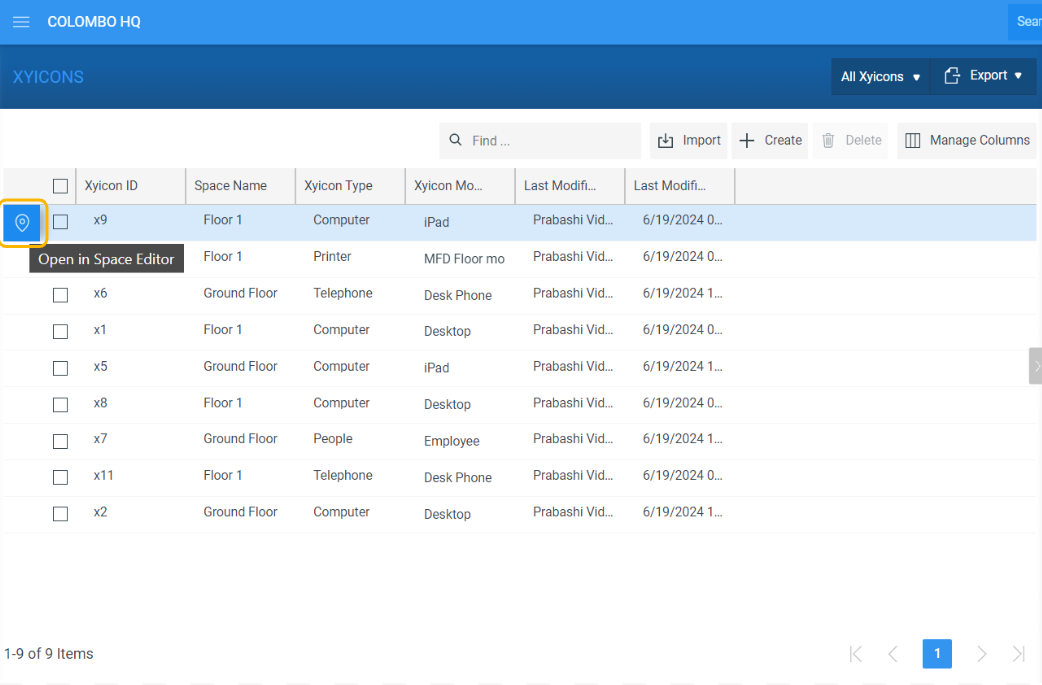
Go to the Xyicons module and select the desired xyicon from the list.
Click on the Open in Space Editor icon in front of the xyicon. It will direct you to the corresponding xyicon within the designated space in the Space Editor.
Upon clicking the icon, the xyicon moves slightly to help the user to locate it more easily.
For Boundaries
Go to the Boundaries module and select the desired boundary from the list.
Click on the Open in Space Editor icon in front of the boundary. It will direct you to the corresponding boundary within the designated space in the Space Editor.
Upon clicking the icon, the boundary moves slightly to help the user to locate it more easily.
Option 3 - Locating objects from the Side Panel Details Tab
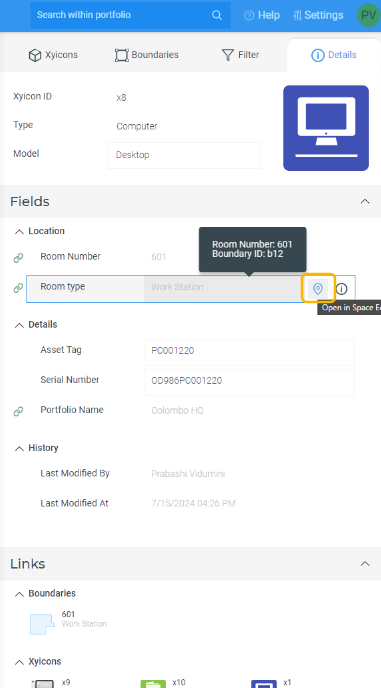
Objects can only be located from the Details Tab if the selected xyicon or boundary has a Display On Links (DOL) field.
For Xyicons
Open the Space Editor for a specific space and select the desired xyicon from the Space Editor view.
Once selected, find the DOL field under the Fields section from the side panel Details Tab.
Click on the Open in Space Editor icon next to the DOL field. This will guide you to the appropriate xyicon associated with the DOL field within the space editor.
Upon clicking the icon, the xyicon moves slightly to help the user to locate it more easily.
For Boundaries
Open the Space Editor for a specific space and select the desired boundary from the Space Editor view.
Once selected, find the DOL field under the Fields section in the side panel Details Tab.
Click on the Open in Space Editor icon next to the DOL field. This will guide you to the appropriate boundary associated with the DOL field within the Space Editor.
Upon clicking the icon, the boundary moves slightly to help the user to locate it more easily.