Use this article to learn how to rotate xyicons, boundaries, and markups in the Space Editor using the updated selection and rotation behavior in Xyicon V5.
Use this article to learn the different methods you can use to rotate one or more objects in the Space Editor.
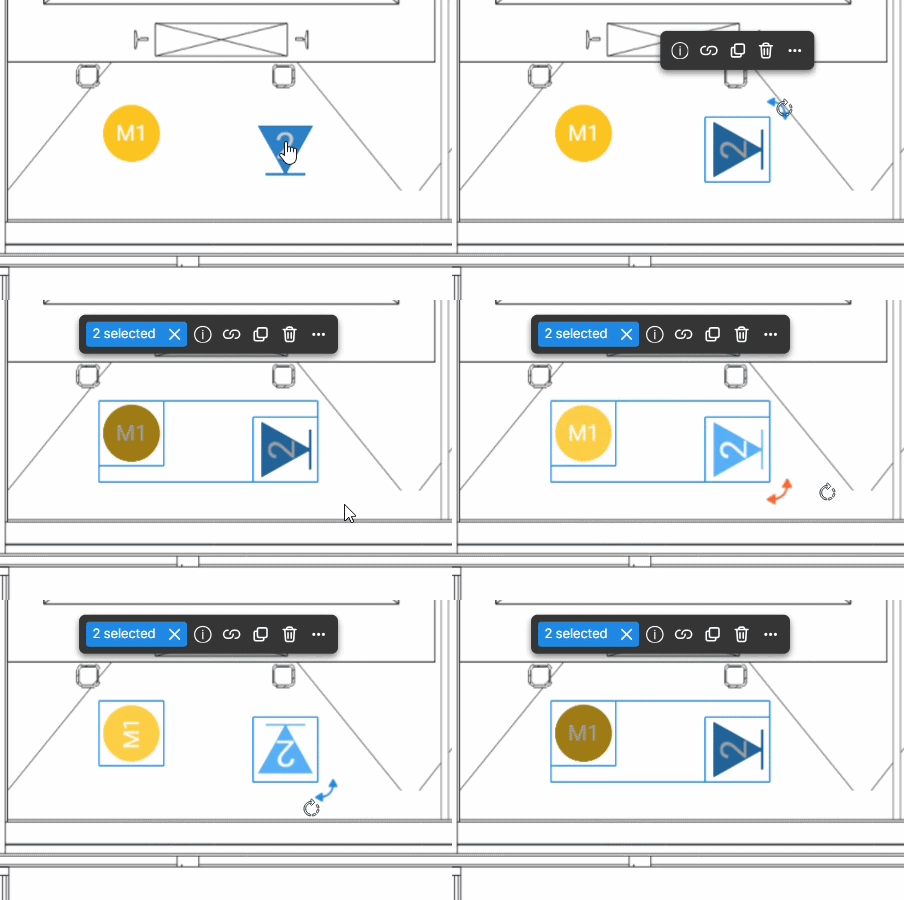
Rotate Objects Using the Rotation Handles
On the Space View, select one or more objects (xyicons, boundaries, markups).
Hover over a corner to display the rotation handle.
Grab the rotate handle and turn the objects until they are in the desired position.
Release the mouse when the object reaches the desired angle.
Note : For markups, once selected nodes will appear in the corners.
For linear markups (Arrow, Bi-directional Arrow, Line, Dashed Line) the rotation handle appears perpendicular to the line direction.
For markups with text boxes, text box can be rotated independently.
Method 2 - Rotate Objects by Changing the Object's Rotation Property
On the Space View, select one or more objects (xyicons, boundaries, markups).
On the Action Bar, click on the details icon to open the Details Panel.
Scroll down to the Properties section in the Details Panel.
Under Rotation, click the Z field and update the value as needed.
IMPORTANT: When the selected object(s) are position-locked, rotation cannot be performed either from rotation handles or by changing rotation properties in the details panel.